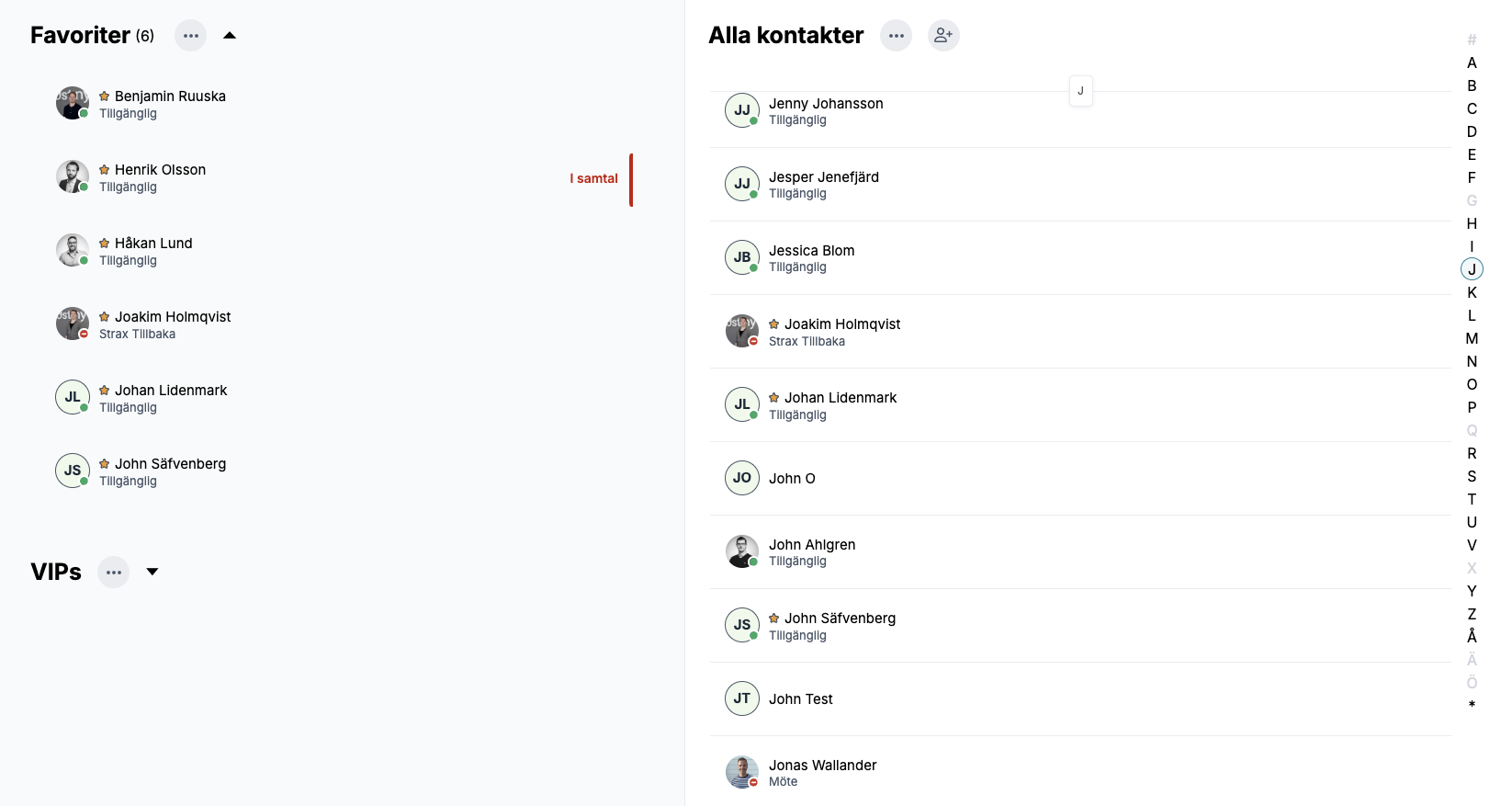
The Contacts page holds your colleagues, your own contacts and any contacts your administrator shares.
Types of contacts
-
Personal contacts are your own. You can add, edit and delete them.
-
Corporate contacts are managed by your administrator. You can use them but not edit or delete them.
Both types appear in the general contact list. You can also sort either type into the groups VIP, Favourites and Blocked.
How the page is laid out
The left side shows the groups, managed by you or your administrator: VIP, Favourites and Blocked. The right side shows the full company directory, which your administrator manages.
The fields shown for each contact are chosen by your administrator. They usually include last name, first name, email, company, line status, presence status and note.
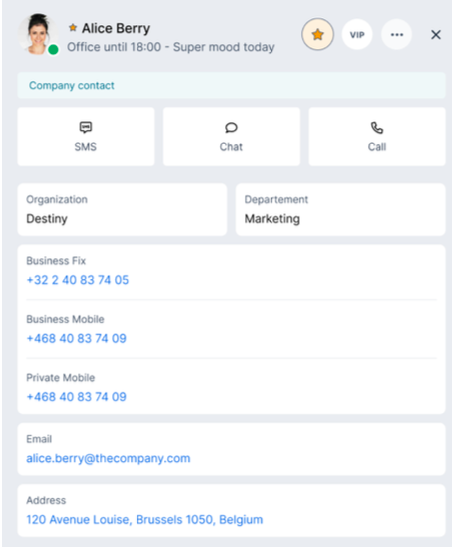
Select a contact to open the contact card with all details, including any extra fields defined in Core.
Use the contact card
On an open card you can:
-
add the contact to a group
-
click the star to make the contact a favourite
-
click VIP to add the contact to your VIP group
-
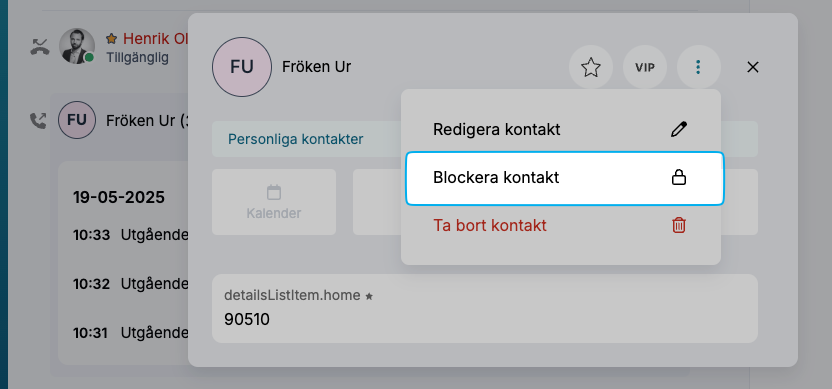
click the three dots to block the contact
-
copy the information and paste it elsewhere
-
call, SMS or chat by clicking the matching field next to a number
A contact cannot be a favourite or VIP and blocked at the same time.
Add a personal contact
You can add a personal contact in three places:
-
on the Contacts page, with the plus icon
-
in Recents, by editing a number and clicking the plus icon
-
during a call, with the plus icon next to the avatar
A personal contact can store first and last name, organisation, department, several phone numbers, an email address and an address. After you save it, the contact also shows up on your mobile app and softphone, and its name appears when you call or are called.
Block a number
-
Find the contact or the number in Recents.
-
Click the three dots.
-
Click Block contact.
Edit, manage and delete a contact
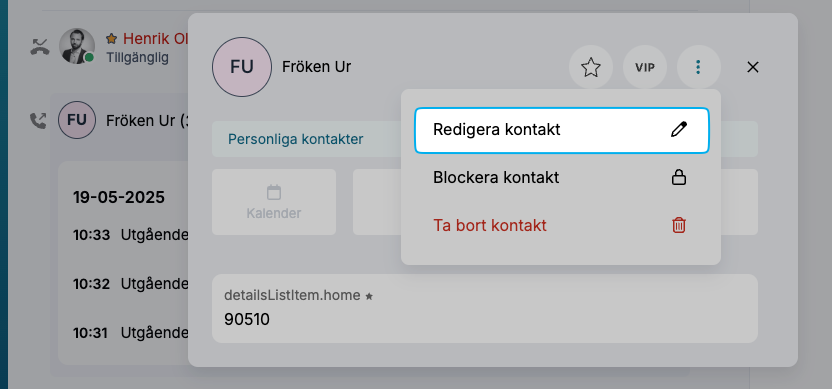
Click the three dots on the contact, then choose:
-
Edit contact, to change the details
-
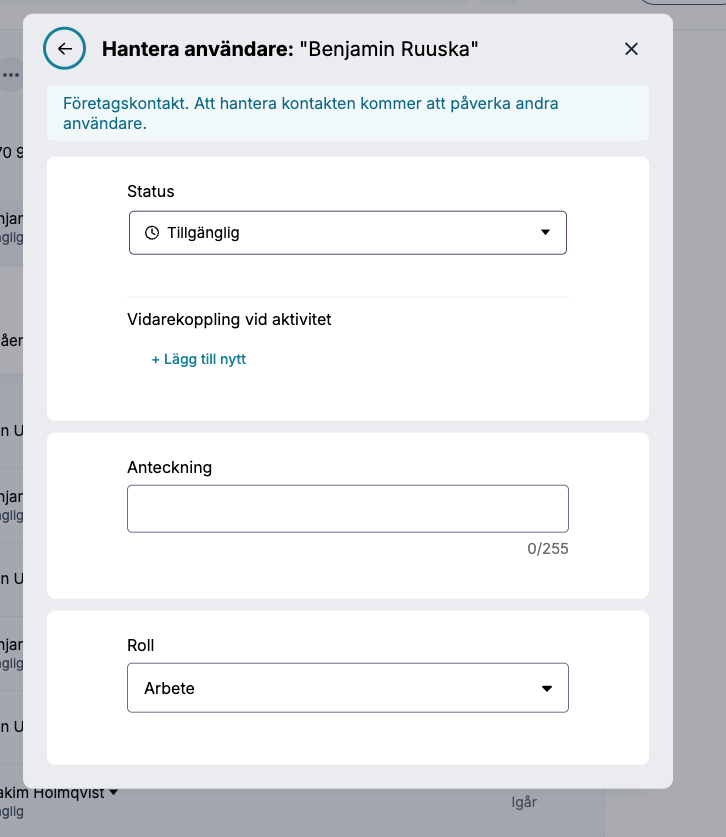
Manage contact, to change options through the drop-down menus (the options are set in Dstny Core)
-
Delete contact, then confirm when asked
These actions are only available if you have the right permissions.
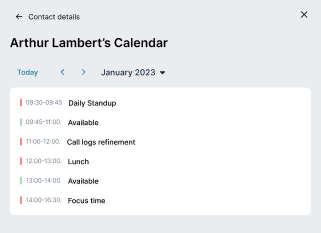
See a colleague's calendar
If you have permission, there are two ways:
-
Search for the colleague, hover over the result and click the calendar icon.
-
Open the contact card and click the calendar icon.