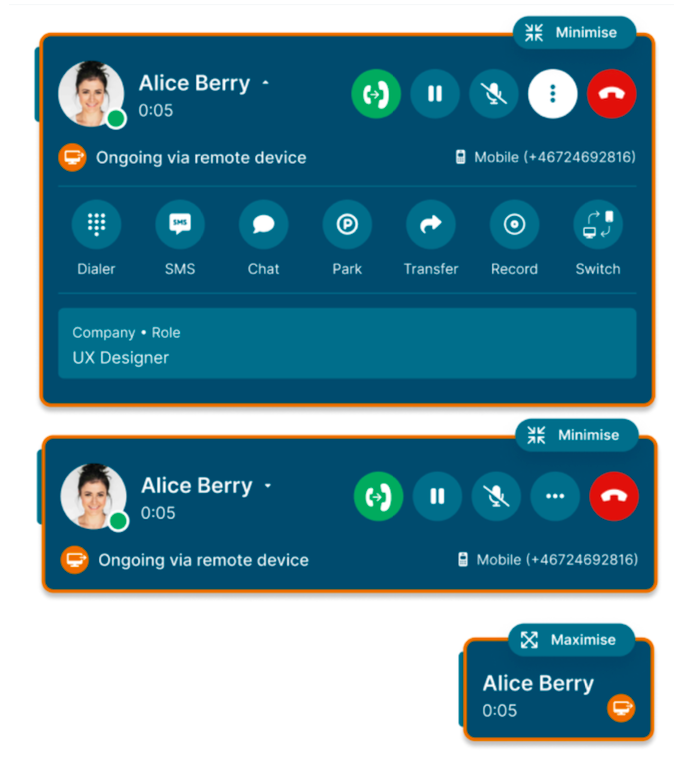
This guide explains how to place calls, answer them, and handle a call once it is connected: mute, hold, transfer, conference, park and move.
Make a call
There are three ways to start a call.
From the dialer
-
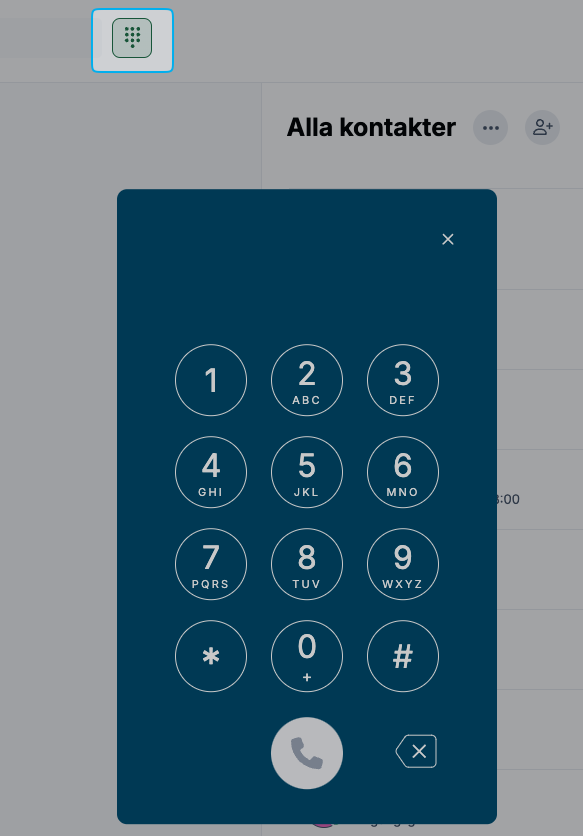
Open the dialer in the top bar.
-
Click the digits or type the number.
-
Start the call.
From a contact
Find the contact on the Contacts page and click the Call icon next to the person.
From search
-
Type part of a name, or a full number, in the search field.
-
If needed, pick the right result with the arrow keys or the mouse.
-
Press Enter.
Choose which device to call with
This is mainly useful if you work on a virtual desktop.
-
Open your profile and use the drop-down "Make/Answer calls with".
-
Select the device. An icon in the top bar shows that you chose another device.
-
When you place a call, it starts from the selected device.
From ConnectMe 1.18, the device choice is kept in the browser or client where you made it. It is no longer shared between your ConnectMe clients. You can also reset the choice, which clears all selections for that browser or client.
Answer a call
Click the green Answer icon. The same device setting applies, so you can receive calls on the device you selected.
If your administrator has set up metadata, the call widget shows it, for example queue information and the call history (diverted by, transferred by).
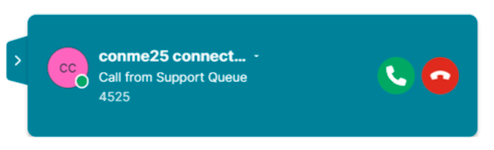
To reject a call, click the red phone icon. Depending on your setup, you or your administrator can send rejected calls to voicemail or to another number.
During a call
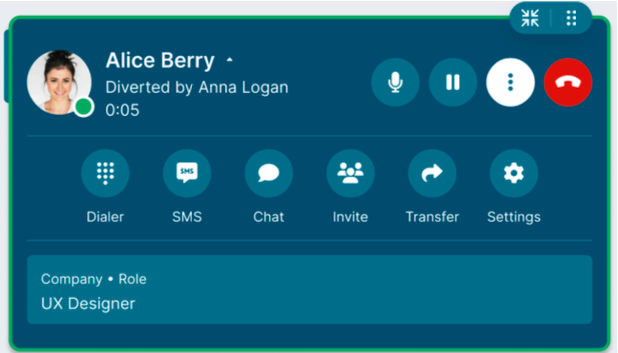
The call widget has these controls.
Mute
Click the microphone button to mute or unmute yourself.
Hold and resume
Click Hold. The other person hears music on hold, spoken hold information in your language, or another prompt, depending on the system setup. If you place a new call or answer a second incoming call, the first call goes on hold automatically. Click Resume to take a call back. If another call is active, it goes on hold.
More options
The three dots menu opens more features: transfer, dialer and others.
End a call
Click the red phone icon.
DTMF tones
Open the dialer during the call to send DTMF tones.
Send an SMS to the caller
Click SMS in the call widget to send a text to the caller's number.
Start a conference call
-
During a call, click Invite.
-
Search for the person to add and click the "user +" icon in the result.
You see the list of participants. The other parties see a normal call. You can start a conference only from a single call, not by merging several ongoing calls. You can add an external number: type it in the search field and click the conference call icon.
Park a call
Click Park call to park the call in a queue for a while. You only see this button if your user has the right to park calls. To pick the call up again, go to the queue tab and click the call.
Blind transfer
A blind transfer sends the call directly to another party without speaking to them first.
-
During the call, click the three dots in the call widget.
-
Select Transfer.
-
Search for the contact or dial the number.
-
Click Blind Transfer on the contact options.
You can also drag the call widget onto a person and release it. The transfer goes to the default number of that user.
Attended transfer
An attended transfer lets you speak to the other party before you hand over the call.
-
During the call, click the three dots in the call widget.
-
Select Transfer.
-
Search for the contact or dial the number.
-
Click Attendant Transfer on the contact options.
-
Talk to the person you are transferring to.
-
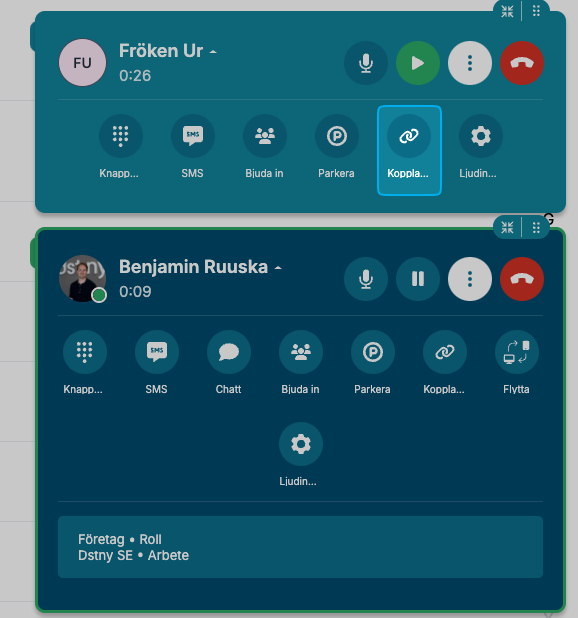
Click the Connect icon in the call widget to complete the transfer.


Move a call to another device
-
Click Move during the call.
-
Select the device.
-
The other device rings, and the call moves when you answer there.
The Move button only appears if you have another device added.
Adjust audio
You can change the speaker and microphone during a call.
Minimise or move the widget
Minimise the call widget, or drag it by the six dots icon, to see more of ConnectMe.
Add the caller to your contacts
Click the plus icon next to the avatar to save the caller as a personal contact.
Calls answered on another device
If you answer a call on a remote device, you can still manage it from ConnectMe. Remote calls have an orange border around the call widget.