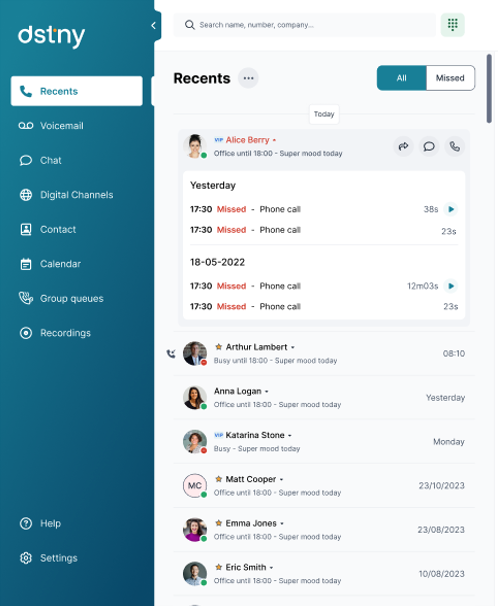
This guide covers the parts of ConnectMe you see on every screen: the top bar and the menu.
The top bar
The top bar is always visible. If you make the browser window smaller, the items rearrange so they stay reachable. From left to right it gives you:
-
Search
-
Dialer
-
Your status
-
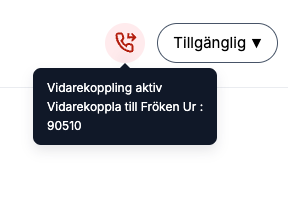
A call forwarding indicator
-
Your caller ID
-
Your profile (the avatar)

Search
Type in the search field to find people, companies and other items in ConnectMe. Results update as you type and highlight the part that matches. You can search by:
-
name
-
company name
-
department
-
phone number, internal extension or short number
Each result shows the contact's name, a button to call them, a live line status (a red phone means the person is on a call), their presence status and any note they shared. Select the small arrow on a result to expand more details.
If you type an external phone number, you can call it or send an SMS to it.
From version 1.21, fields in the directory such as department are searchable too. Select the search icon next to a field and ConnectMe fills the search with that value.
Dialer
The dialer has two uses. You can type or click a number to start a call, and during a call you can use it to send DTMF tones, for example when a menu says "For English, press 1".
Status
Shows your current status. See the Presence Status and Availability guide.
Call forwarding indicator
When call forwarding is on, an icon appears in the top bar. Hover over it to see the number your calls are forwarded to.
Caller ID
Select the caller ID to show when you call an external party. Your administrator decides which caller IDs are on the list.
Your profile
Select your avatar to open a small menu. There you can:
-
type a free-text note and share it with colleagues (depends on your licence)
-
update your role
-
open your full profile
-
sign out
The menu
The menu on the left changes with the licences you have. It also shows notifications: a red badge with a number appears when you have missed calls, new chats or new voicemails.