

ConnectMe runs in the browser and as a desktop application for Windows and Mac. The desktop app adds pop-ups, click-to-dial and headset control.
Install the desktop app
As a user
-
In ConnectMe, go to Settings > Desktop App.
-
Download the version for your operating system.
-
Open the downloaded file and install the app.
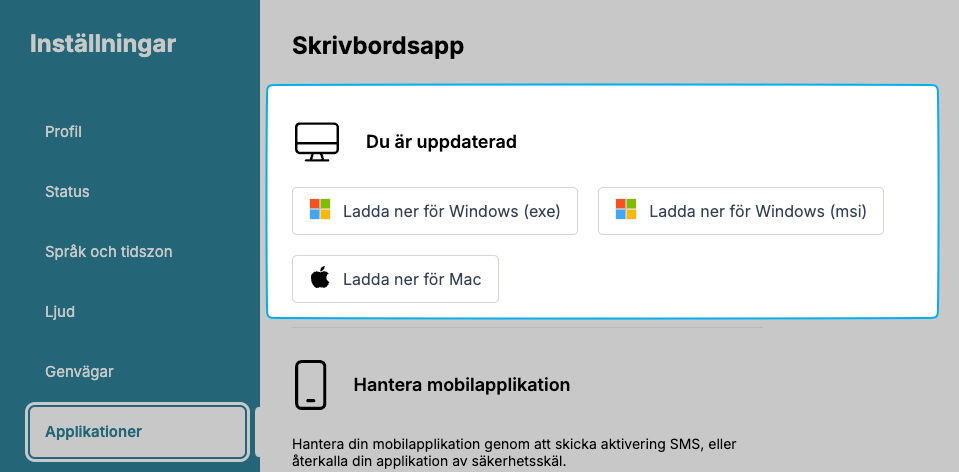
For IT managers (MSI)
An IT manager with access to the SMP can download an MSI package (from version 1.4) and deploy it at admin level, so ConnectMe installs for every PC user.
-
If a user installed ConnectMe with the .exe before your rollout, there will be two instances. Uninstall the .exe first, then deploy.
-
If you deployed with MSI, a user with enough local rights who continues installing or updating creates another instance.
Load a specific ConnectMe URL (testing)
To test another ConnectMe version in the desktop app:
-
Find the config file
config.json. The easiest way is to open the folder for log files (Menu Options > Diagnostics > Open diagnostics file storage) and go up one level. -
Add the
serverURLline to the file:
{
  "serverURL": "https://connectme.dstny.se",
  "globalShortcut": "true",
  "locale": "en",
  "log": {
    "enabled": true
  }
}
The URL can include a version, for example https://connectme.dstny.se/v/8.18.1. This lets you test any ConnectMe version with any version of the desktop app.
Pop-ups and notifications
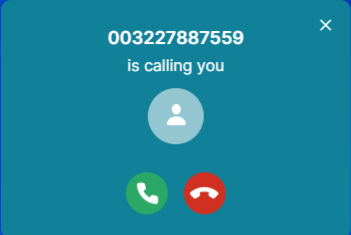
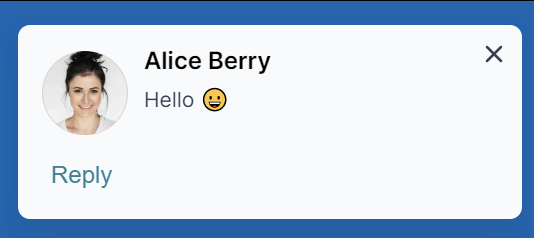
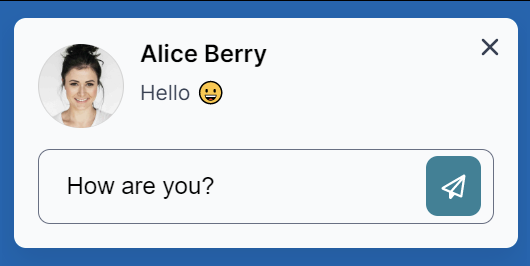
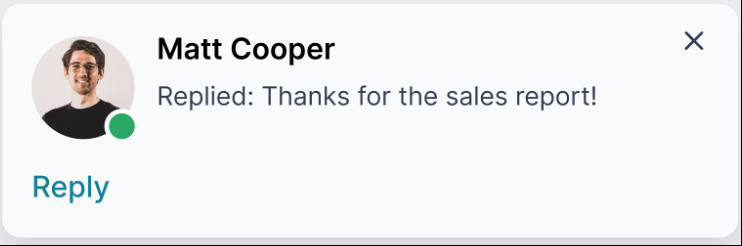
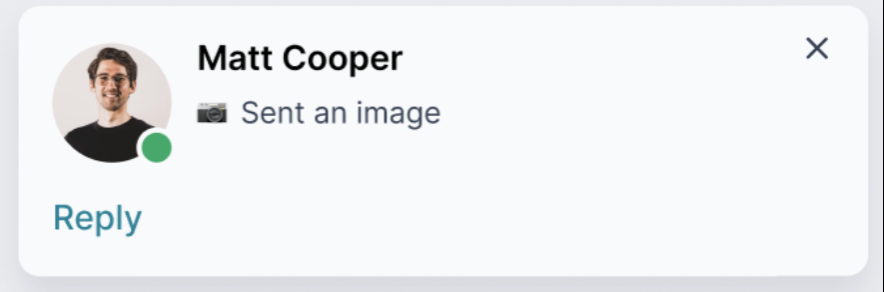
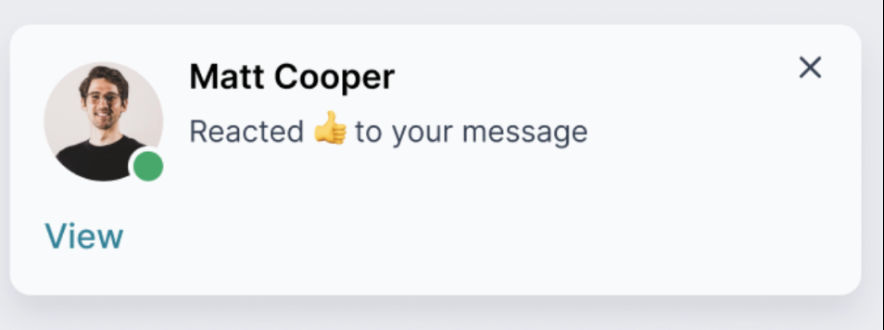
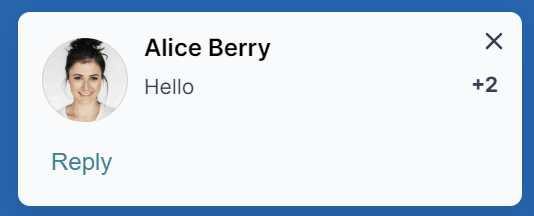
Pop-ups appear even when the app is minimised.
-
Incoming call: answer or decline.
-
Chat message: click it to open the chat, or click Reply to answer without opening the app. You can see if the message is itself a reply. Group chat is supported from version 1.4.
-
Shared file or image: click to open it.
-
Reaction to a message.
-
Several messages at once: a counter shows how many.
The taskbar icon shows a counter for chat rooms with unread messages, and your current availability on top of the icon.
Click-to-dial (F8)
Available from version 1.4. Turn it on in the options of the desktop app. It is off by default.
-
Highlight the number you want to call.
-
Copy the text.
-
Press F8. The call starts.
System tray and automatic start
From the system tray menu you can see your status and availability, change your status and quit the app.
The app starts with your computer by default. Change this in Menu Options > Automatically starts when the computer starts.
Use ConnectMe for callto:// and tel:// links
-
Windows: go to Windows settings > Apps > Default apps > Choose default apps by protocol.
-
Mac: open the Options menu and tick "Set as default application for Callto protocol" and/or "Set as default application for Tel protocol".
Headset call control
Available from version 1.5. With a supported headset you can answer an incoming call, hang up and mute or unmute.
The headset controls one call. If you have several, ConnectMe picks in this order:
-
An incoming ringing call.
-
An outgoing ringing call.
-
The active call (not on hold).
-
The held call with the longest duration.
Call control is on by default for a connected headset that supports it. To turn it off, go to the Options menu, open Headset call control and tick "Call control disabled". If several headsets are connected, pick the one to use for call control in the same menu.
ConnectMe uses WebHID, so you do not need drivers or plugins. Most headsets support this standard. Dstny's quality team tested these on Windows 11 and macOS Sonoma: Poly Blackwire 8225, Sennheiser SC6x5, SNOM A330 and Jabra Engage 75. Alliance Program partners test their own headsets as well.
The headset must connect over USB, either wired or with a USB dongle for wireless. If another application also uses call control, turn it off there. In Microsoft Teams, for example, turn off "Sync device buttons" in the Devices settings.
Updates
A user without admin rights can install a new desktop version. Recommended and required versions are set on the SMG realm level. Check whether you have the latest version in Settings > Desktop App.
-
With the .exe version, you get a notification about a new version. If you ignore it, you get it two more times, one week apart.
-
With the MSI version, you get no notification. The user and the IT manager download the new MSI to upgrade.