

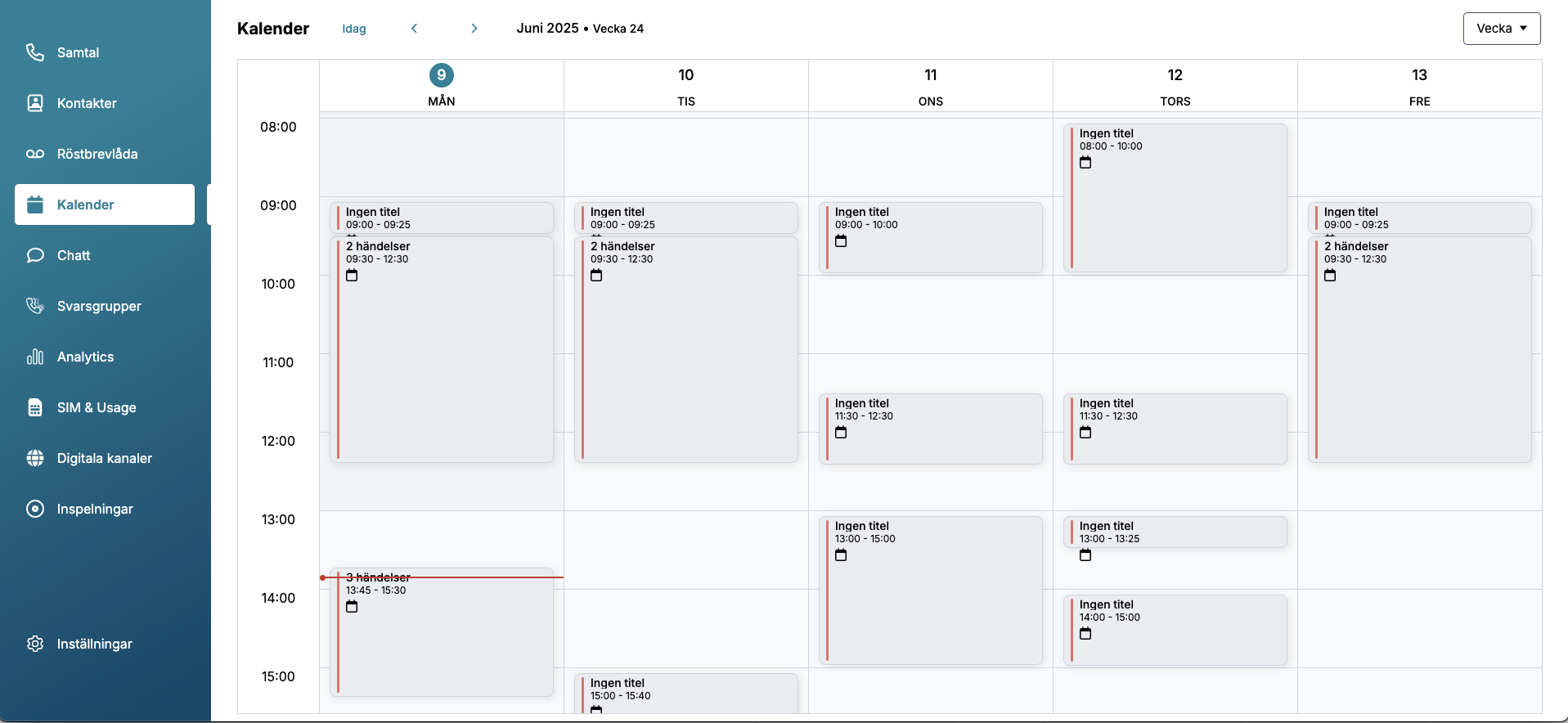
The Calendar shows your planned status changes, so you can set your availability ahead of time. It can also show your Outlook events.
Plan a status change
-
Open the Calendar.
-
Click the day and time where the change should start.
-
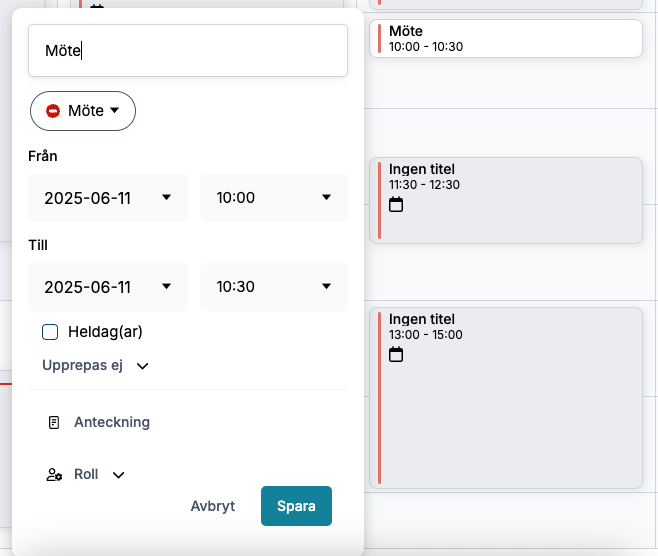
Fill in the fields: Title, Status, From and To, Full day, Recurrency, Note and Role.
-
Save.
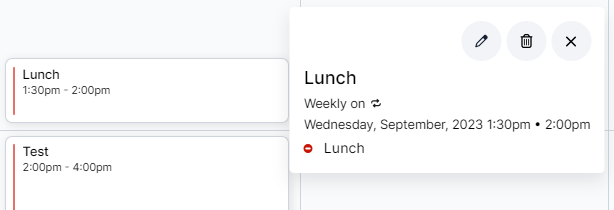
Click a planned change to edit it.
A planned status change does not update your status and note if a custom status overlaps it. You can view, edit and delete overlapping statuses from version 8.19.
Outlook calendar
If you gave ConnectMe permission to synchronise with Outlook, events from both calendars show in the Calendar. Only accepted events are shown.
See a colleague's calendar
If you have permission, you can open a colleague's calendar from search or from their contact card. See the Managing Contacts in ConnectMe guide.
For the statuses themselves, see the Presence Status and Availability guide.