

Use Settings to manage your profile and how the application behaves.
Profile
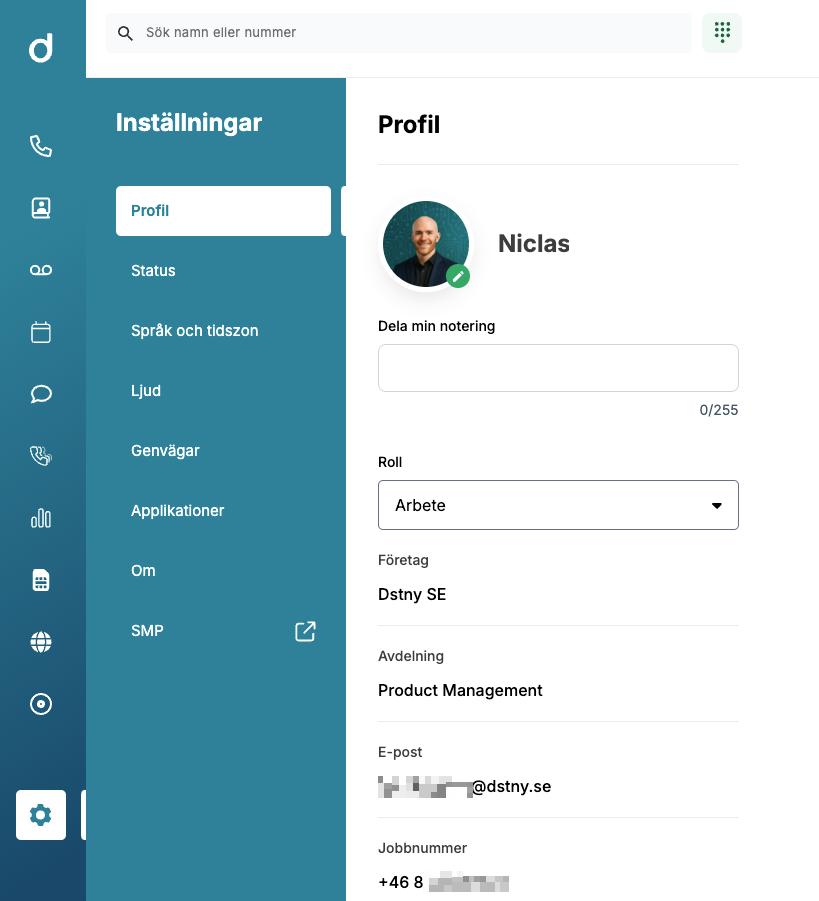
Change your avatar and role and see your personal information. After you change the avatar, refresh the page to see it in the top right corner.
Status and call forwarding
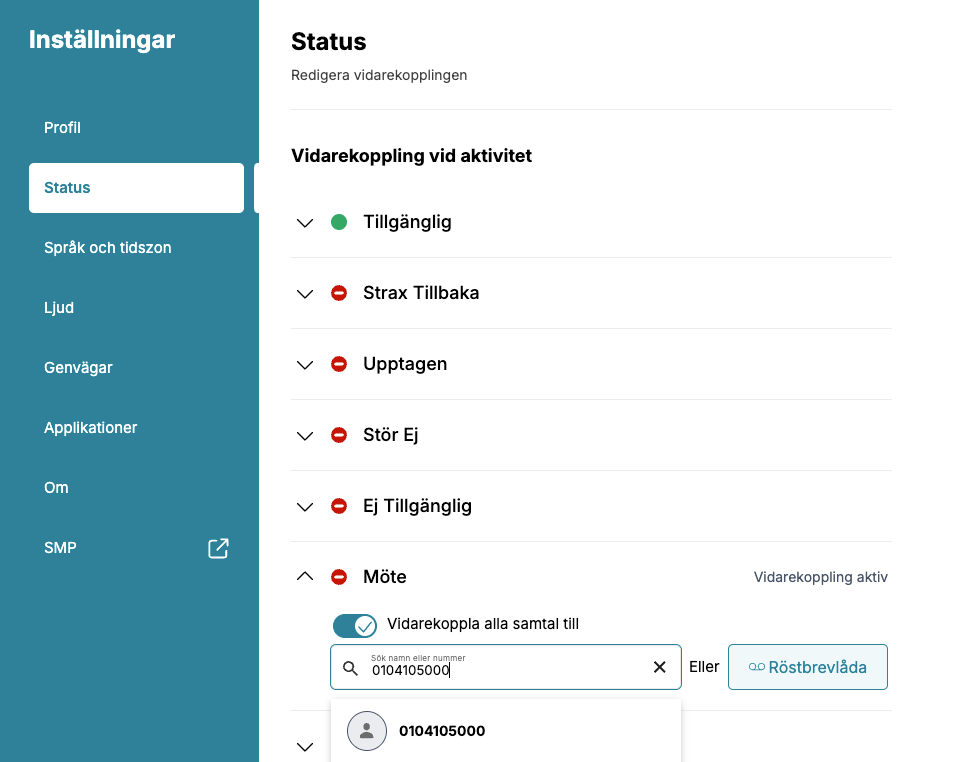
For each status you can set an unconditional call forward to the number of a contact, an external number, or voicemail. ConnectMe remembers your last forward, so you can set it up once and turn it on when needed.
-
When forwarding is on, the diverted calls show in the top bar. If someone changes the setting from another source, ConnectMe can take up to two minutes to update.
-
Forwarding only works if there is a call routing rule that sends calls to an active diversion number. Ask your administrator if forwarding has no effect.
-
If voicemail is not activated, you cannot choose "voicemail" as the destination.
Security
Change your voicemail PIN here. The same PIN is used later for free seating logins.
Language and time zone
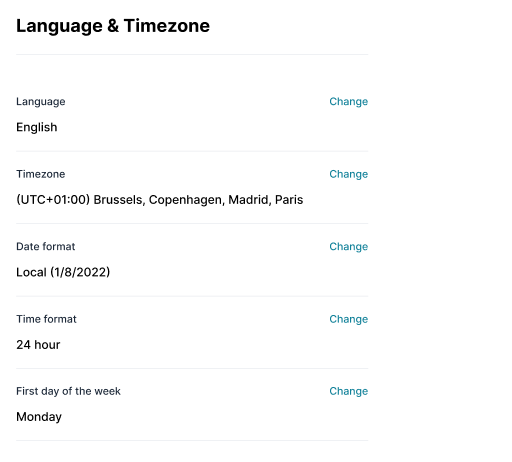
Choose your language, time zone, and date and time format. Language and time zone also change in Dstny Core. The date and time format only affects ConnectMe, not external plugins.
Audio
You can set and test:
-
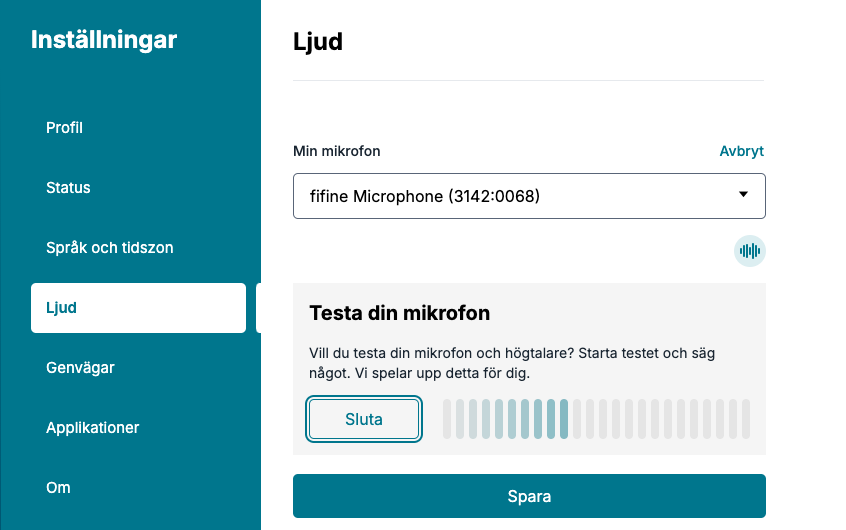
Microphone. In edit mode, a small level meter under the drop-down reacts to sound, so you can check that ConnectMe hears you. A test mode plays your microphone audio back to you.
-
Speaker during calls.
-
Speaker when ringing.
Keyboard shortcuts
Define your own shortcuts. ConnectMe warns you if a shortcut is already used, to avoid conflicts with other applications. These are not the same as the softphone shortcuts. Standard shortcuts such as CTRL-C and CTRL-P do not work in a browser application.
SMP link
If you are a set-up administrator, Settings shows a link to the SMP admin interface.
Desktop app
Download the ConnectMe desktop app for Windows or Mac. See the ConnectMe Desktop App guide.
Mobile app
If a mobile is configured for your user, activate the app by sending the configuration SMS from here. Send it again when you install the app on a new phone, or revoke access for security reasons.
End user portal link
When your service provider sets this up in Dstny Core (version 5.7.0 or higher), ConnectMe shows the branded End User Portal. You do not need to sign in again when you are redirected, because the link contains an authentication token. Ask your service provider if you want this feature.
Help
Partners can add their own Help page link, shown as a Help button in the left menu. The older Help/About page is now in Settings. To enable the partner Help button, partners contact Dstny Support.