

With VoIPcube, a call pop-up shows the matching customer from Zendesk and their recent tickets, and lets you create a ticket and add notes from the pop-up. Dstny connects VoIPcube to your Zendesk for you.
Before you start
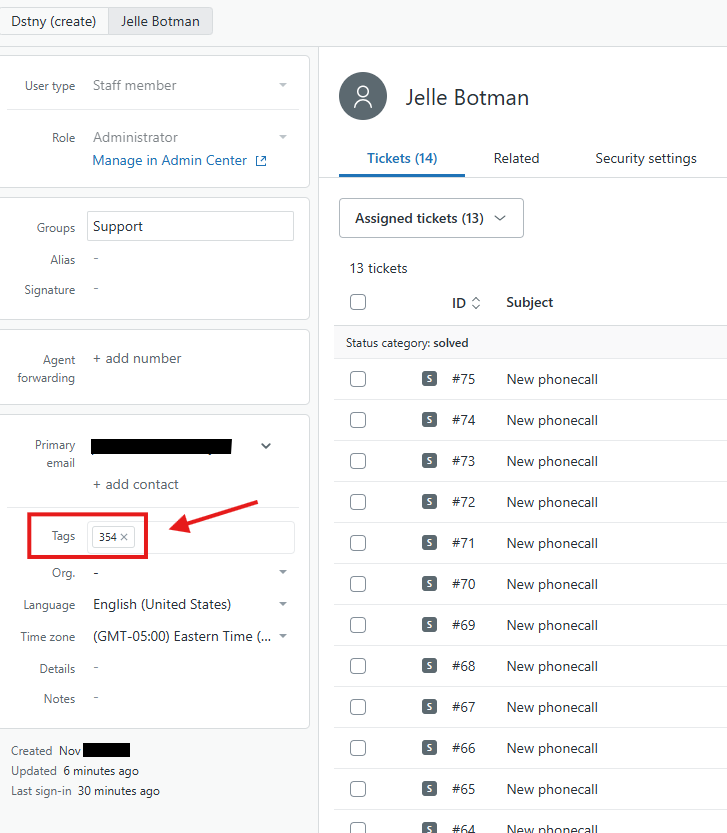
Your internal number must be added as a tag on your Zendesk agent profile. Without it, the integration does not work for you. Ask your Zendesk administrator to add it, or ask Dstny which number to use. The steps are in the section What Dstny needs from you.
What the pop-up shows
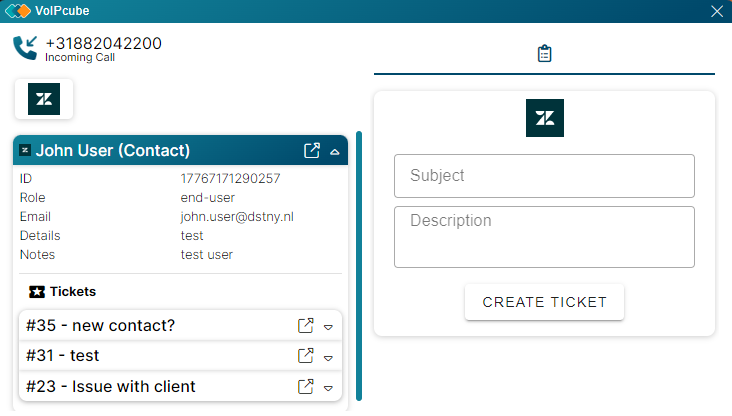
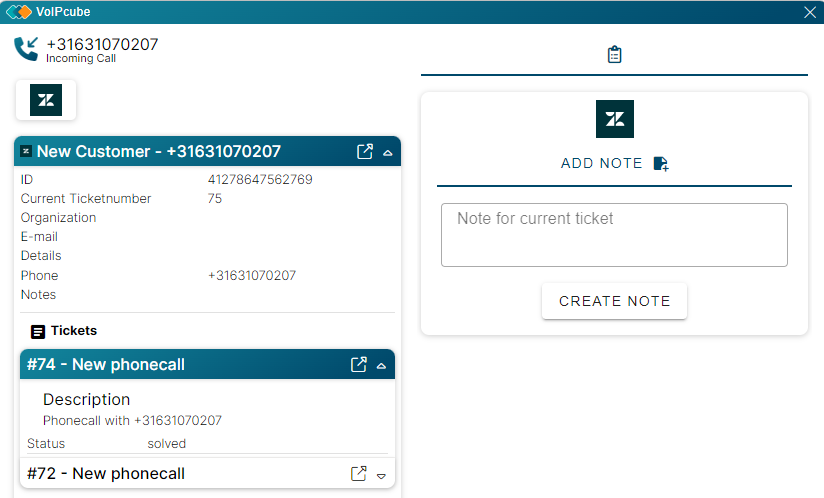
The pop-up shows the Zendesk customer that matches the caller's number and their recent tickets. From the pop-up you can:
-
Create one or more tickets for the customer that was found. If several customers match, the ticket is created for the first one.
-
Add one or more notes to the ticket you created. Each note is saved as a comment on the ticket, so several notes give several comments.
What Dstny can set
Dstny can change how the integration behaves for your organisation.
|
Option |
What it does |
|---|---|
|
Create a ticket for every call |
A ticket is created automatically for every incoming and outgoing call. Without it, you create tickets from the pop-up. |
|
Create a customer automatically |
A new customer is created from the caller's number when no match is found. Without it, no pop-up is shown when there is no match, and a ticket is created on you as the agent instead of on a customer. |
|
Ticket status |
New tickets are set to open or to closed. |
|
Show the pop-up |
The pop-up is shown. Without it, the customer opens in Zendesk instead, and the Chrome extension for Zendesk is needed. |
How a caller is matched
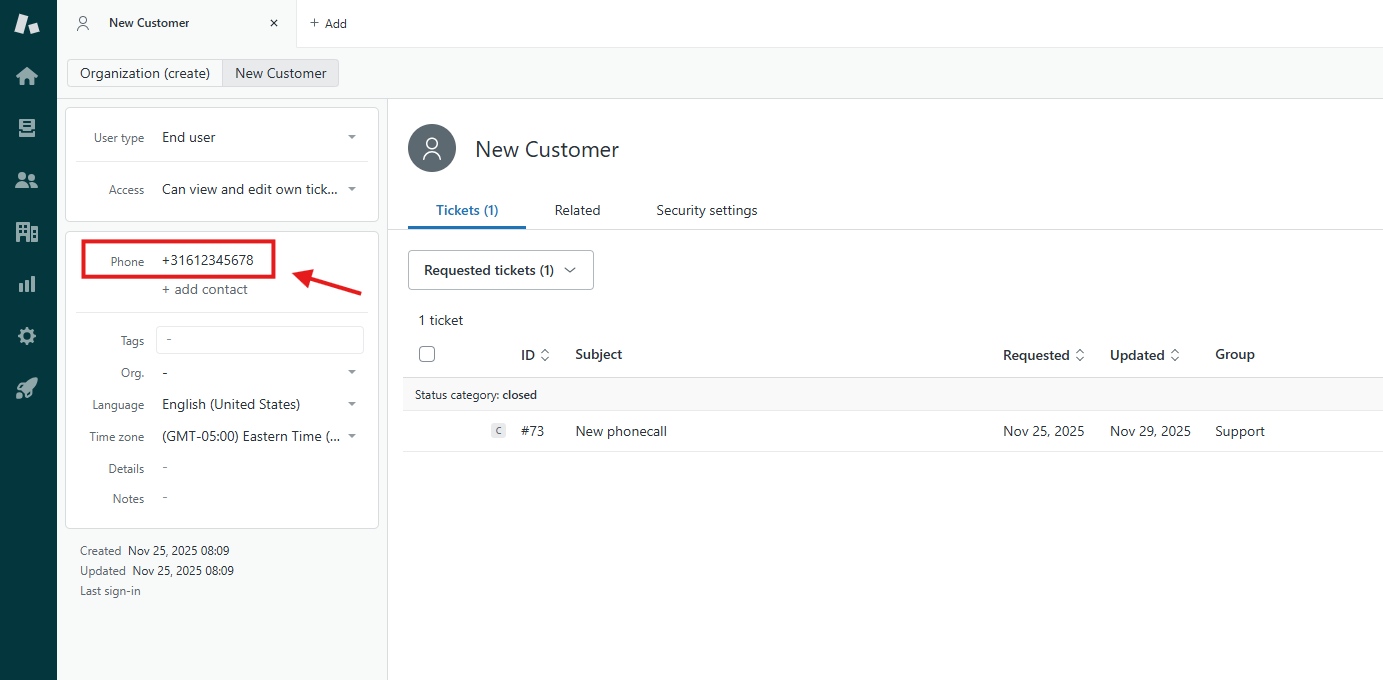
VoIPcube matches the caller's number with the Phone field on the Zendesk customer. To get a match:
-
Save a phone number on the customer.
-
Write the numbers in the same format everywhere. The international format is best, for example +46701234567.
-
Do not use the same number on more than one user. If several users share a number, VoIPcube can only create an automatic ticket for the first one it finds.
Signing in
You sign in to Zendesk with your own account. When a sign-in is needed, VoIPcube shows the sign-in window by itself.
What Dstny needs from you
Dstny needs three values:
-
The subdomain of your Zendesk.
-
The unique identifier of an OAuth client.
-
The secret of the same OAuth client.
You also add your internal number to each agent profile, as described below. You need a Zendesk administrator for these steps.
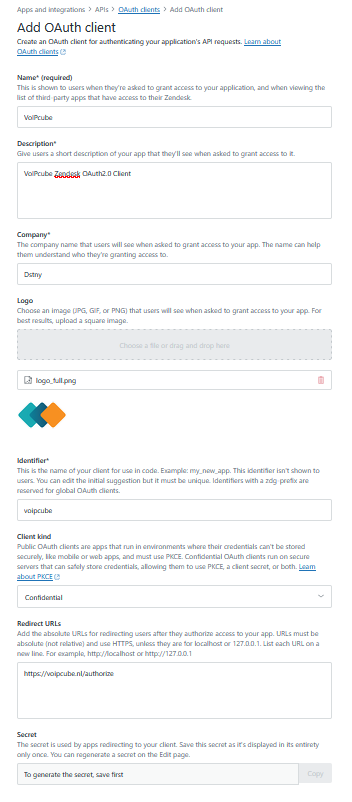
Create the OAuth client
-
Open the Zendesk Admin Center, at
{subdomain}.zendesk.com/admin/home. -
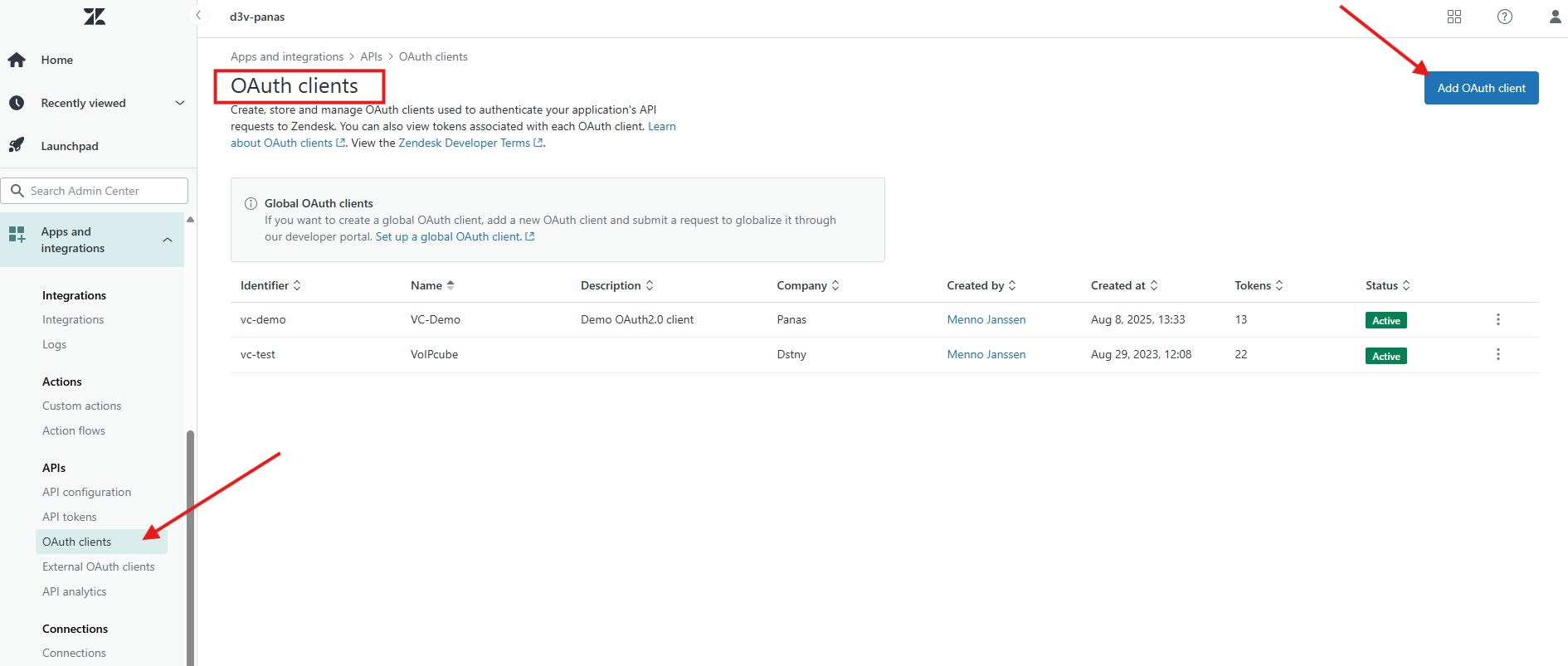
Go to Apps and integrations, then APIs, then OAuth Clients, then Add OAuth Client.
-
Enter a client name, a company, a logo and a unique identifier. The unique identifier can be any word or text. Write it down.
-
Set Client kind to Confidential.
-
Make sure the redirect URL includes
https://voipcube.nl/authorize. -
Save, then write down the secret.
Find the subdomain
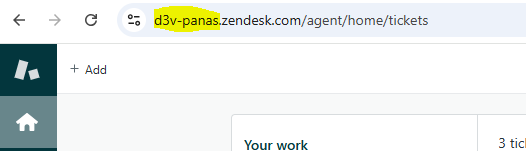
The subdomain is the first part of your Zendesk address, in front of .zendesk.com.
Add your internal number to the agent profile
Add your internal number as a tag on your agent profile in Zendesk. Do this for every agent who uses VoIPcube. Dstny tells you which number belongs to which user.
Send the subdomain, the unique identifier and the secret to your Dstny contact or to support@dstny.se.