

With VoIPcube, a call pop-up shows the matching contact or company from HubSpot when someone calls you. Dstny connects VoIPcube to your HubSpot for you. To link you to your HubSpot user, Dstny needs the email address you use in HubSpot.
What the pop-up shows
The pop-up shows the HubSpot contact or company that matches the caller's number. It has a link that opens the record in HubSpot.
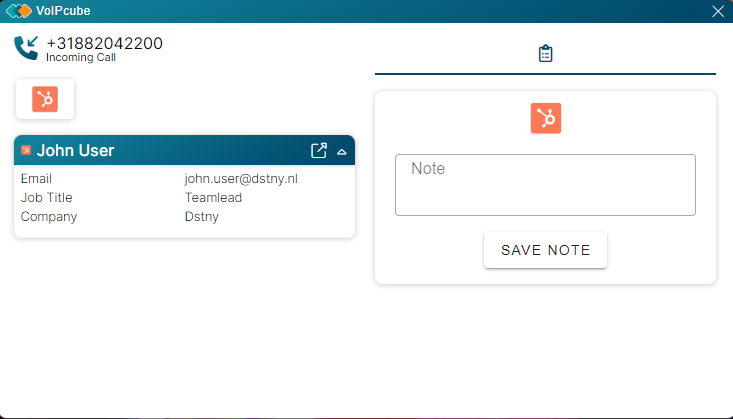
By default the pop-up appears on incoming calls. Dstny can also turn it on for outgoing calls.
Call registrations and notes
Dstny can set VoIPcube to create a call registration in HubSpot for every call that is connected to a contact it has found. The call also appears on the contact's timeline. You can add notes to the call registration.
If Dstny has not turned this on, VoIPcube shows the pop-up but does not create call registrations.
How a caller is matched
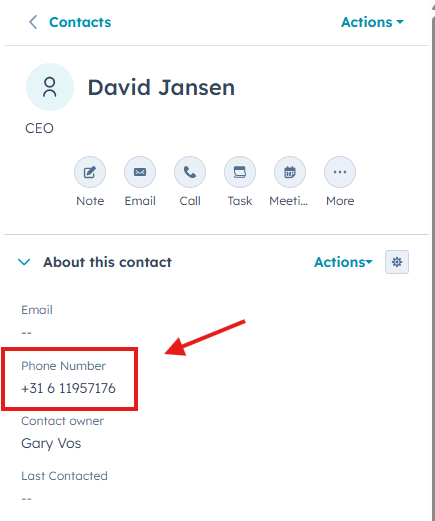
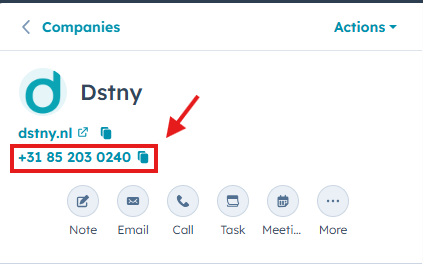
VoIPcube matches the caller's number with the phone number on the HubSpot contact or company. To get a match:
-
Save a phone number on the contact or company.
-
Write the numbers in the same format everywhere. The international format is best, for example +46701234567.
What Dstny needs from you
Dstny needs three things:
-
A token from a private app in HubSpot.
-
Your HubSpot portal ID.
-
The email address that each user signs in with in HubSpot.
You need a HubSpot super admin account to create a private app.
-
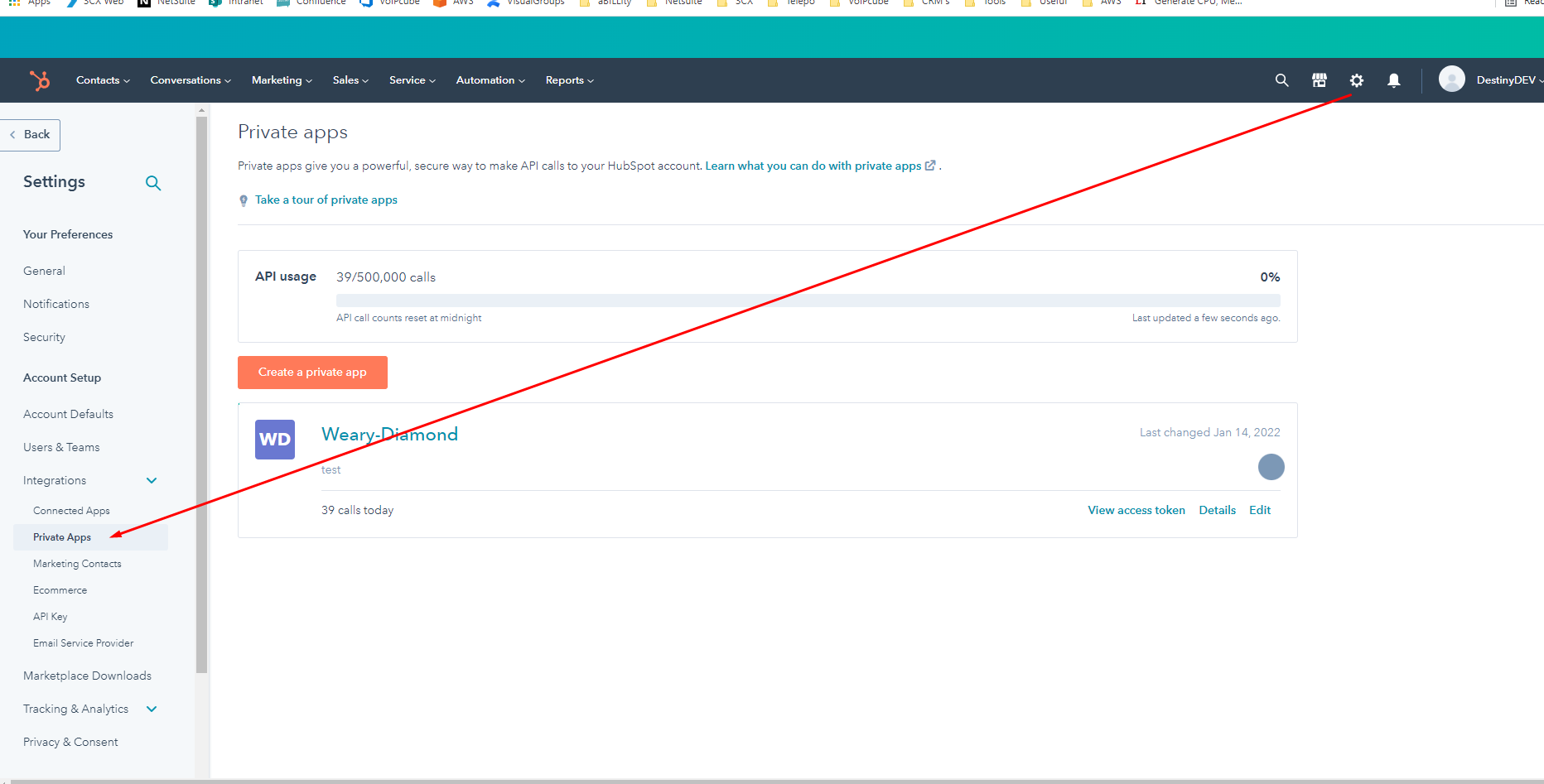
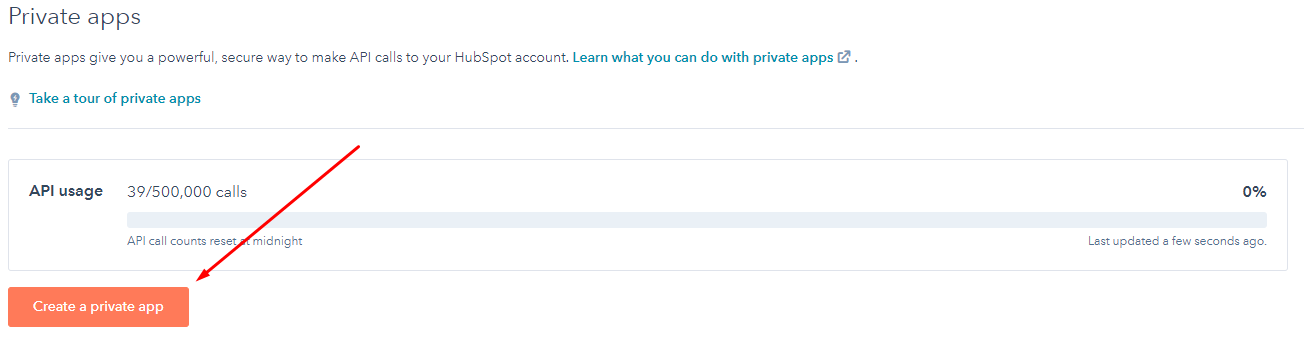
Sign in to HubSpot and go to Settings, then Integrations, then Private Apps.
-
Select Create a private app.
-
Fill in a name and a description.
-
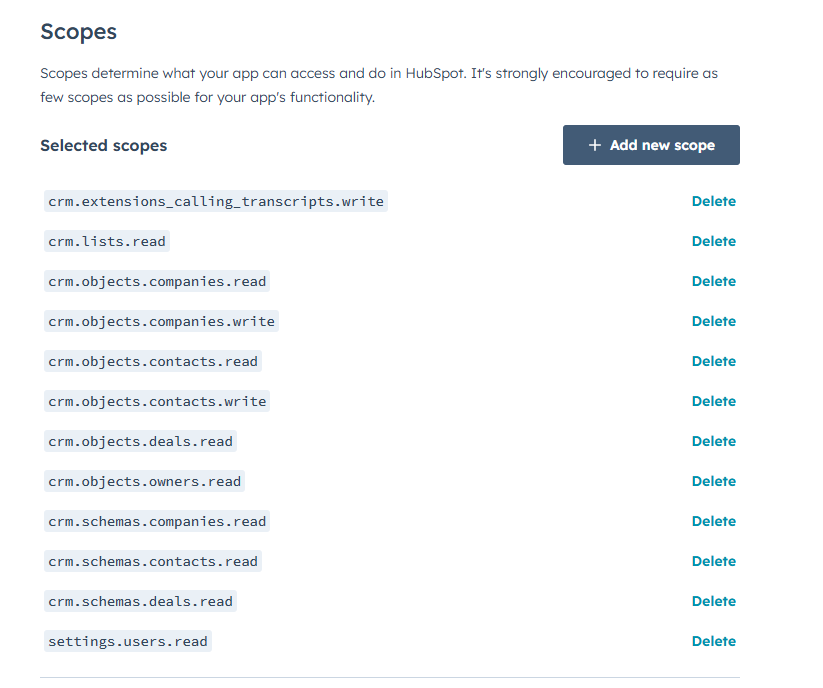
Open the Scopes tab and add the scopes listed below.
-
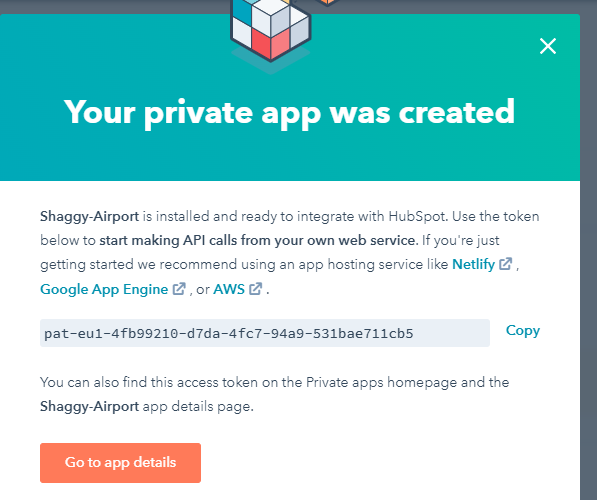
Select Create app, then Continue creating.
-
HubSpot shows a token. Copy it and save it.
-
Find your portal ID in the HubSpot address (URL).
Scopes to add:
-
crm.extensions_calling_transcripts.write
-
crm.lists.read
-
crm.objects.companies.read
-
crm.objects.companies.write
-
crm.objects.contacts.read
-
crm.objects.contacts.write
-
crm.objects.deals.read
-
crm.objects.owners.read
-
crm.schemas.companies.read
-
crm.schemas.contacts.read
-
crm.schemas.deals.read
-
settings.users.read

Send the token, the portal ID and the users' email addresses to your Dstny contact or to support@dstny.se.