

The VoIPcube client runs on your computer and shows the call pop-up. It works on Windows and macOS.
Before you start
-
Dstny must have set up VoIPcube for your organisation. Dstny gives you a licence key.
-
On Windows, the latest Microsoft Visual C++ Redistributable must be installed. Without it the client does not start. You can download it from Microsoft.
-
Your network must allow the client to reach VoIPcube. Your IT administrator can find the addresses in Troubleshooting VoIPcube.
Install the client on Windows
-
Download the installer from voipcube.nl/download.
-
Run the installer and follow the steps. You choose between a global installation and an installation for your user only. The default is your user only.
-
Choose the installation folder, or keep the default,
%AppData%\Local\Programs\VoIPcube. -
Start the client if it did not start by itself at the end of the installation.
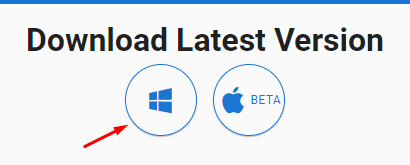
Your IT administrator can also install the client with an MSI package from the same page, with or without a user present. The .exe installer can run silently with the /S argument, which uses the default options.
Install the client on macOS
-
Download the installation package from voipcube.nl/download.
-
Double-click the .dmg file and follow the installation.
On both systems the client adds itself to your startup programs, so it starts when you start your computer.
Sign in
-
Open the client.
-
Enter the licence key from Dstny and your internal number, which is your extension number in the phone system.
-
Select Validate to check the key.
-
Select Submit. The main screen opens.
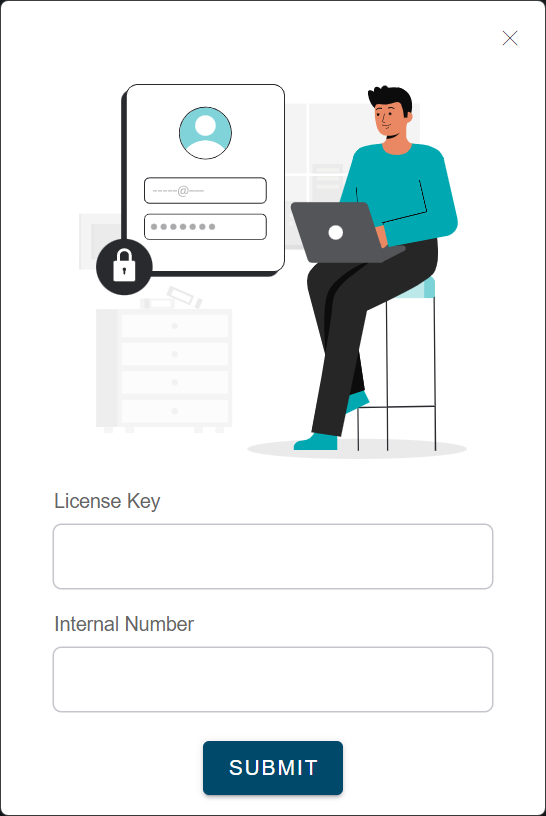
Your internal number must be registered in VoIPcube before you can sign in with it. Dstny does this when VoIPcube is set up. If the client does not accept your number, contact Dstny.
One-time password
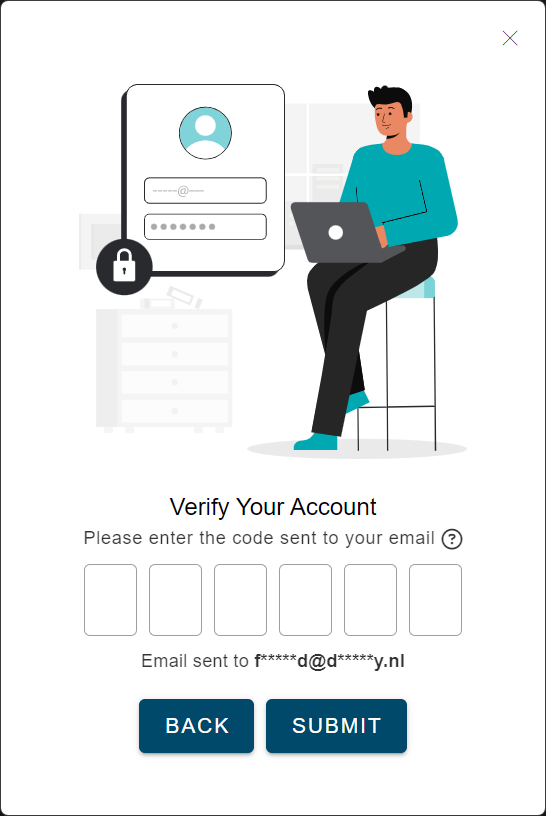
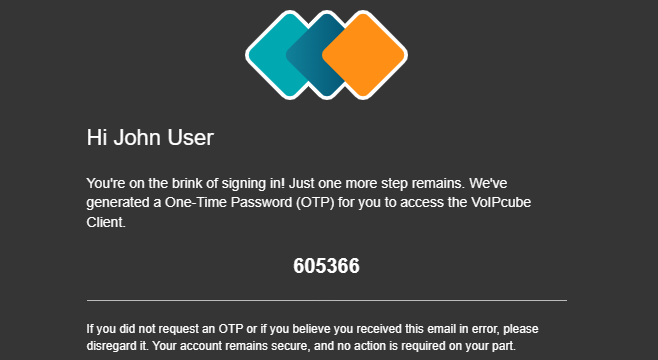
If your organisation uses one-time passwords, the client asks for a code after you submit. VoIPcube sends a 6-digit code by email to the address on your user in the phone system. Enter the code in the client to finish signing in.
The main screen
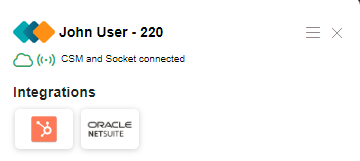
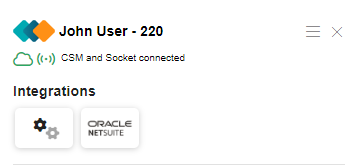
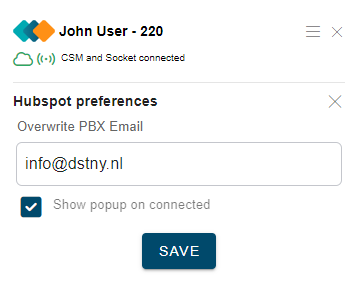
The main screen shows the CRM integration you are connected to. Select the logo to see your own preferences for that integration. Some integrations have no preferences to set.
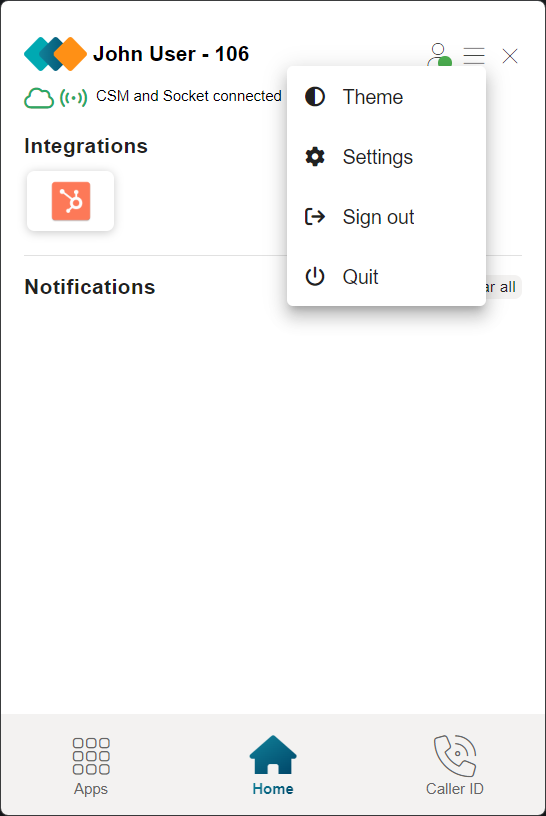
The menu is the three lines in the top right corner, next to the close button.
|
Menu item |
What it does |
|---|---|
|
Theme |
Switches between light and dark mode. |
|
Settings |
Opens the client settings. See Using the VoIPcube client. |
|
Sign out |
Takes you back to the sign-in page. |
|
Quit |
Closes the client but keeps you signed in. |