

This guide covers what you see and can do in the VoIPcube client once you are signed in. Dstny decides which features are turned on for your organisation, so you may not see all of them.
Call pop-ups
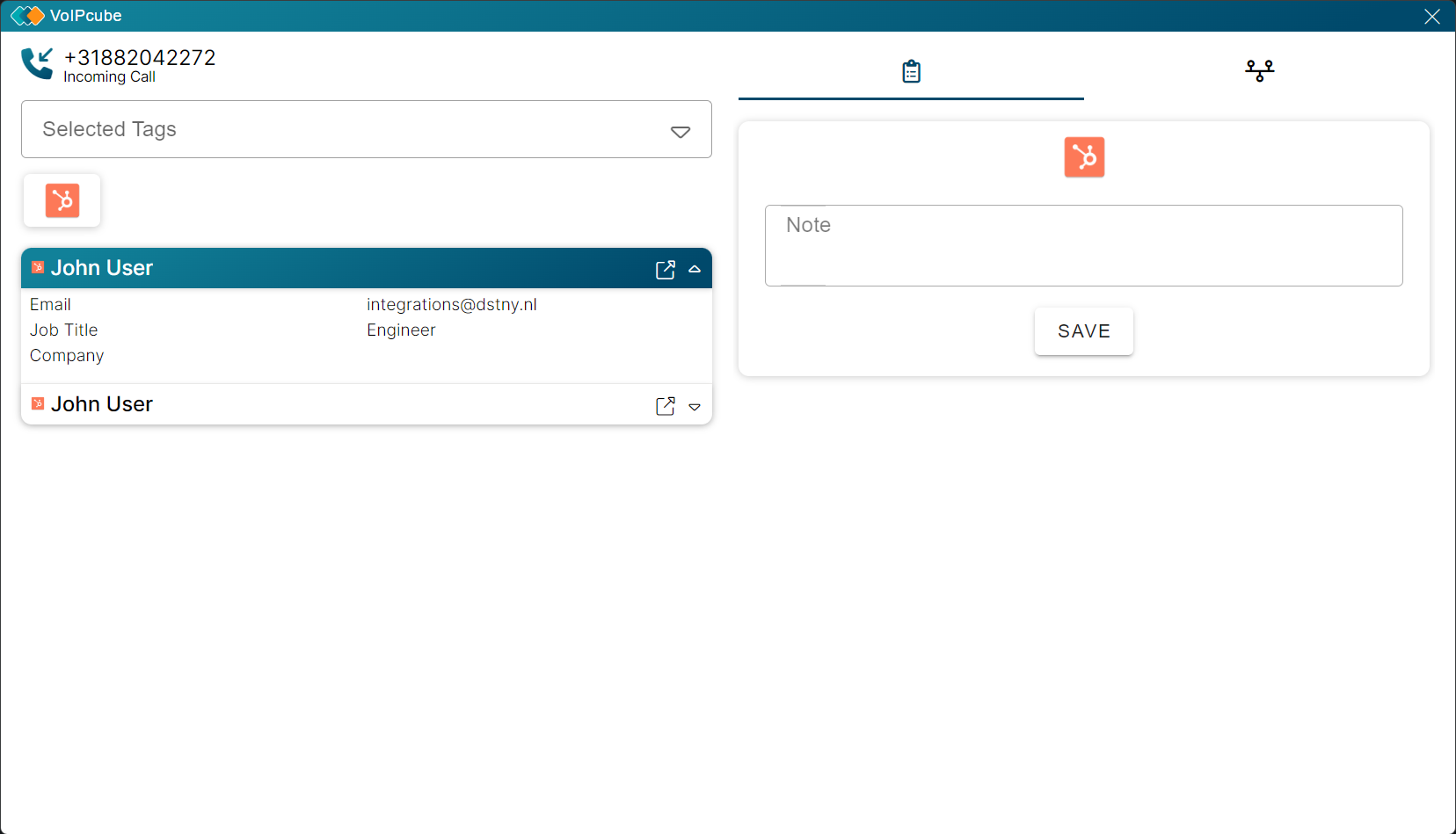
When a call comes in, the client opens a pop-up window. It always shows the phone number. If the number matches a contact in your CRM, it also shows that contact's details. What is shown depends on your CRM. See the guide for your system on the VoIPcube page.
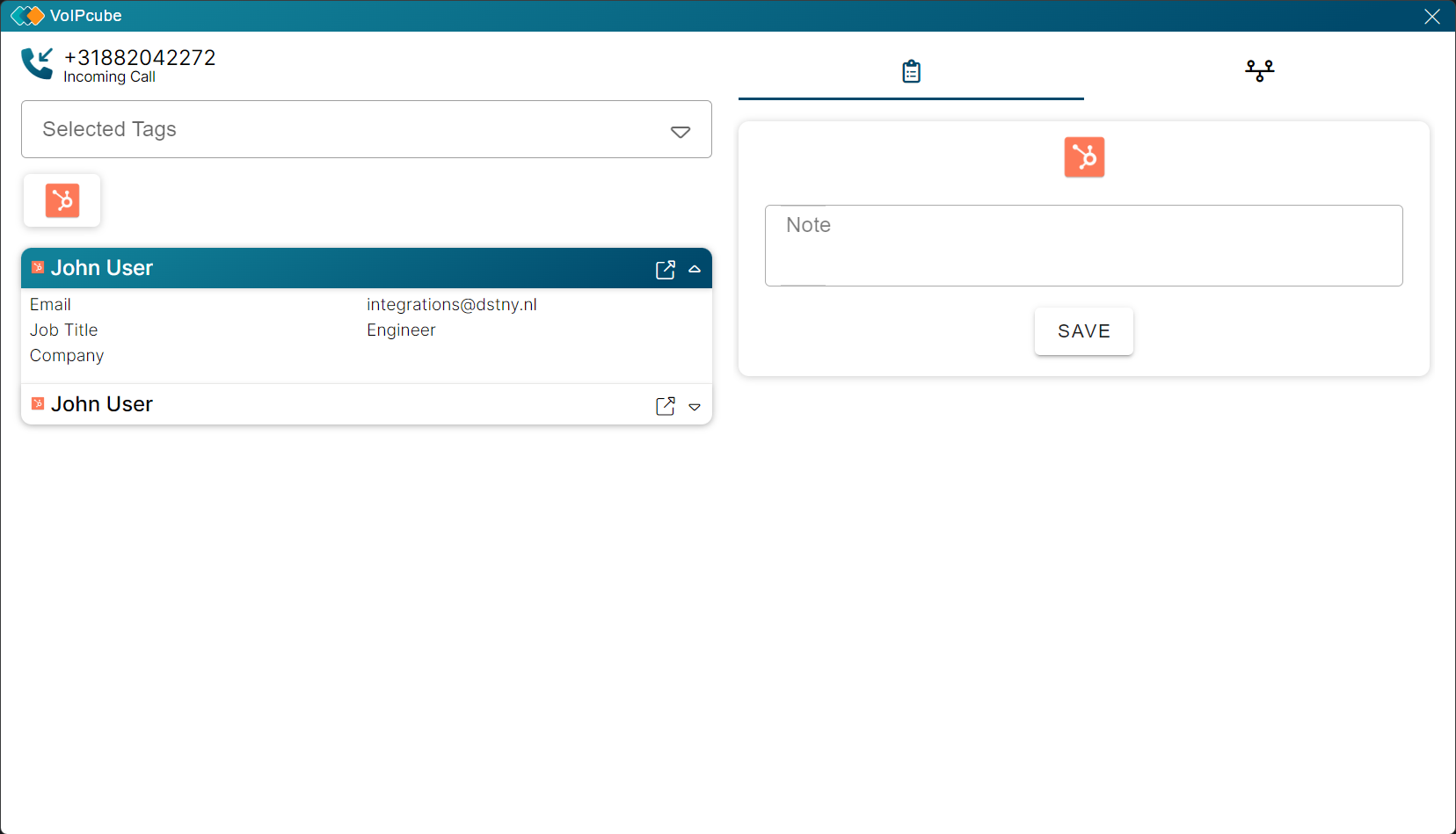
You can usually select the details in the pop-up to open the contact in your CRM.
Call tags
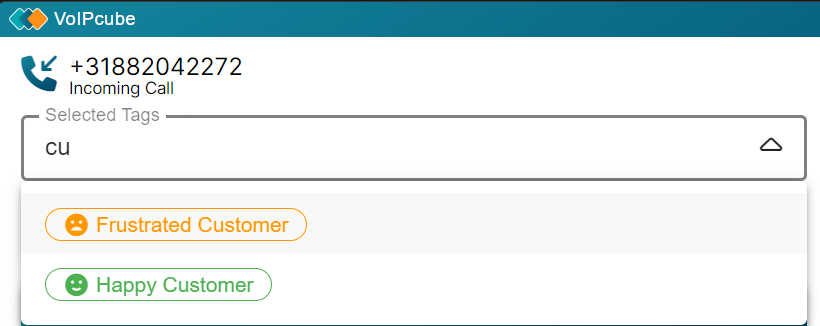
If your organisation uses call tags, the pop-up shows a list of tags for you to assign to the call.
-
To assign a tag, select it. The tag is highlighted when it has been set.
-
To remove a tag, select the highlighted tag again. It is no longer highlighted when it has been removed.
Some tags can be set by default. You can change which ones in the client settings, under Default tags.
Call history
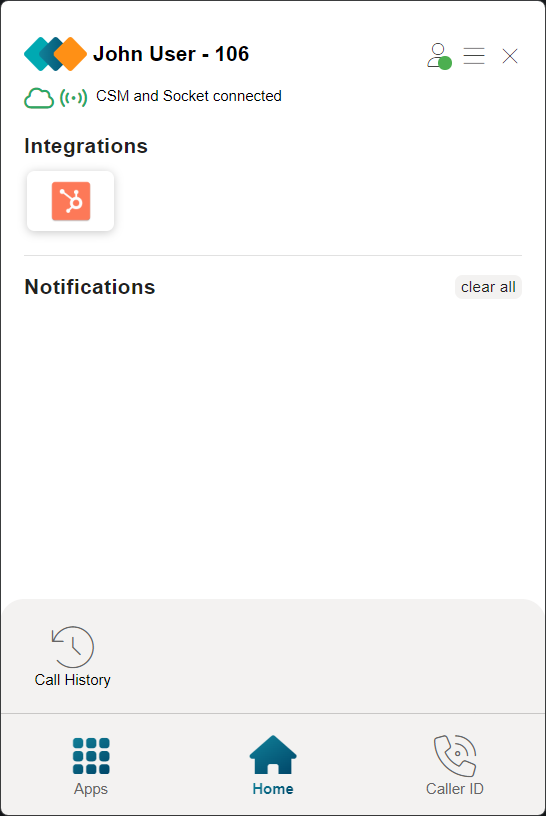
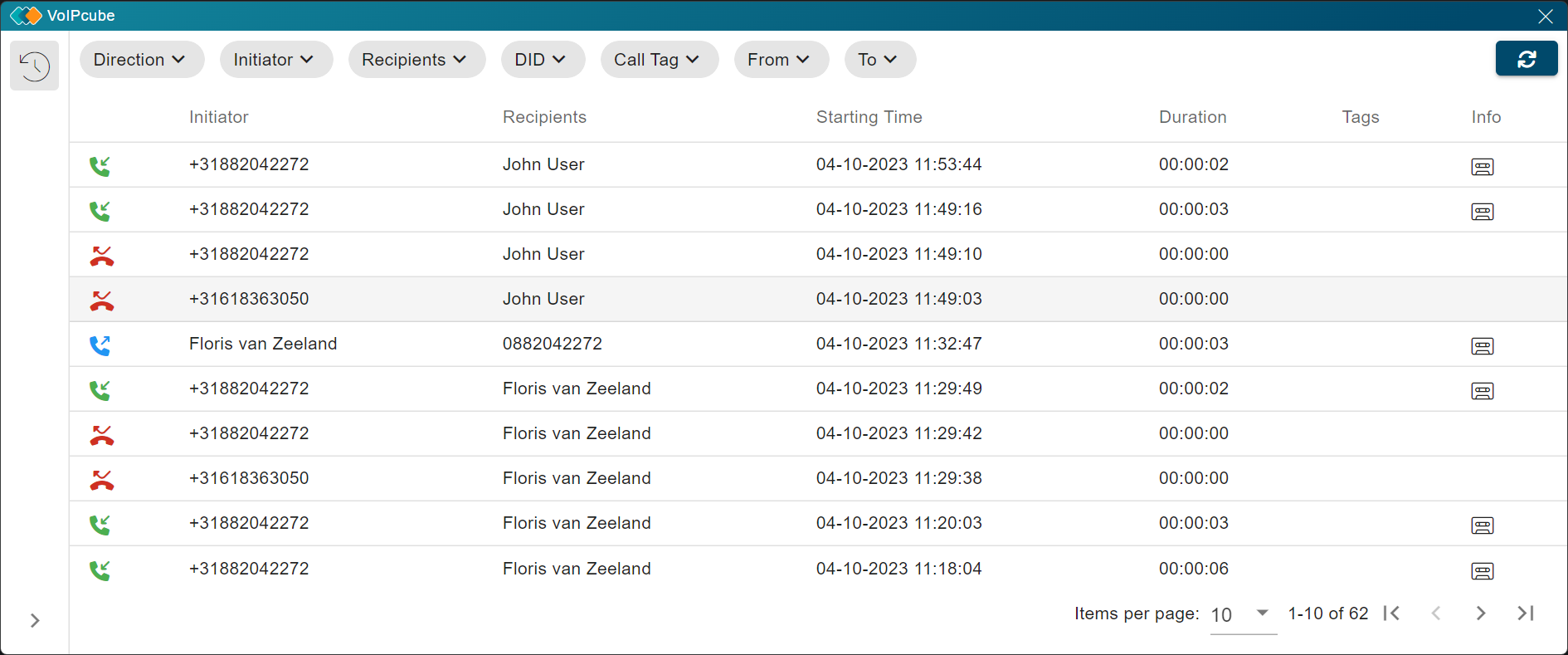
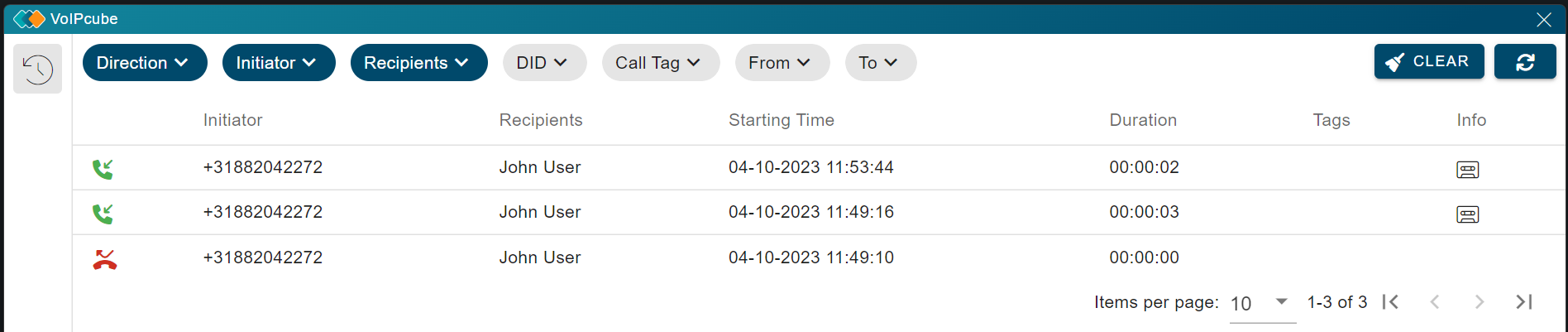
If call history is turned on for you, a call history icon appears in the Apps section of the navigation bar. Select it to open the call history window.
-
The window lists calls that your extension took part in. You cannot see other people's calls.
-
Use the filters at the top to search. You can combine filters to narrow the list.
-
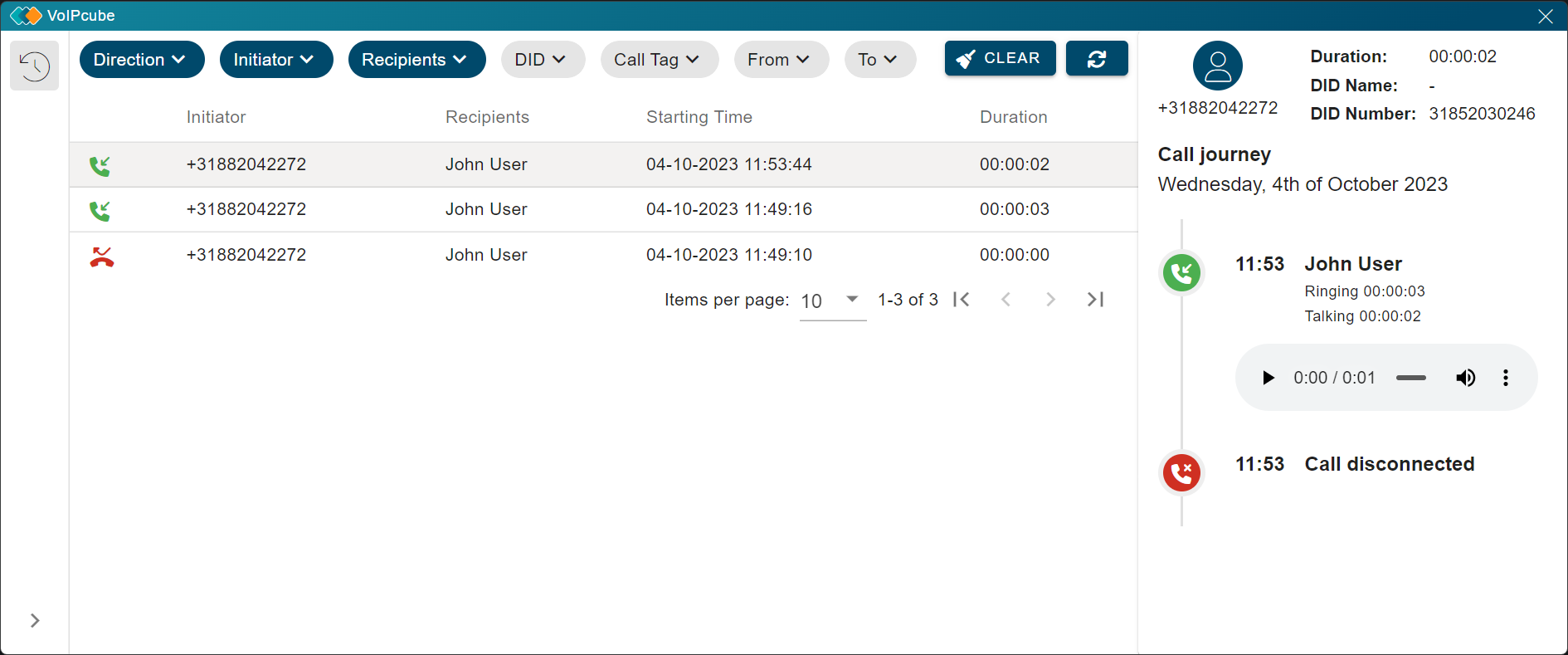
Select a call to see more details, including the tags you assigned and the call journey.
Caller ID selection
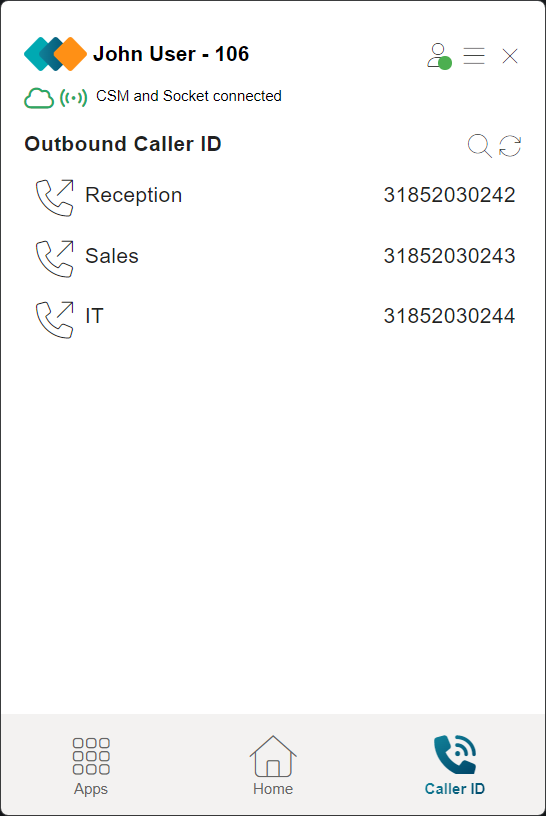
If you have one or more extra numbers assigned to you, the client shows a Caller ID selection tab. Use it to choose which number people see when you call out.
-
Open the Caller ID selection tab.
-
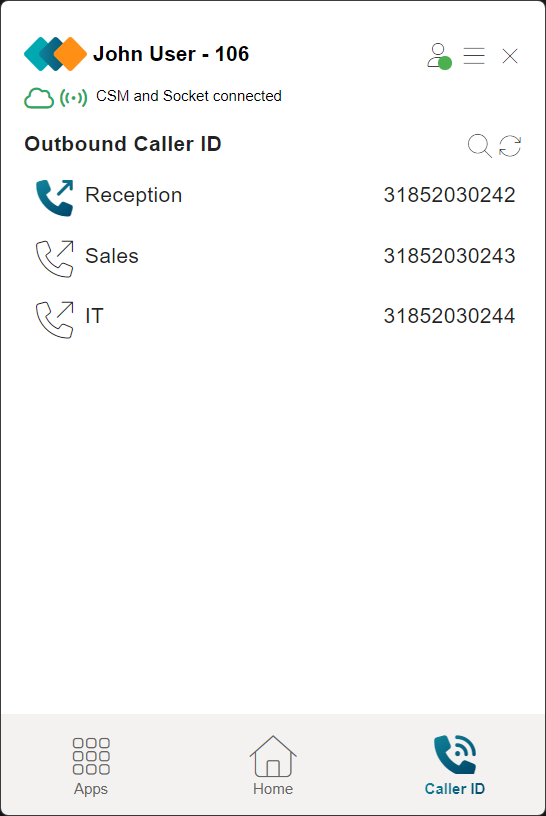
Select the number you want to use.
The phone icon next to the number turns solid when the change has worked.
Client settings
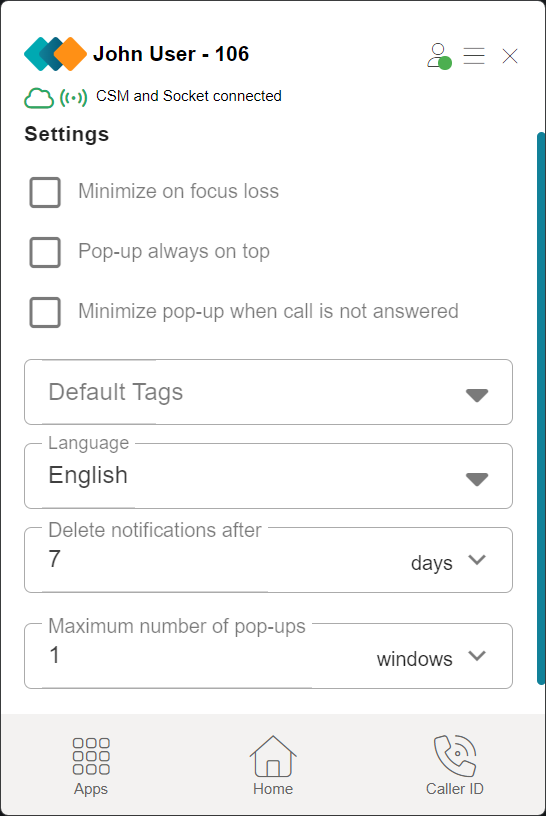
Open the menu in the top right corner and select Settings.
|
Setting |
What it does |
|---|---|
|
Minimize on focus loss |
Minimises the client when you switch to another window. A minimised client is only on the taskbar. Look for the up arrow to find it. |
|
Pop-up always on top |
Keeps call pop-ups in front of all other windows, even when you are working in another program. |
|
Remember pop-up window size |
Opens a pop-up with the size it had when you last closed it. |
|
Minimize pop-up when call is not answered |
Minimises the pop-up if you miss or decline a call and have not used it. |
|
Default tags |
Sets which call tags are selected by default. |
|
Language |
Sets the language of the client. |
|
Delete notifications |
Deletes notifications after the time that is set. |
|
Maximum number of pop-up windows |
Sets how many pop-ups can be open at once. When the limit is reached, the oldest pop-up closes. Sign-in windows for your CRM are not counted. |
|
Set a status when device is locked |
Sets your user status to a status you choose when you lock your computer. |
|
Set a status when device is unlocked |
Sets your user status to a status you choose when you unlock your computer. |
|
Allow this device to respond to pop-ups |
On by default. If you turn it off, the client on this computer no longer shows call pop-ups. |
If you use the client on more than one computer, the last setting lets you choose which computer shows the pop-ups.