

With VoIPcube, a call pop-up shows the matching person from Topdesk and their recent tickets, and lets you create a ticket straight from the pop-up. Dstny connects VoIPcube to your Topdesk for you.
What the pop-up shows
The pop-up appears when the call is picked up, on both incoming and outgoing calls. It shows the persons in Topdesk that match the caller's number and, for each person, up to the five most recent tickets.
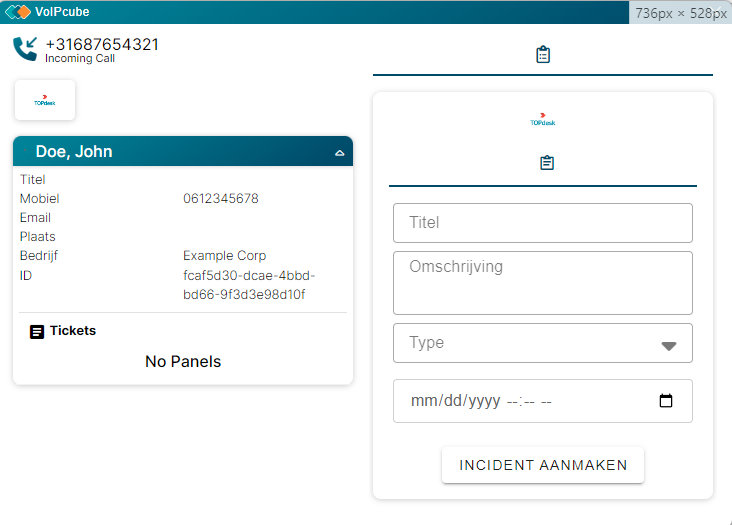
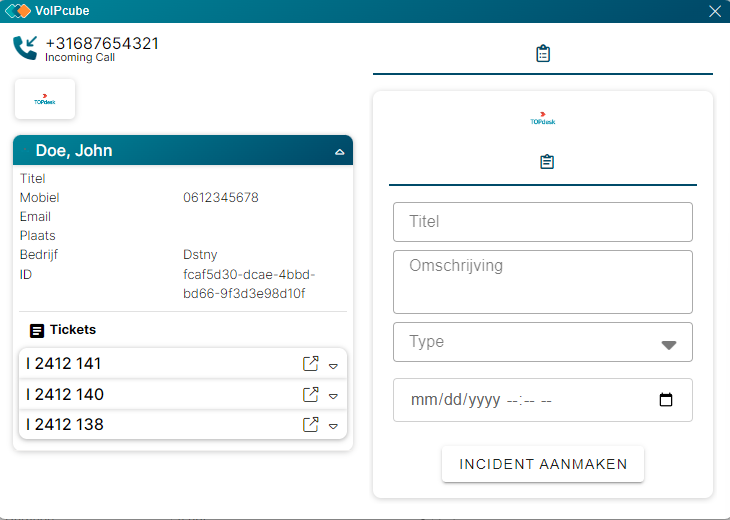
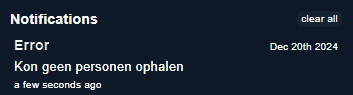
If no person is found, no pop-up appears. The VoIPcube client shows a notification instead.
Create a ticket from the pop-up
When at least one person is found, you can create a ticket from the pop-up.
-
Fill in Type, Entry type and Date. These are required. Title and Description are optional.
-
Create the ticket.
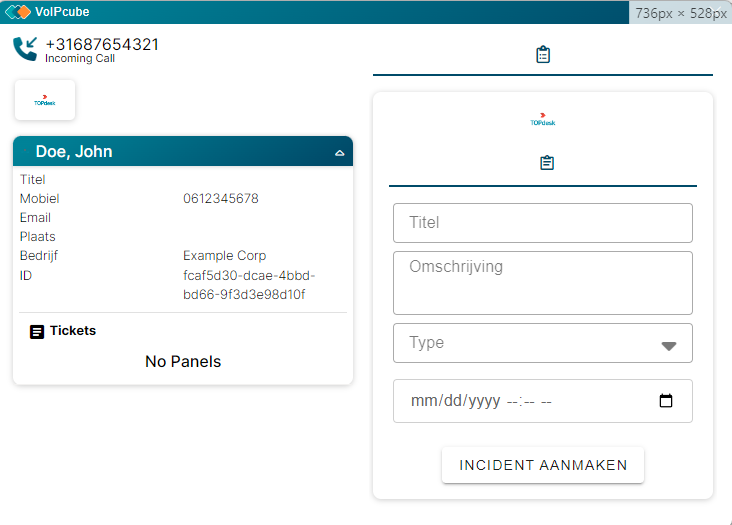
The ticket opens in your web browser. It is already saved, so you do not need to do anything more.
The target date must be in the future. You can pick today only if the time you choose has not passed yet.
How a caller is matched
VoIPcube looks for persons in Topdesk whose Telephone or Mobile number matches the caller's number. The number must be written in the national or international format, without spaces, dashes or other special characters. Numbers written with such characters are not matched.
What Dstny needs from you
Dstny needs three values:
-
Your Topdesk host.
-
The user name of the Topdesk account that VoIPcube uses.
-
An application password for that account.
The account
VoIPcube needs a Topdesk account. A dedicated account is best, but any account works if it is set up correctly. The account must have these options selected:
-
Has access.
-
API account.
To let VoIPcube create tickets, the account must also be a first line operator or a second line operator.
The application password
-
Sign in to Topdesk with the account that VoIPcube will use.
-
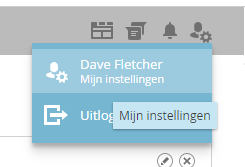
Open Settings.
-
At the bottom of the page, find Application passwords and select Add.
-
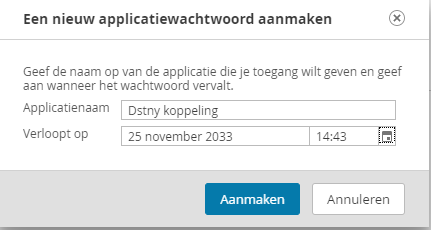
Enter a name and an expiry date.
-
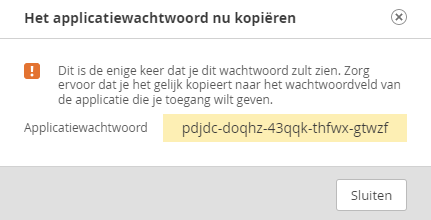
Write down the application password. Topdesk shows it only once.

The host
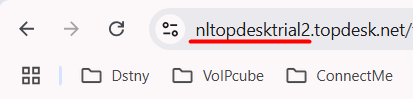
The host is the part of your Topdesk address in front of .topdesk.
Send the host, the user name and the application password to your Dstny contact or to support@dstny.se. Write the user name and the password with the correct capital letters.
If it stops working
If the pop-up suddenly stops appearing, the application password has probably expired. Create a new application password in the same way and send it to Dstny.