

With VoIPcube, a call pop-up shows matching accounts and contacts from Dynamics 365 when someone calls you. This guide is for Dynamics 365 built on Microsoft Dataverse, which is often called Dynamics CRM. Dstny connects VoIPcube to your Dynamics 365 for you.
What the pop-up shows
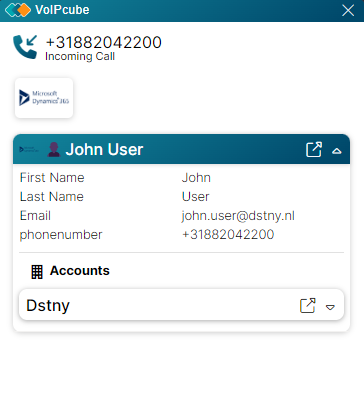
VoIPcube searches the accounts and contacts in Dynamics 365 for the caller's number and shows what it finds in the pop-up. The pop-up has a link that opens the record in Dynamics 365.
Signing in
You sign in to Dynamics 365 with your own account. After Dstny has connected VoIPcube, the Dynamics 365 sign-in window appears the first time you sign in to the VoIPcube client. After that, VoIPcube shows the sign-in window by itself when a sign-in is needed.
What Dstny needs from you
Dstny needs three values:
-
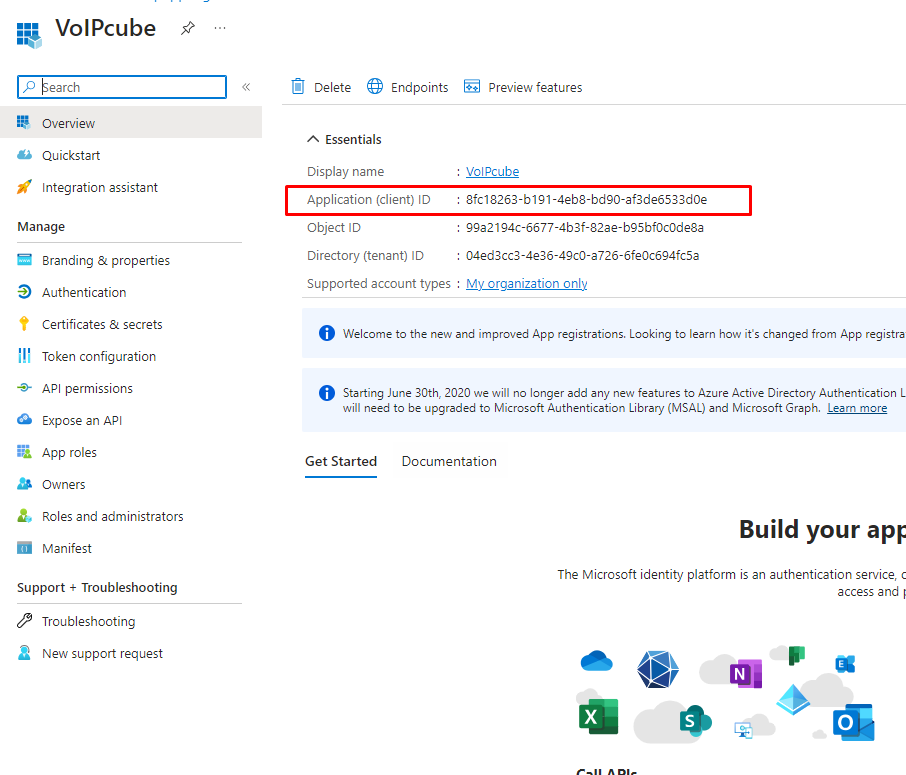
The application (client) ID of an app registration in Microsoft Azure.
-
A client secret for that app registration.
-
The domain of your Dynamics 365, without
https://.
You create the app registration once in the Azure portal. You need an administrator account that can create app registrations and give admin consent.
-
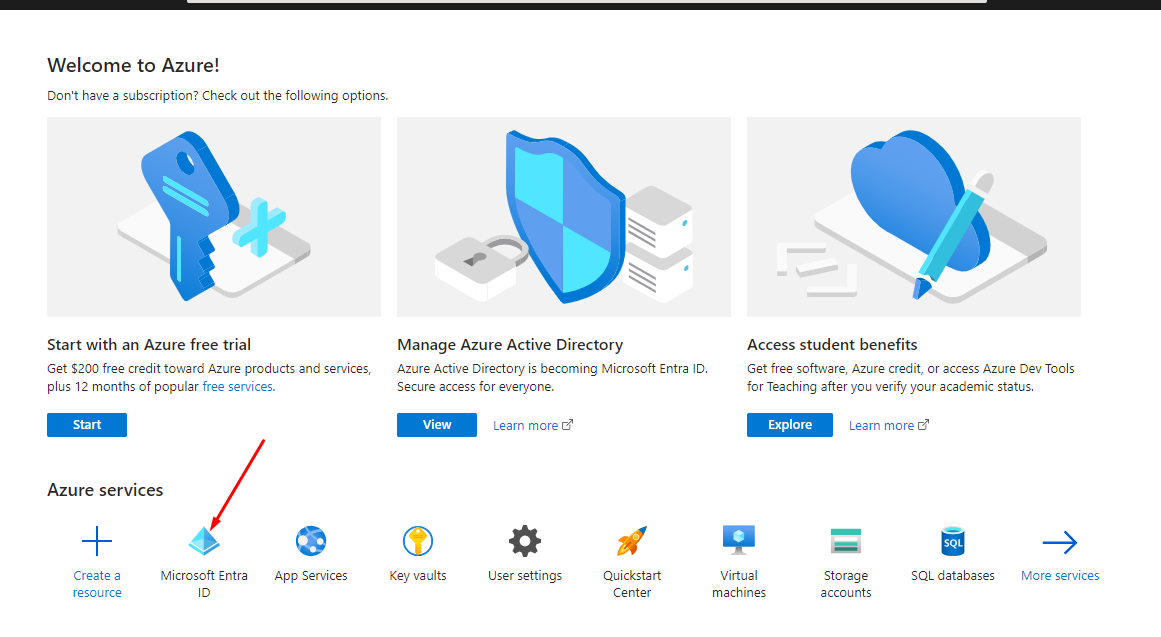
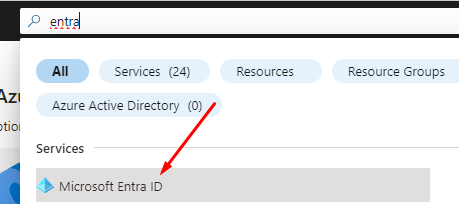
Go to portal.azure.com and open Entra ID.
-
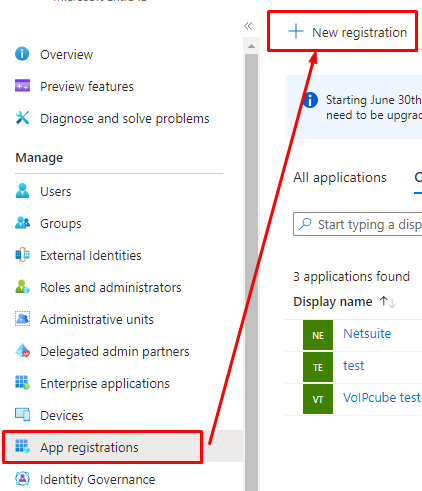
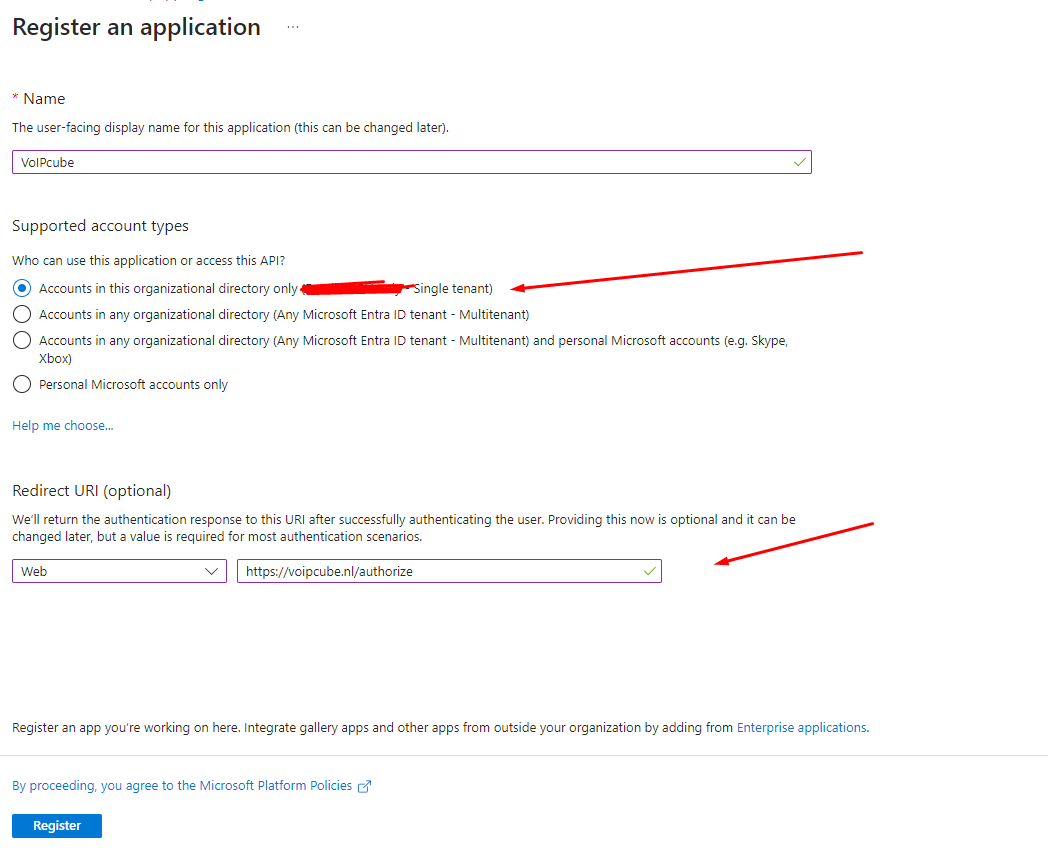
Select App registrations, then New registration.
-
Fill in these details:
-
Name: a name you will recognise.
-
Supported account types: Accounts in this organizational directory only (single tenant).
-
Redirect URI: Web, with the value
https://voipcube.nl/authorize.
-
-
Select Register.
-
Copy the Application (client) ID.
-
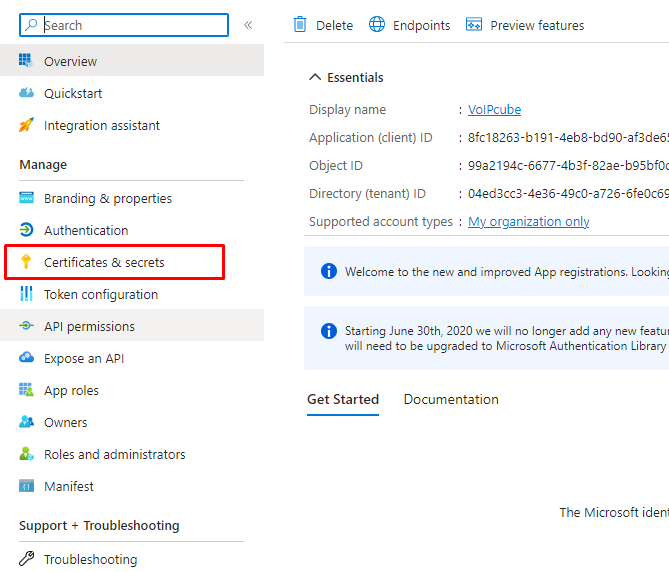
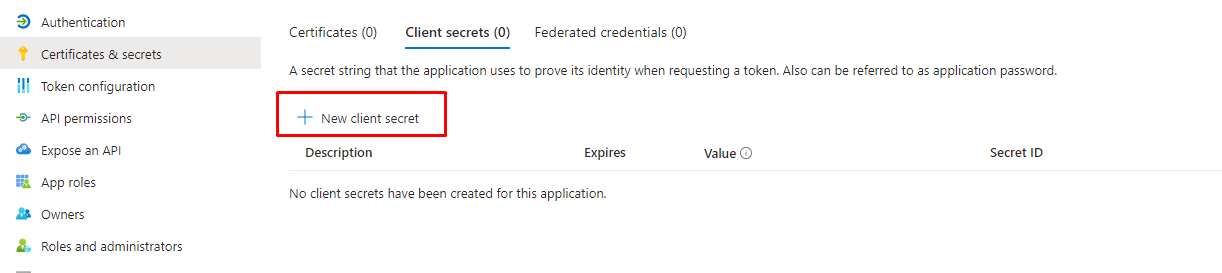
Select Certificates and secrets, then New client secret.
-
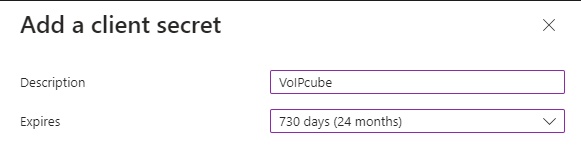
Add a description, choose when the secret expires, and select Add.
-
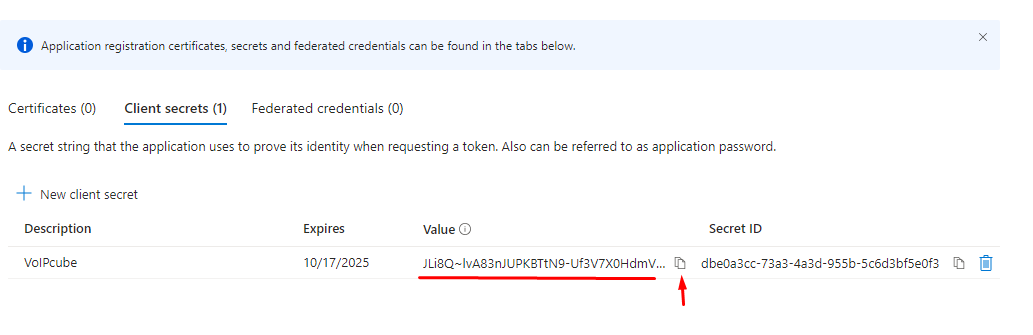
Copy the secret Value. Azure shows it only once, so copy it before you leave the page. Write down the expiry date. After that date you need to create a new secret.
-
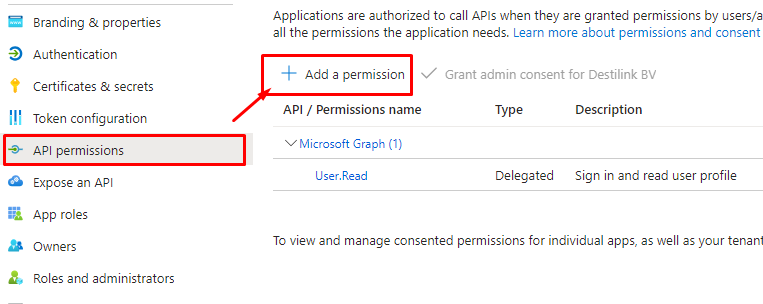
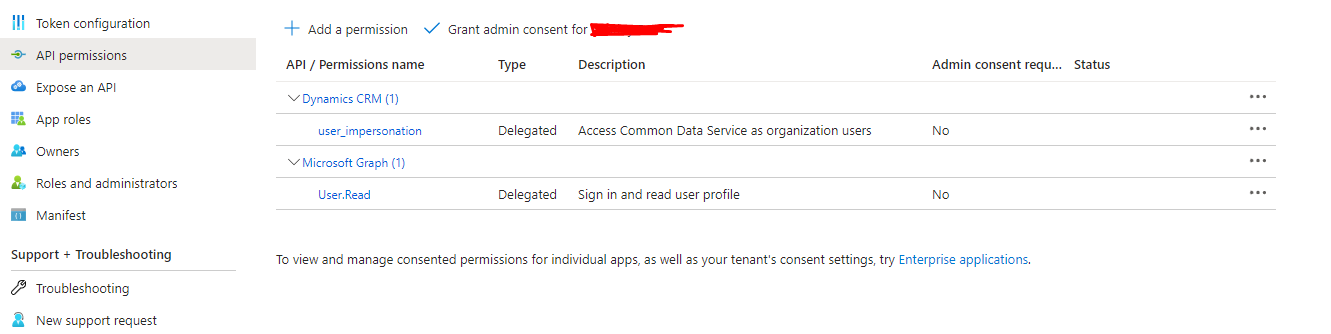
Select API permissions, then Add a permission.
-
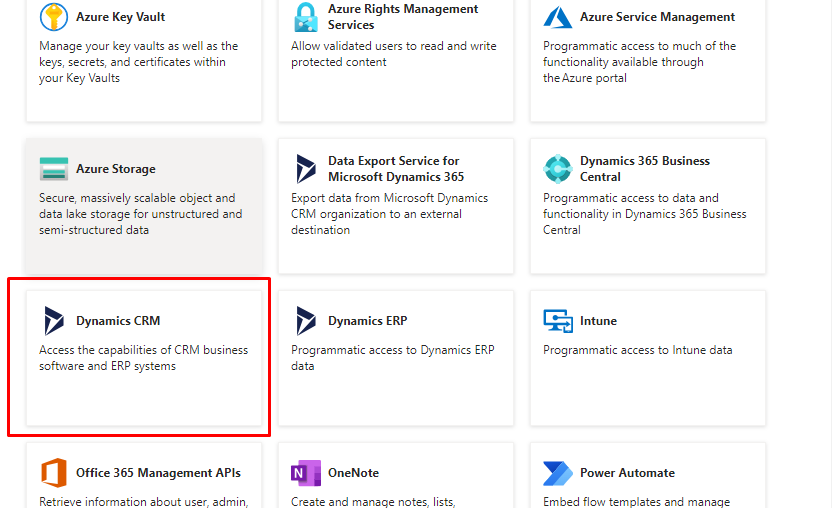
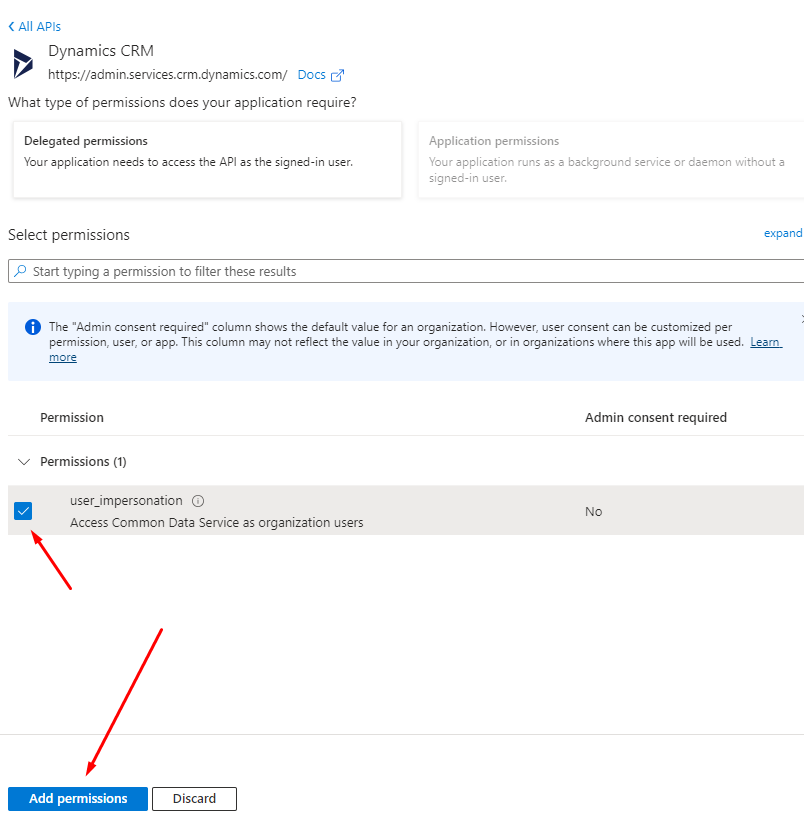
Find Dynamics CRM, choose the delegated permission user_impersonation, and select Add permissions.
-
Select Grant admin consent for your organisation. This lets all users in your organisation use the app registration.
-
Copy the domain of your Dynamics 365 and remove
https://from the start.

Send the application ID, the secret value and the domain to your Dstny contact or to support@dstny.se.
What this integration does not do
The integration does not save call notes or add calls to a timeline in Dynamics 365.