

A transfer can be blind or attended. In a blind transfer, the call disconnects from you as soon as it goes through. In an attended transfer, you call the recipient first while the original caller waits on hold, and you complete the transfer when you are ready. You cannot transfer a call that you joined while it was already in progress.
Transfer from the Contacts tab
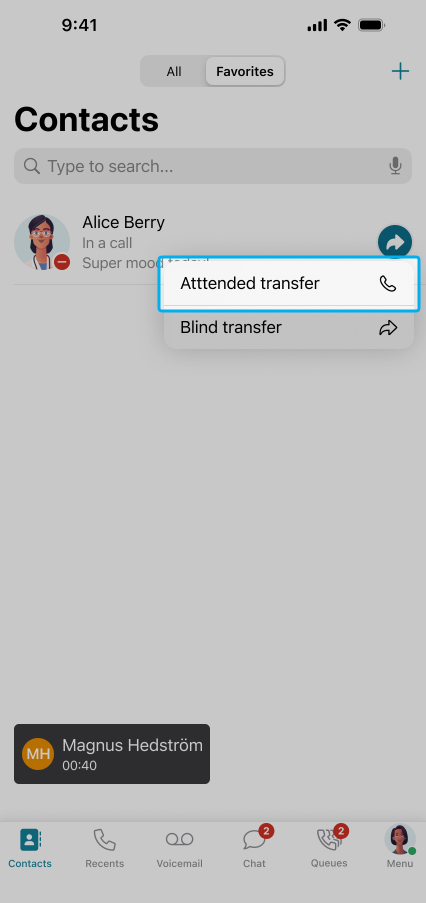
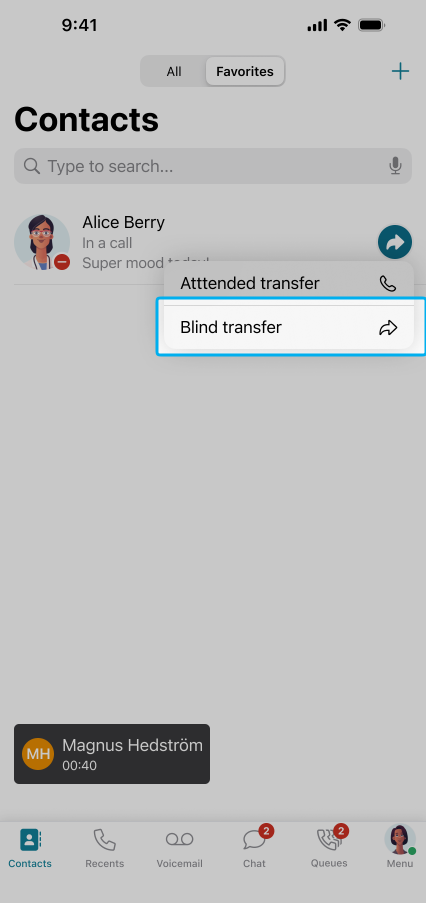
During a call, a transfer icon appears on each row in the Contacts tab. Tap it and choose Attended or Blind. This is the quickest way to transfer a call to a colleague.
Blind transfer from the app
-
During the call, open the Dstny app. On iPhone tap the arrow. On Android tap Transfer.
-
Search for a contact or type a number.
-
Tap Blind transfer on iPhone, or Transfer on Android.
-
If the original call was a GSM call, hang up in the phone's own dialler to finish.
Attended transfer from a VoIP call in the app
This applies only when you use internet calling in the app.
-
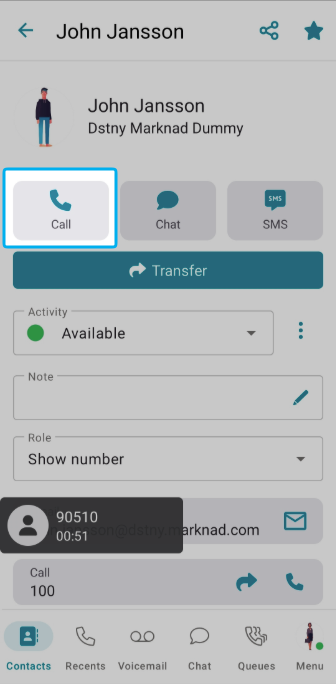
Tap New call. Do not tap Transfer, because that starts a blind transfer.
-
Search for a contact or type a number, then tap the call button (the green New call button on iPhone).
-
When the other person answers, tap the green Transfer button to complete the transfer.

Attended transfer from a call in the phone's dialler
-
During the call, open the Dstny app. On iPhone tap the arrow. On Android tap Transfer.
-
Search for a contact or type a number.
-
In the pop-up, choose attended or blind transfer.
-
Hang up in the phone's own dialler to complete the transfer.
Attended transfer with the star key
This works without the Dstny app.
-
During the call, open the three dots (More) menu in the phone's dialler and tap Add call. On Android the button name can vary by phone brand.
-
You are now talking to the new person and the original caller is on hold.
-
Open the keypad and press the star key to complete the transfer.
A transfer that starts because a supervisor steps into your call is handled automatically and you cannot change it.