

This guide covers how to start a call in the Dstny app and how to record one.
Call types
The app makes two types of calls: GSM calls and internet calls (VoIP, Voice over Internet Protocol). For GSM calls the app either calls directly through the phone's own call app or uses call back. With call back, the system calls you first. When you answer, it rings the person you want to reach.
Making and answering calls works the same way for you whether the call is GSM or VoIP. Your administrator decides which call types are available. For more on VoIP, see Using internet calling (VoIP).
Start a call
You can start a call in several ways:
-
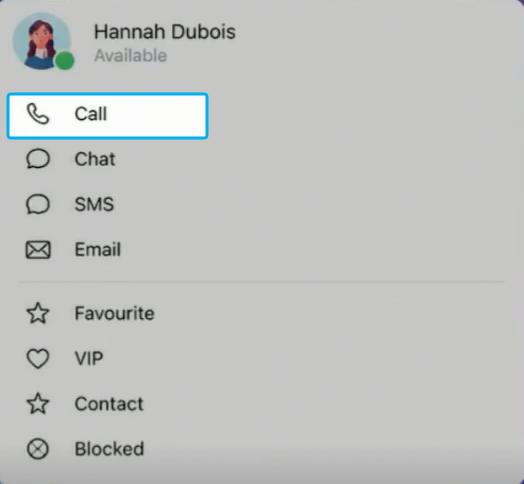
Tap and hold a contact in Favourites, in the All list or in search results, then tap Call.
-
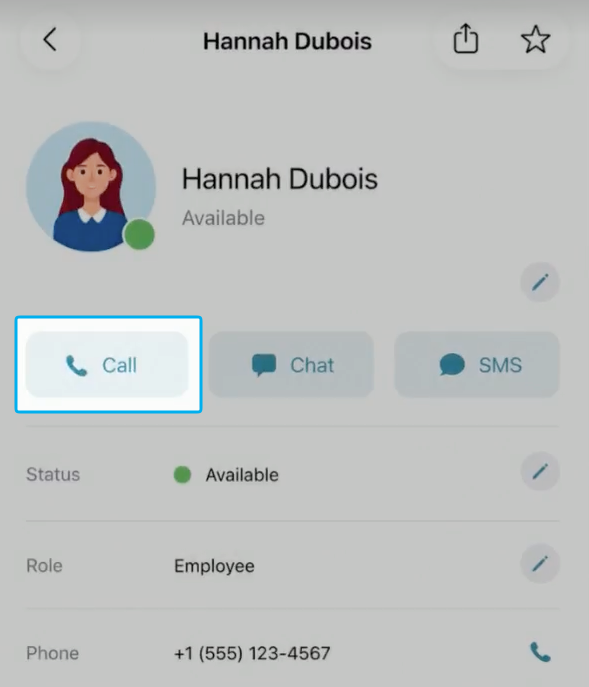
Open a contact's details and tap a call icon.
-
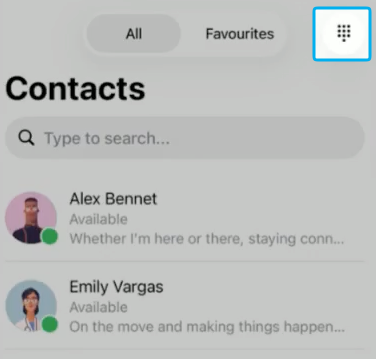
Open the Dialler, enter or paste a number and call.
-
Call from Recents.
-
Call from Voicemail.
-
Call from your phone's address book.
-
Call from your phone's call history.
On iPhone, calls from the lock screen and from the phone's own dialler also work, because the app uses CallKit. VoIP calls then appear in the iPhone call log, and Do Not Disturb and call blocking rules are respected.
Record a call
Depending on your account settings, you can record a call and save it as a file. With personal call recording you start and stop the recording yourself with the buttons in the call screen. The recording appears in Recents, under the Inbox filter. Recording stops automatically if the call is put on hold.
If your organisation records calls automatically, the recordings are available through the call recording portal linked from Settings.
Limitations
Emergency calls always go through your local mobile network, whether or not VoIP is on.
On Android you cannot switch between Wi-Fi and mobile data during a VoIP call.
On iPhone, in a monitored call environment, calling an external contact through the app shows their phone number instead of their name on your desktop app. This is a known limitation.