

You can sync your Dstny contacts to your phone's address book. Your phone can then show a name instead of a number during regular GSM calls that do not go through the Dstny system.
Choose what to sync
-
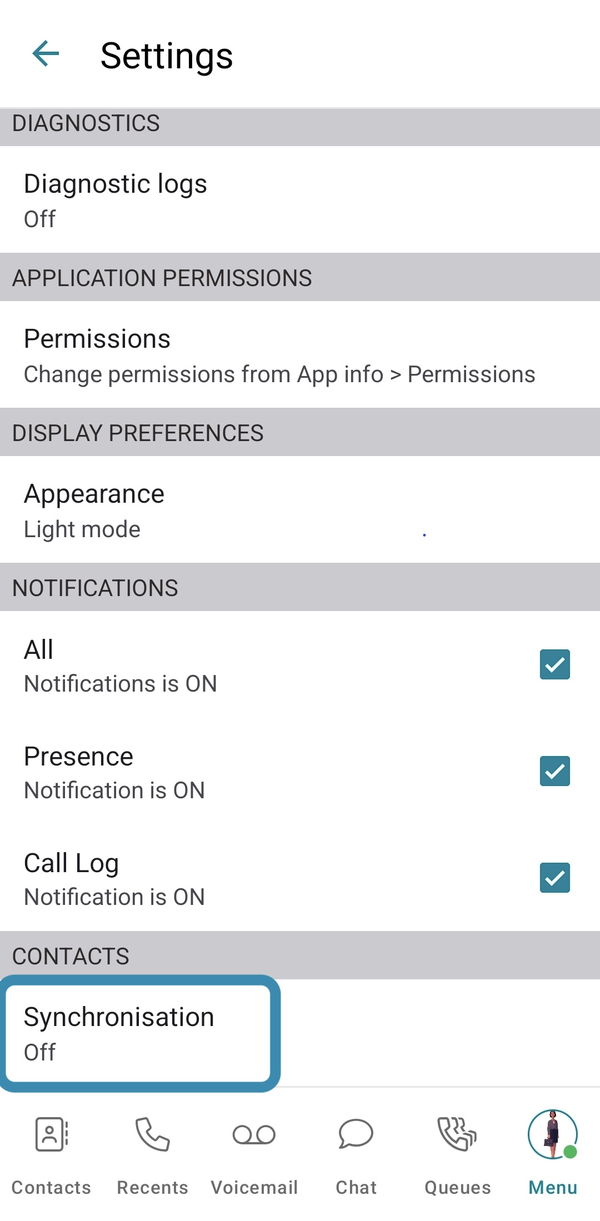
Open the Menu tab and go to Settings.
-
Tap Synchronisation.
-
Choose one of the options:
-
Off turns contact sync off.
-
Favourites only syncs your favourite contacts.
-
All contacts syncs every contact.
-
The result can vary with your organisation's settings. Ask your administrator if you have questions.
On iPhone
Contacts go to a separate address book on the phone. Profile pictures and email addresses can also appear when they are available.
Sync on iPhone needs a configuration profile. When you pick a sync option, a guided walkthrough opens. Follow the steps on screen to install the profile. Your choice has no effect until the profile is installed. The sync is read only, and removing the profile removes the synced contacts.
On Android
Contacts go to the local address book on the device.
-
Contact updates reach the app periodically, so a change can take a short while to show.
-
If contact information changes in the system, the new information is added next to the old. Existing information is not removed.
-
If you turn off sync or uninstall the app, all synced contacts are removed from the address book automatically.
-
If you reduce the sync scope, for example from All contacts to Favourites only, some contacts may be removed from the address book.