

This page shows how Teams Connect fits between Microsoft Teams, Microsoft services and the Dstny telephony platform. It is meant for IT staff who review how the app is set up.
Architecture overview
How the parts work together
-
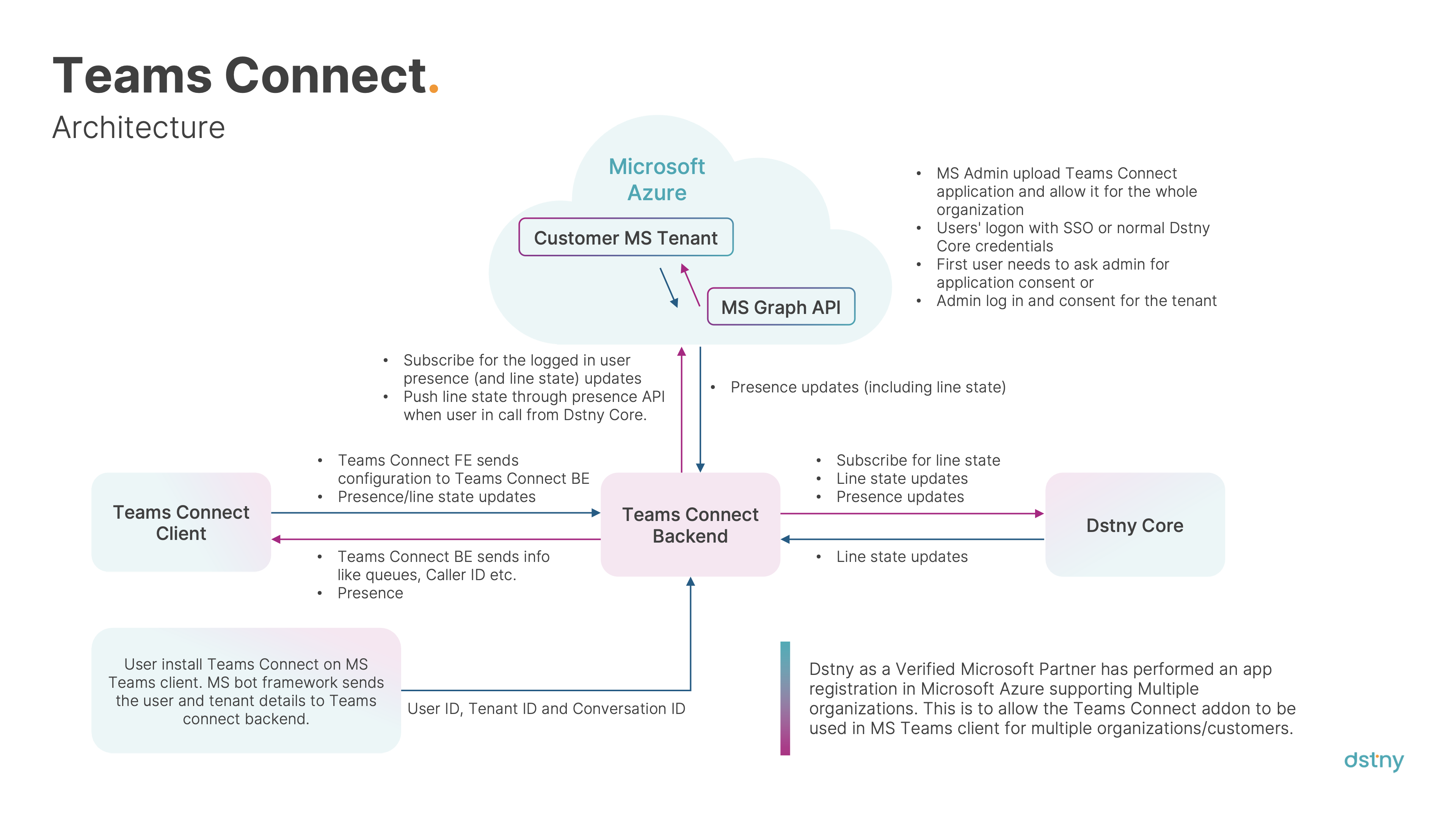
The Teams Connect client runs in Teams. It sends the user's settings and presence to the Teams Connect backend, and gets back information such as queues, caller ID and presence.
-
The backend subscribes to presence and line state updates for the logged in user through the Microsoft Graph API, and pushes line state to Microsoft when the user is in a call on the Dstny platform.
-
The backend also subscribes to line state and presence with Dstny Core, and receives line state updates from it.
-
When a user installs the app, the Microsoft bot framework sends the user ID, tenant ID and conversation ID to the backend.
Setup in your Microsoft tenant
-
A Microsoft administrator uploads the app and allows it for the whole organisation.
-
Users log in with single sign on or with their normal Dstny credentials.
-
The first user asks the administrator for consent, or an administrator logs in and gives consent for the whole tenant.
Dstny is a verified Microsoft partner and has registered the app in Microsoft Azure so that it can be used by many organisations.
Application permissions
-
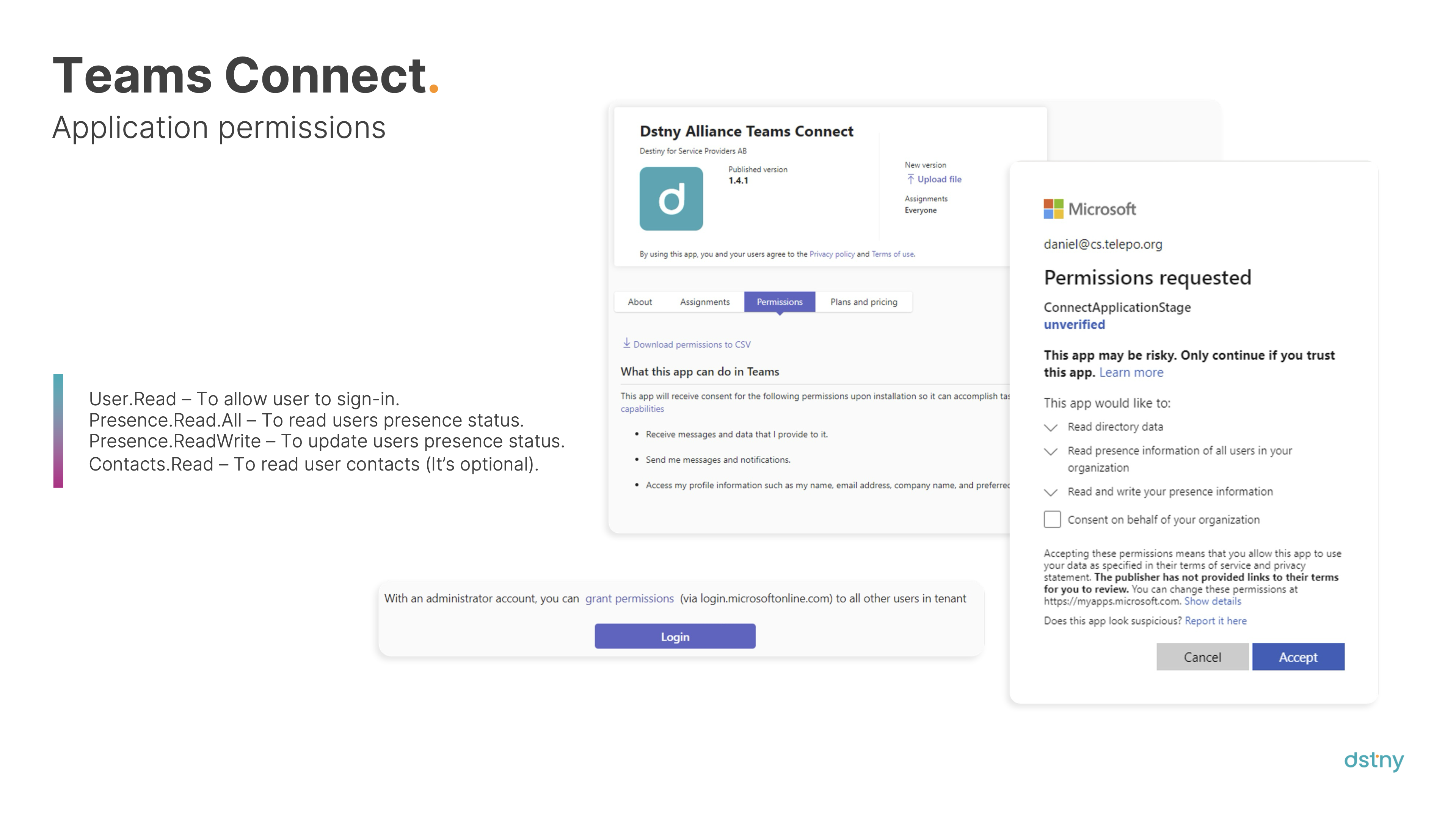
User.Read: lets the user sign in.
-
Presence.Read.All: reads the presence status of users.
-
Presence.ReadWrite: updates the presence status of users.
-
Contacts.Read: reads the user's contacts. This one is optional.
For the steps to install the app, see Installing Teams Connect in your organisation.