

With Call2Teams you use Teams as your phone. You call and answer on your Dstny number, inside and outside your company.
You need a Dstny line set up by your administrator and a Teams Phone Standard licence (included in E5). If calling is missing in Teams, ask your administrator.
Make a call
-
Select Calls in the Teams menu.
-
Type a number or search for a colleague.
-
Select Call.
Answer a call
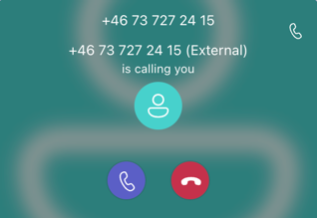
Select the green phone in the notification that appears when someone calls you.
During a call
-
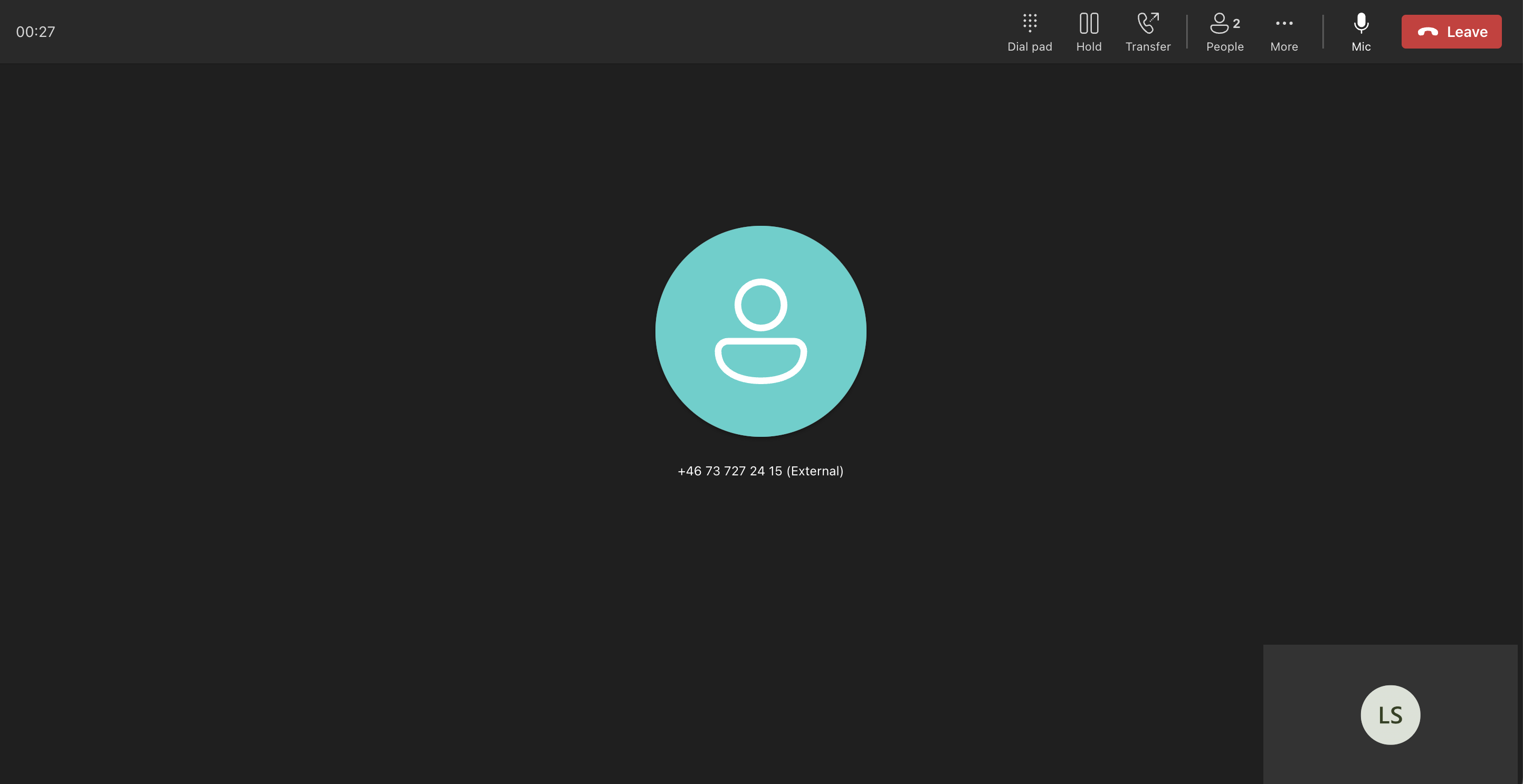
Open the dial pad to send keypad tones, for example to choose an option in a voice menu.
-
Put the call on hold or park it.
-
Transfer the call to a colleague or contact. Transfer right away, or choose Consult first to talk to the person before you hand over the call.
Get more from Teams
Install the Teams Connect app to log in to queues, choose which number you show, send SMS and listen to voicemail without leaving Teams. See Logging in to Teams Connect.
For administrators: busy tone on busy
If you want callers to get a busy tone when a user is already on a call, set this in the Teams admin center.
-
Open the calling policy for the users.
-
Set Busy on busy when in a call to Enabled.
If you use Call2Teams, you may need to turn off the voicemail in Teams so that calls reach the voicemail of your Dstny phone system.