

A Microsoft administrator adds Teams Connect to your Teams once. After that, your users find it in Teams and log in themselves.
You need a Microsoft Teams administrator account and the Teams Connect app file. Download it here: Teams Connect app. Do not unzip the file. Only download it.
Step 1: Upload the app
-
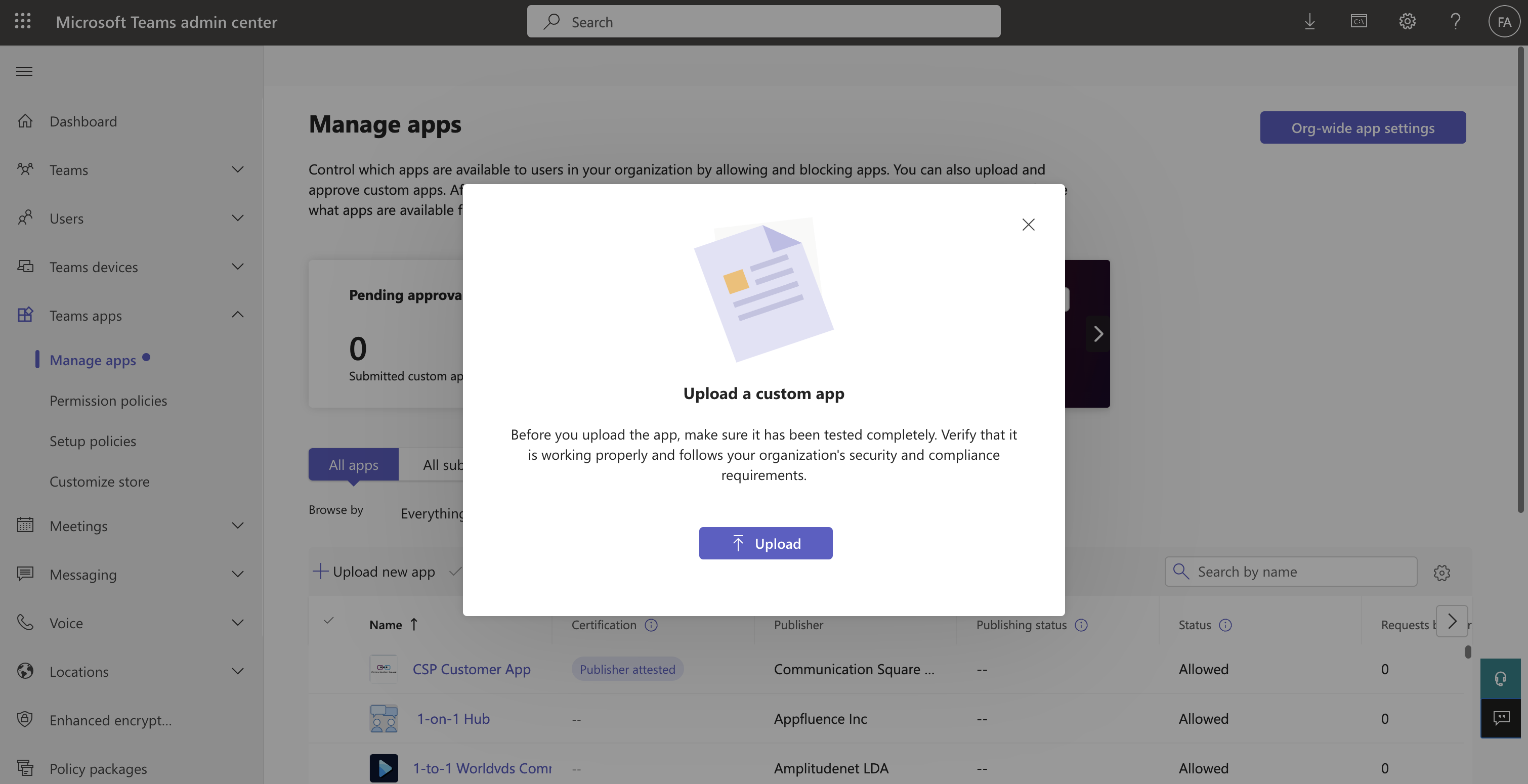
Open the Teams admin center and go to Teams apps, then Manage apps.
-
Select Upload at the top.
-
Select Select a file and choose the Teams Connect file you downloaded.
-
To find the app later in the admin center, search for Teams Connect.
Step 2: Make the app available to users
-
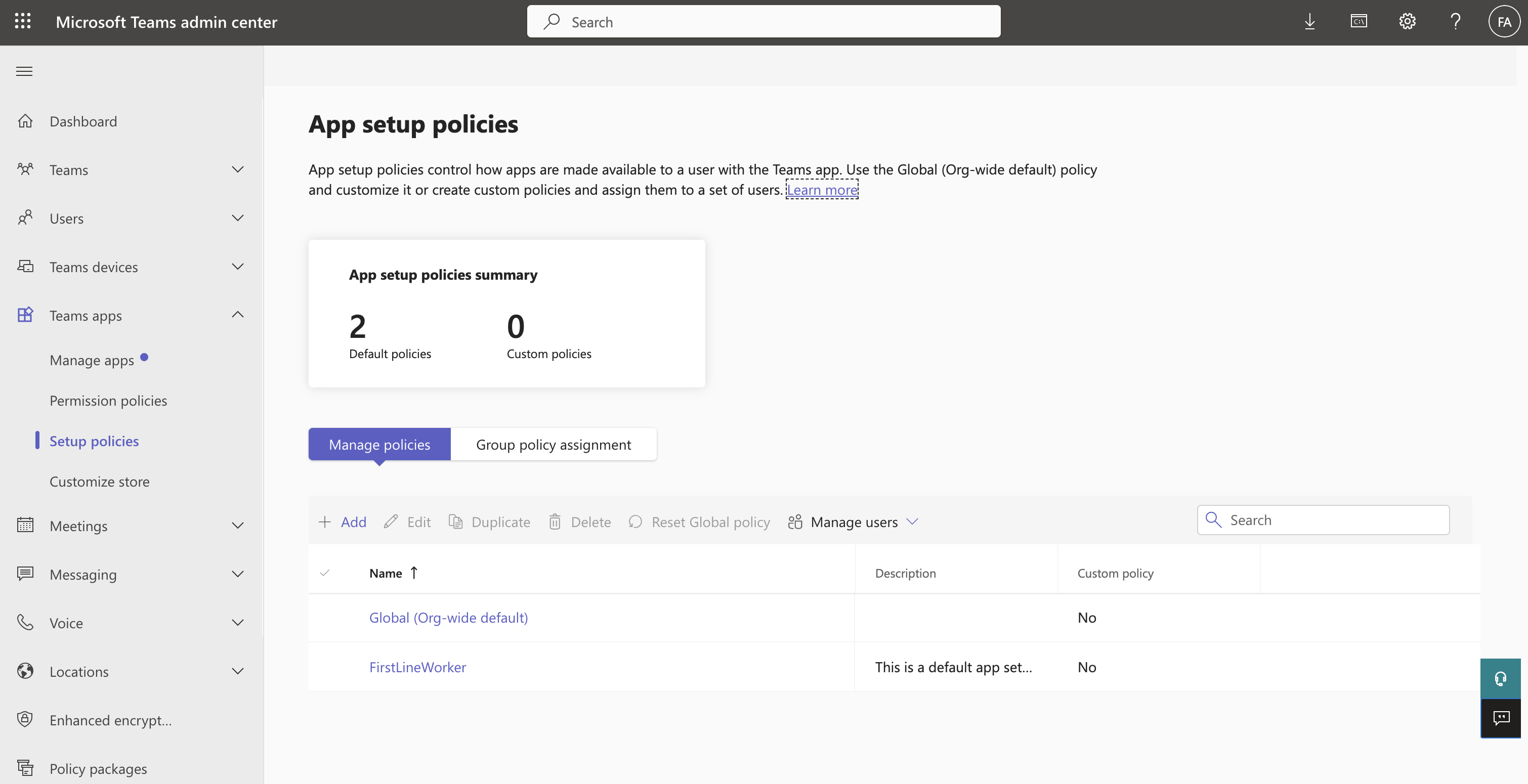
Open the app and select Setup policies. Choose the policies that suit your organisation.
-
If you have no special policies, use Global (Org-wide default). Then the app is available to everyone.
-
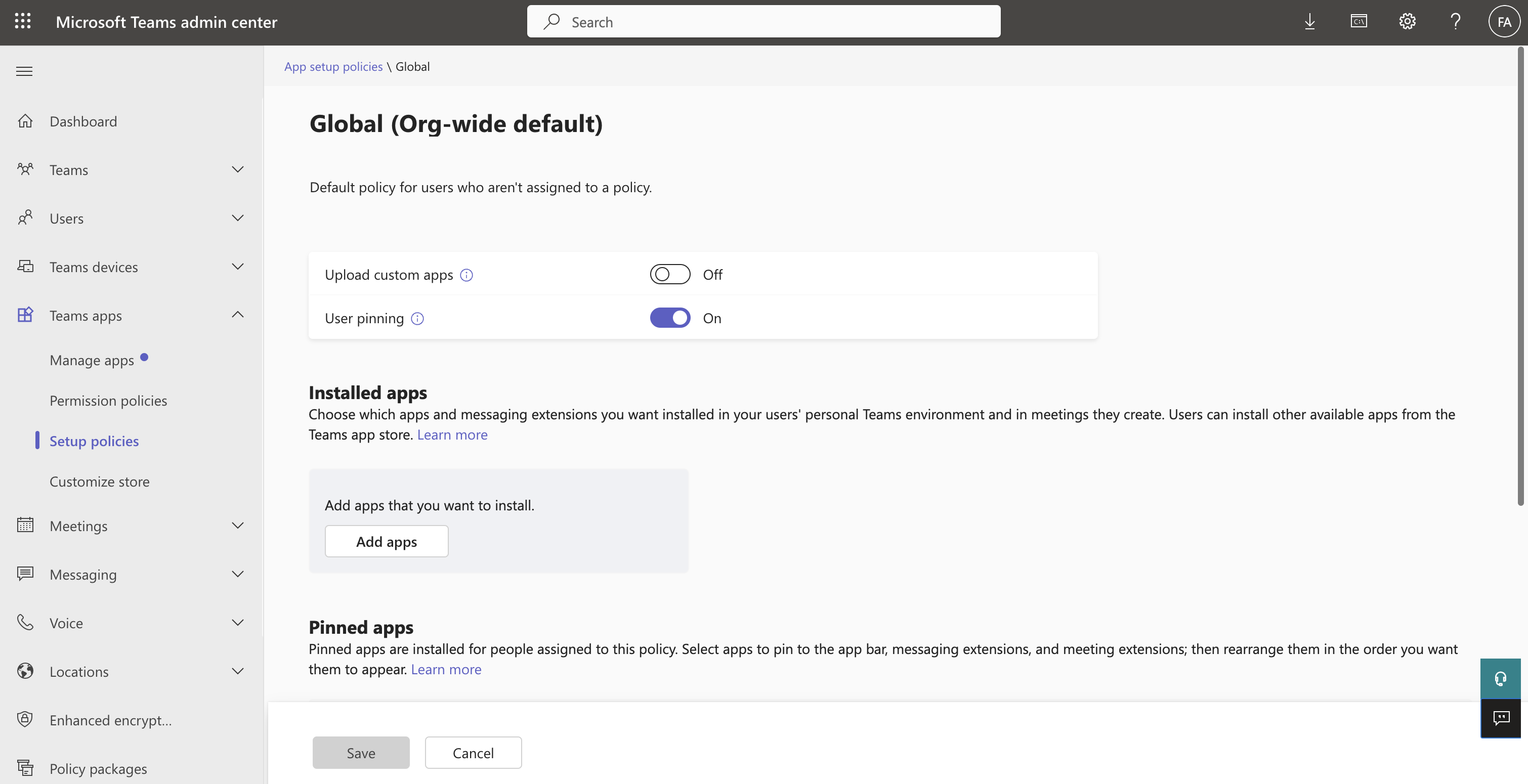
On the policy page, select Add apps and add Teams Connect to the apps users may use.
-
To make it easy to find, pin the app in the left menu of Teams.
Step 3: Log in and give permissions
-
Open Teams Connect and log in with your own Dstny username.
-
Go to the Settings tab and select the link that lets an administrator grant permissions for other users.
-
Microsoft asks which account to use. Choose the right administrator account and select Allow.

Done. Your users can now open Teams Connect and log in. See Logging in to Teams Connect.
If users cannot give permissions
Which permissions the app asks for
-
Sign in and read the user's profile.
-
Read the presence status of users.
-
Update the presence status of users.
-
Read the user's contacts. This one is optional and is used for sending SMS.
For a diagram of how the app works, see Teams Connect technical architecture.
Next step
Set the default status mapping for your organisation.