

This guide connects your Microsoft 365 tenant to Call2Teams. You do it once. After that you add users, see Adding Call2Teams to users.
Dstny does not configure your Microsoft 365 environment for you. Someone with the right Microsoft rights must do these steps.
Before you start
-
A Microsoft 365 account with global administrator rights, or access to someone who has them.
-
Two unassigned Microsoft 365 licences, for example Business Basic, Business Premium, E1, E3 or E5.
-
A Teams Phone Standard licence for every user who will use Call2Teams, assigned in Microsoft 365 before the first sync. Business Voice or E5 also works.
-
Teams phone resource accounts for your queues.
-
Chrome or Edge as your browser.
-
Access to MyAdmin at https://admin.dstny.se.
Step 1: Turn on the Call2Teams add-on
-
In MyAdmin, open Organisation setup, then Add-ons.
-
Find Call2Teams and turn it on. If it is not in the list, contact Dstny support.
-
Open the settings of the add-on to continue with the Microsoft connection.
Step 2: Connect Microsoft
Choose the option that fits you.
You are the Microsoft administrator
-
Select each consent button and sign in with your administrator account when asked.
-
Accept the permission request from Microsoft.
Someone else is the Microsoft administrator
-
Invite one or more Teams administrators by email.
-
The administrator opens the email from Dstny Teams Telephony and selects Accept Invitation. The person must be a global administrator of your Microsoft 365 tenant.
-
If Microsoft says the account is not recognised, select Sign in with another account and use the administrator account.
-
Check the connection details: service name, country, SIP domain and SIP proxy.
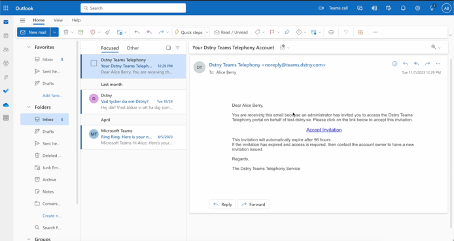
An invited administrator is the only person who can open the Dstny Teams portal at https://admin.teams.dstny.com. This is true even if consent was given before.
Step 3: Run the first sync
-
Select Sync (or Sync Now in the Dstny Teams portal). The sync links your Microsoft domain to your Dstny organisation and assigns phone numbers. It can take up to 15 minutes.
-
Open the Logs tab and select Refresh. The status shows if the sync is running, finished or failed.
-
Select the eye icon to read the details, even when the status says finished. Some steps may not have completed. If it says a manual sync is needed, start one so that the virtual users can be created.
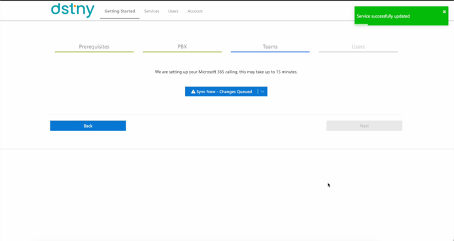
When the Microsoft domain is linked, the status changes to Accepted.
Step 4: Turn on Phone app and Auto sync
-
Turn on Phone app and Auto sync, and accept each consent request.
-
Phone app lets Call2Teams use the auto attendant resource account to make and receive calls.
-
Auto sync lets Call2Teams update Teams users automatically when you change them in MyAdmin.
Step 5: Test
-
Add a test user, see Adding Call2Teams to users.
-
Ask the user to open Teams and select Calls. Make a call on the Dstny number.
If a user does not show up, check the licences in the Microsoft 365 admin center. If calls fail, check that the user is registered under Users in the Dstny Teams portal, and that no firewall blocks the traffic Teams needs.
Next steps