

Teams Connect is an app inside Teams. It links your Teams status with your Dstny phone and gives you phone features in Teams. Log in once and it keeps working.
Teams Connect works in the Teams desktop app and in the Teams mobile app. Your administrator must have added the app first. See Installing Teams Connect in your organisation.
Find the app
-
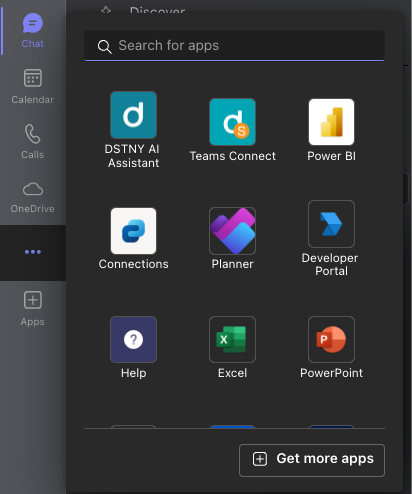
In Teams, look for Teams Connect in the left menu.
-
If it is not there, select the three dots to find apps. Select Get more apps, and look under Built for your org or search for Teams Connect.
-
Choose the one that does not have an orange dot.
Log in
-
Open Teams Connect and select the Settings tab.
-
Select Log in.
-
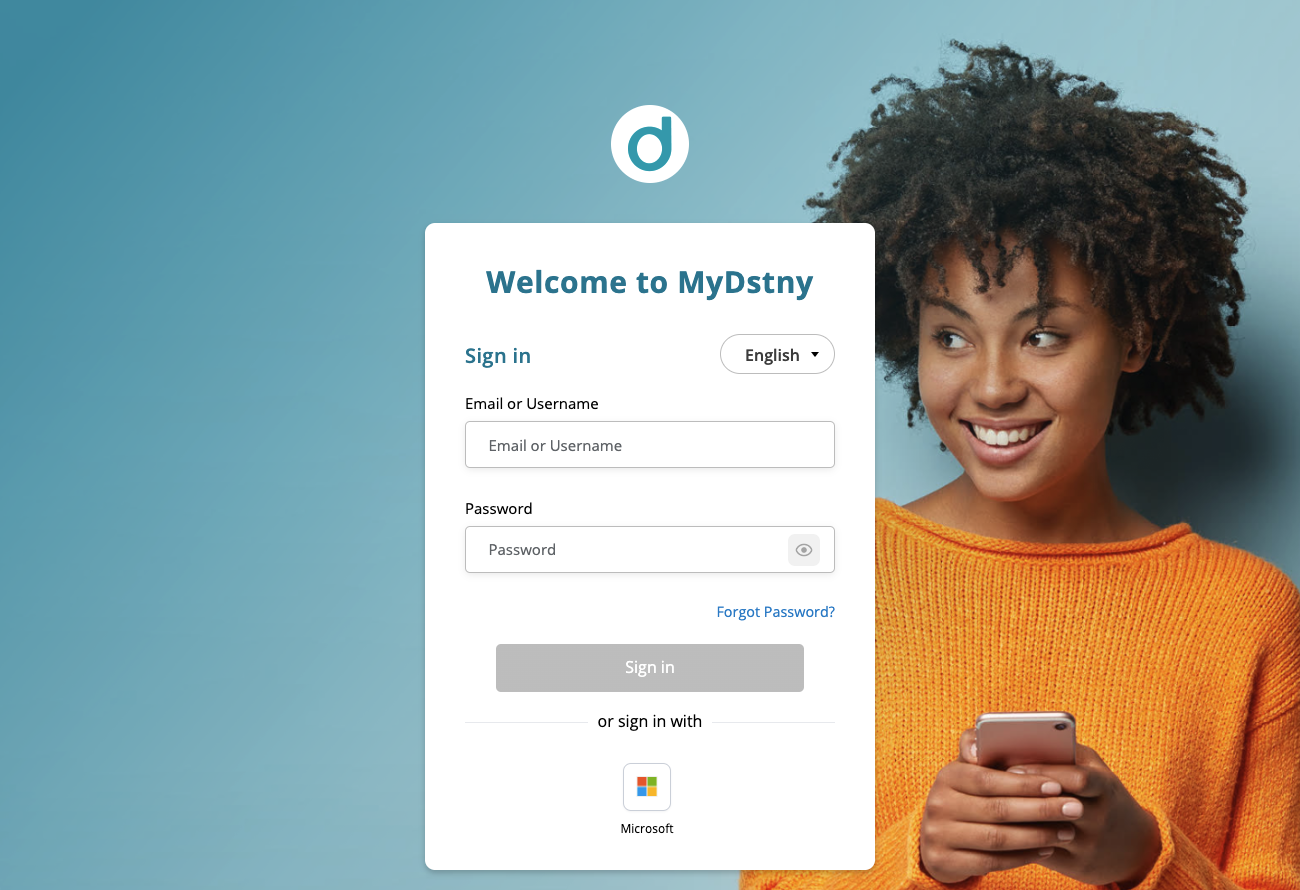
Sign in with your Dstny username and password. You can also sign in with your Microsoft account if your organisation has turned that on.
-
Select grant permissions so that Teams and your phone system can share your status.

If you cannot grant permissions, your administrator may need to allow it first. See Installing Teams Connect in your organisation.
What you will see
-
Dashboard: your queues and groups, caller ID, SMS and voicemail.
-
Settings: log in, permissions, status mapping and voicemail notifications.
-
Organization: only for administrators and supervisors.
Next steps