

Call Recording works in the Dstny mobile app and the softphone. What you do depends on your package.
Call Recording Automatic
Every incoming and outgoing call is recorded automatically. You do not have to do anything, and there are no recording buttons in the app.
Call Recording Pro
Your organisation sets Pro to one of two modes.
-
Always on: every call is recorded automatically, as with Automatic.
-
On demand: you choose which calls to record.
Which mode you have depends on how your organisation set up Call Recording Pro. Ask your administrator if you are not sure.
Controls during a call
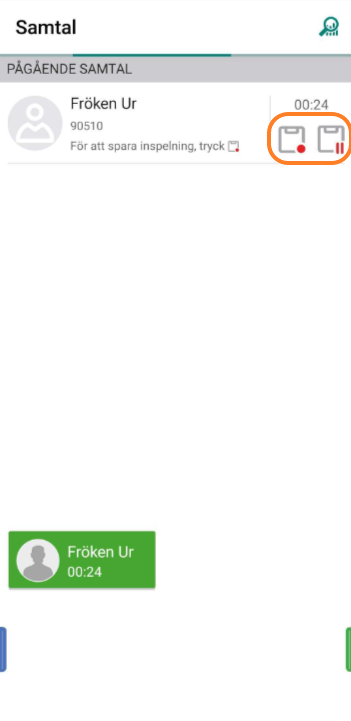
With on demand recording, open the Calls tab while you are on a call. The tab shows these options:
|
Icon |
Option |
What it does |
|---|---|---|
|
|
Save recording |
Keeps the whole call, including the part before you pressed the button. You can save at any time during the call. |
|
|
Discard recording |
Throws the recording away. |
|
|
Pause recording |
Stops recording until you resume. Use it when the caller reads out card details. |
|
|
Resume recording |
Starts recording again after a pause. |


The paused part of the call is not in the recording.

Where the recording goes
A finished call shows up in the recording portal within a minute. See Finding and playing back recordings for how to open it.
Related
The mobile app guide Making calls and recording calls covers the app in general.