

Recordings are kept in the Call Recording portal. You can search, filter and listen to them from any supported browser.
Sign in
-
Go to recording.dstny.se.
-
Sign in with your email address and password.
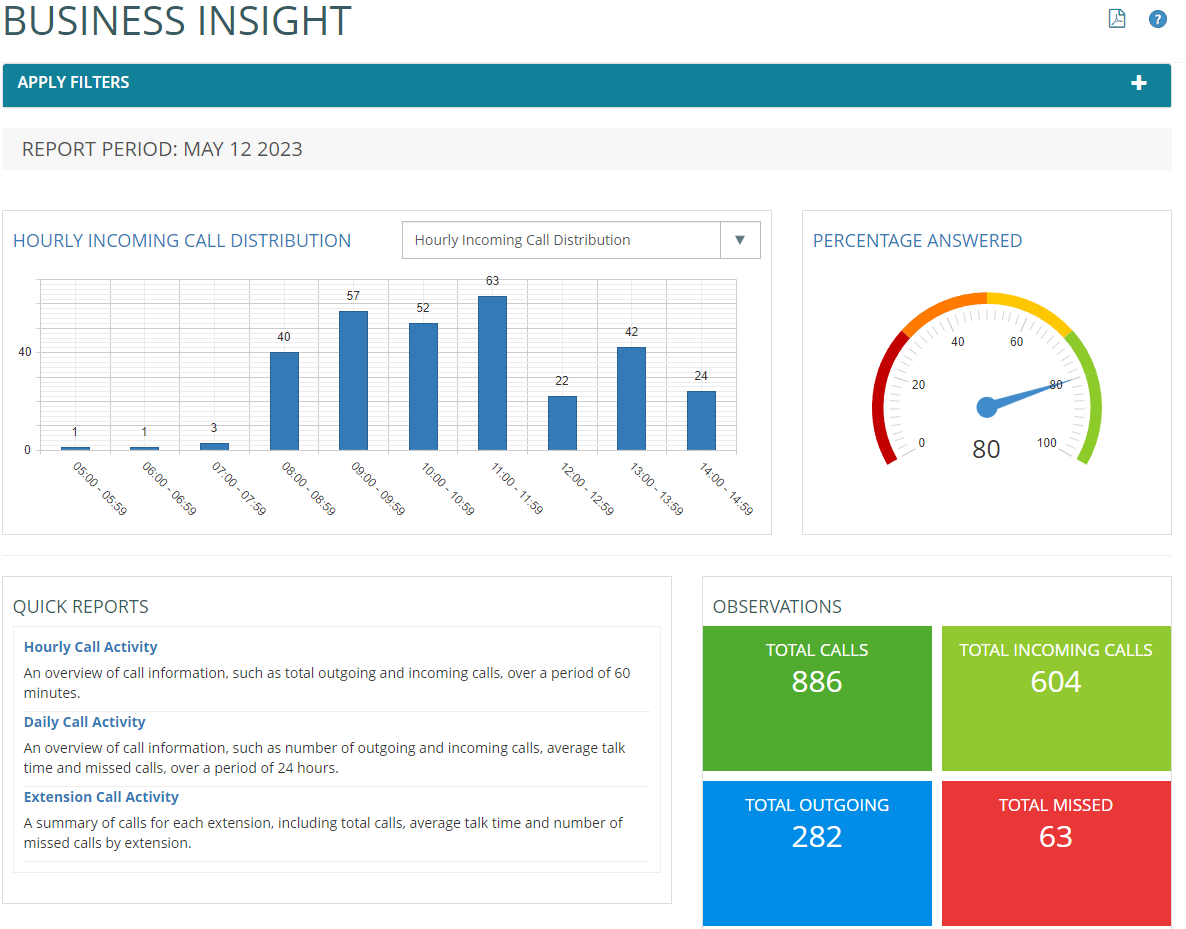
Users land on a dashboard with statistics for their own calls. Administrators land on the call overview, which covers the whole organisation. Use the date filter to change the period.
Find a recording
-
Open the Call Recordings tab.
-
Select Apply Filters.
-
Narrow the list by date, time, department, user, number, call direction or minimum call length.
-
Select Apply.
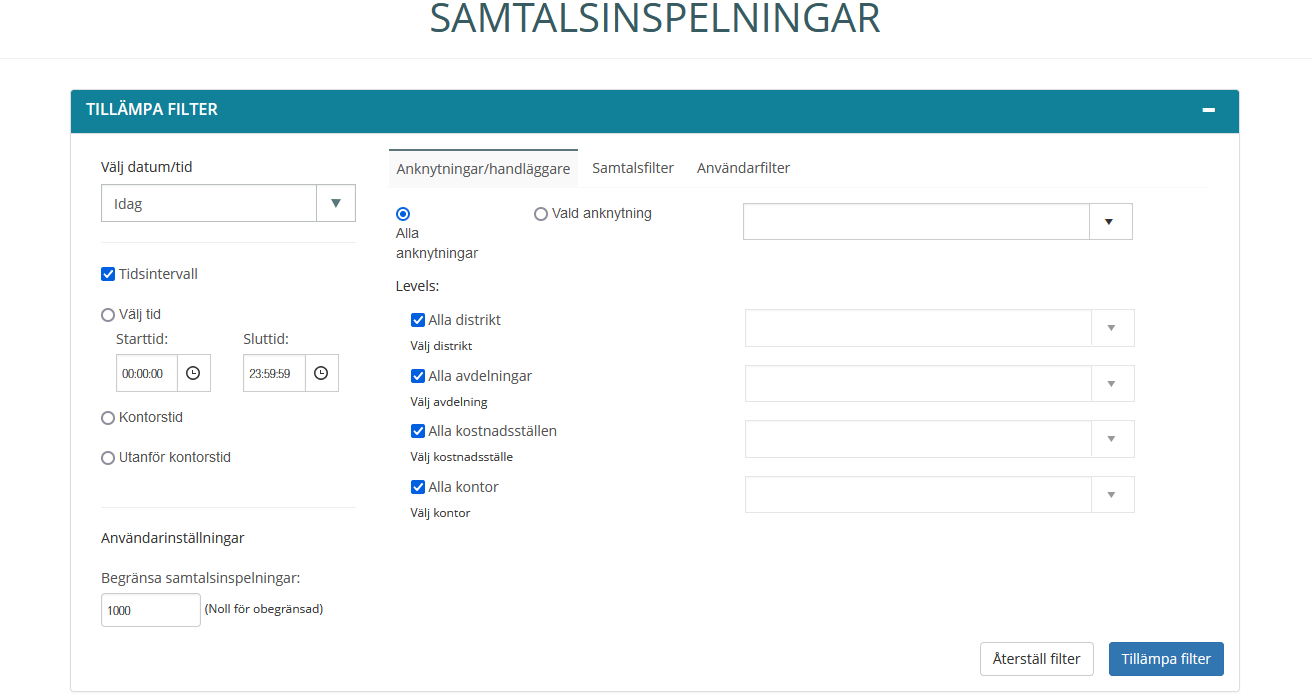
Calls shorter than 5 seconds are hidden by default because they rarely contain anything useful. To see them, open Apply Filters, then Call Filter, and clear Min. Call Duration.
Direction works like this: an Out call was made by an agent, and an In call was answered by an agent.
Play a recording
-
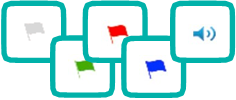
Select the flag or the speaker icon on the call.
-
Use the player to listen.
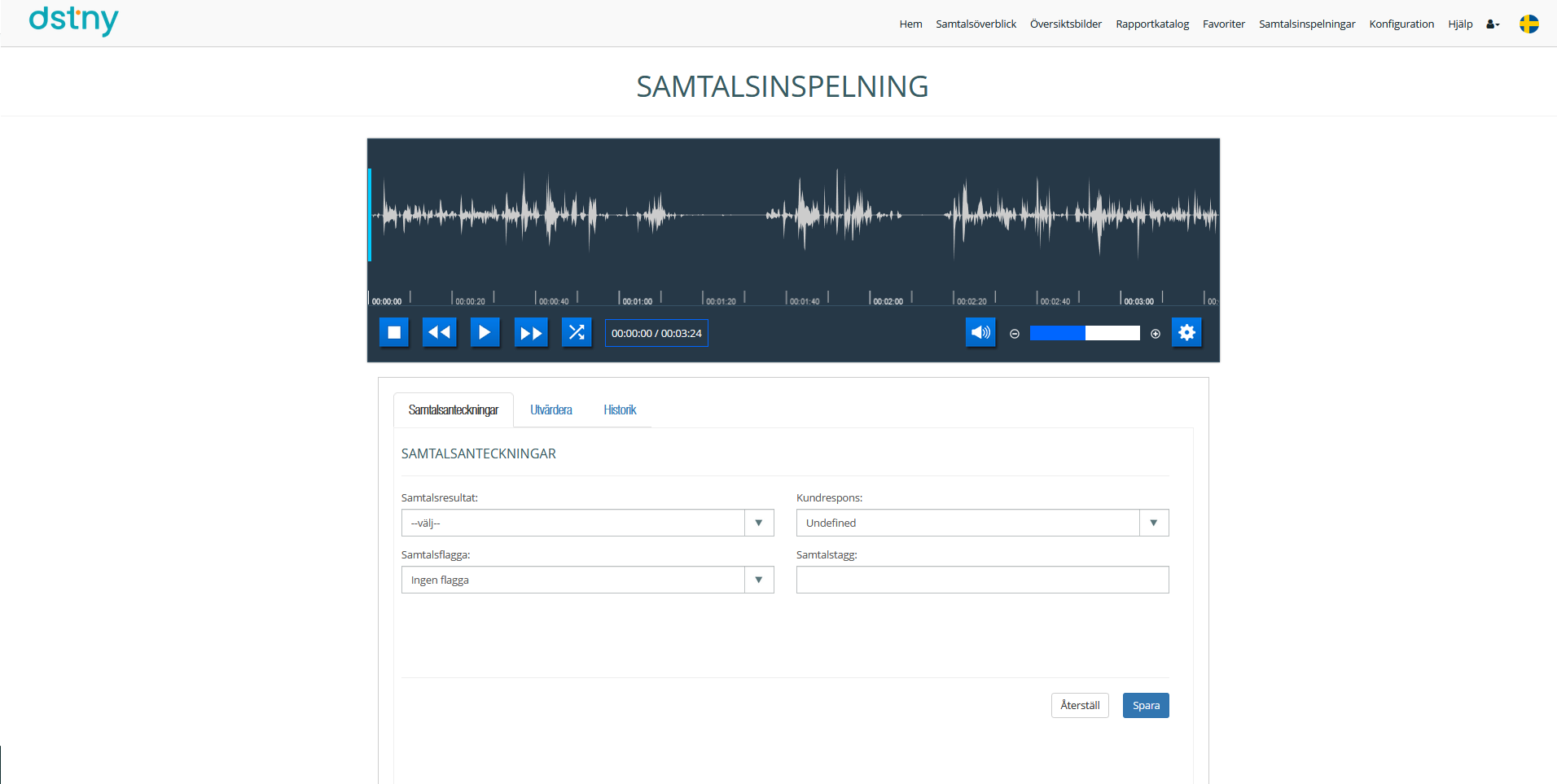
With Call Recording Pro you can also flag, tag and evaluate the call from this view. See Flagging, tagging and evaluating calls. Select Save after you edit.
Who sees which recordings
You only see recordings your role allows. A Console user sees their own calls. A Super User sees all calls. See Call Recording users and access.
If a call is missing
A call can take up to a minute to appear after it ends. If it is still missing, see Troubleshooting Call Recording.