

Save an Advanced report once and Dstny Analytics can send an updated version to the people you choose, on the days and times you choose. Recipients do not need to log in or know how the platform works. A saved report is also the starting point for a Connector.
Saving and scheduling is part of Dstny Analytics Advanced. Basic reports cannot be saved or scheduled.
Save a report
-
Create an Advanced report and open the Save report (Spara rapport) tab.
-
Give the report a name.
-
Enter the email addresses of the people who should receive it.
-
Choose when it should be sent, for example every day, on weekdays, on Mondays or on the last day of the month, and at what time.
-
Choose which period the report should contain and how many days, months or years back it should reach. For example, send it on the first day of every month at 06:00 with data from the previous month.
-
Choose how to group the data: by Total, Objects, Groups, or Groups and objects. Then choose how to break the period down, for example by date, week or month.
-
Choose the file format, Excel or CSV. You can also include charts, call specifications and column descriptions.
-
Click Save in the lower left corner. You must make at least one choice in the grouping options before the report can be saved.
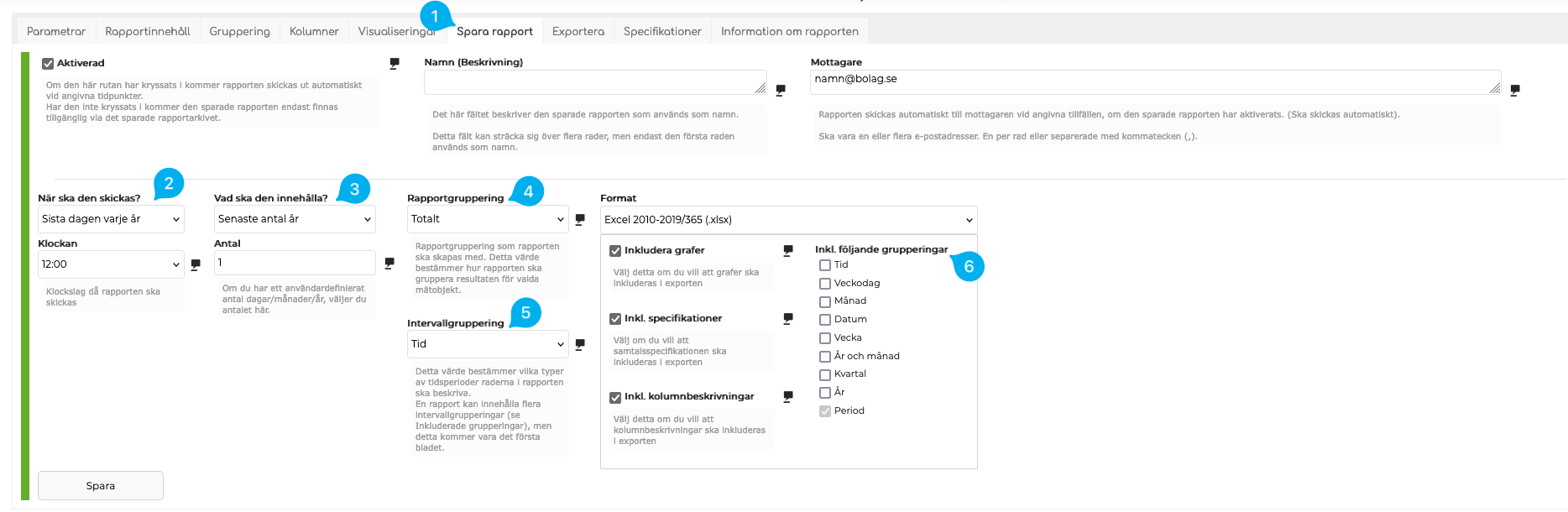
The numbers in the screenshot mark these settings: 1 Save report tab, 2 when to send and at what time, 3 what the report contains, 4 report grouping, 5 interval grouping, 6 groupings to include in the file.
Find and manage saved reports
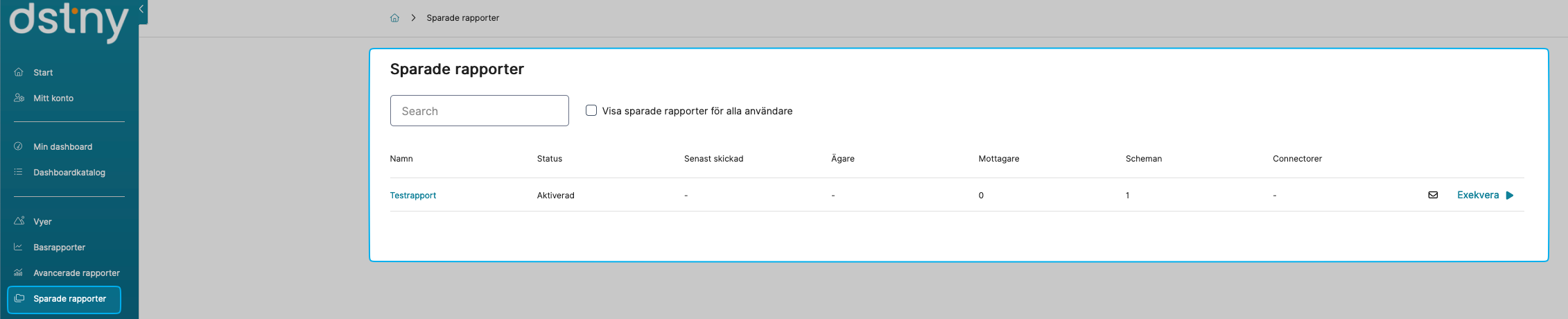
Open Saved reports (Sparade rapporter) in the main menu to see the reports saved on your account. You can sort them by name or by when they are sent. Administrators can tick a box to see saved reports for all users. With many reports, filter by recipient address or report name.
-
Click the report name to edit it.
-
Click Execute to run the report now with the saved settings.
-
Click the letter icon to send it now. Choose a schedule, set the report target date, add recipients with the plus sign and click Send.
Edit a saved report
When you open a saved report you can use these buttons:
-
The pen icon changes the name.
-
Copy saves a copy, which is useful for making variations of the same report.
-
The trash can icon deletes the report.
-
Cancel takes you back to the list.
-
The Enable toggle turns the report on or off. If you turn it off, its schedules and Connectors stop working.
Next steps