

A Connector is a direct link to the data in a saved report. You add the link to Power BI, Excel or Qlik, and the report data shows up there next to your other data. You do not need to build an integration, and the data updates when you refresh the link in the other system.
Connectors are part of Dstny Analytics Advanced. They are built on saved reports, so create and save the report you want first. The steps are in Saving and scheduling reports.
Create a Connector
-
In Dstny Analytics, open Saved reports (Sparade rapporter) in the main menu and open the report you want to share.
-
Under Connectors on the Saved report tab, click the icon of the system you want to connect, for example Power BI, Qlik or Excel. A dialog opens. The link at the top of the dialog has instructions for that system.
-
Under Security, turn on Enabled and Require access token. From then on the link alone is not enough. The external system must send the access token in the request header.
-
Under Data settings, choose the time period the Connector should cover.
-
Turn on Include access to specifications if you need the individual calls. Turn on Result is grouped if you want the data grouped as in the report.
-
Click Add.
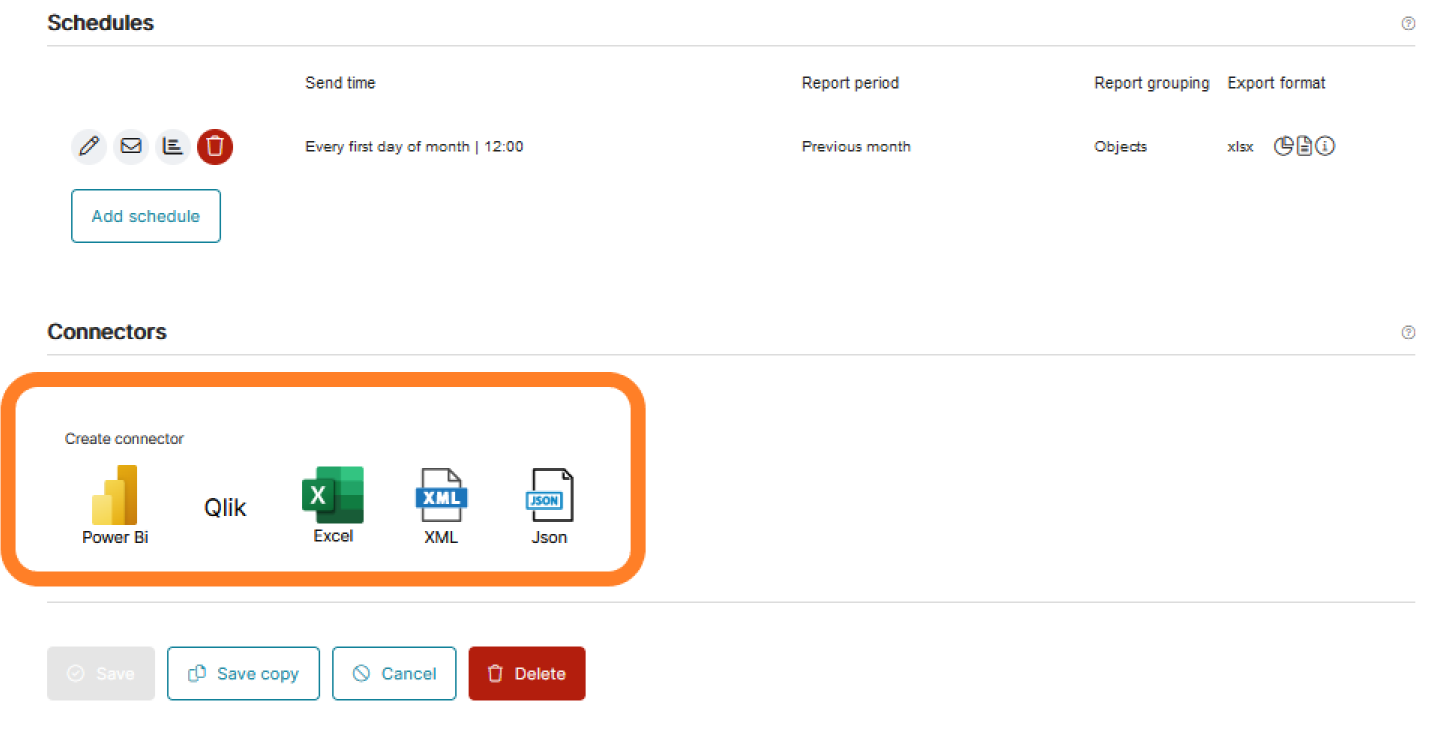
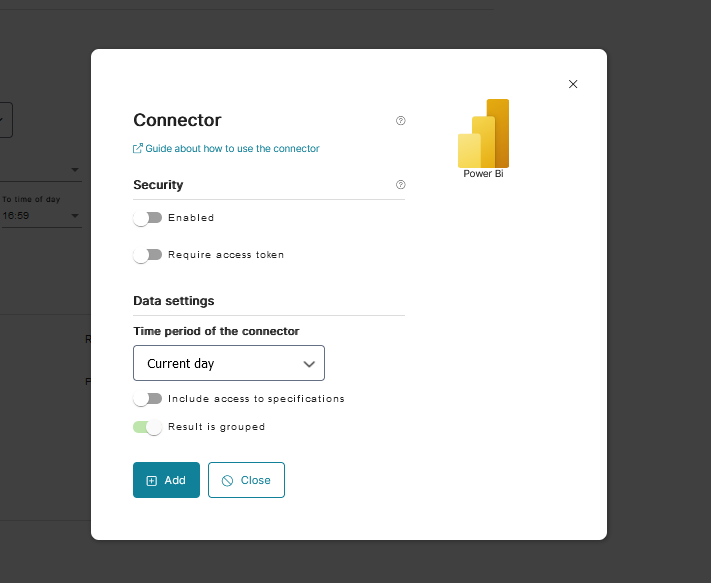
Do not share the Connector link. Anyone who has it can read the data without logging in to Dstny Analytics. Use the access token to protect it.
Add the Connector to Power BI
-
Copy the Connector link.
-
Open Power BI and sign in. If you created the Connector from Dstny Analytics, Power BI may open for you.
-
Select Get data, then Other, then Web.
-
Paste the link in the URL box and click OK. The tables appear in the Navigator, where you pick what to import.
If you use an access token, select Advanced when you load the web data. Put the link in URL parts. Under HTTP request header parameters, enter access_token as the name and your token as the value. Click OK.
Add the Connector to Excel
-
Copy the Connector link.
-
In Excel, open the Data tab and select From Web.
-
Paste the link in the URL box and click OK. The tables appear in the Navigator, where you pick what to import.
If you use an access token, select Advanced. Put the link in URL parts. Under HTTP request header parameters, enter access_token as the name and your token as the value. Click OK.
Add the Connector to Qlik
-
Copy the Connector link.
-
In Qlik, select Connect to data and search for the REST connector.
-
Paste the link in the URL box and click Create and analyze.
-
If some tables are missing, increase the Preload symbols count.
If you use an access token, go to Query headers on the REST connection. Enter access_token in the Name box and your token in the Value box. Click Create and analyze.
Next steps
-
If you want to fetch call data from your own code instead, see The Analytics API.