

Each key in a voice response can send the caller somewhere. You can also build a multilevel menu with child menus.
Menu options
The default for a key is No forward, which does nothing. Other options:
-
Collect digits: asks the caller to enter digits, which are sent along with the call.
-
Connect to destination: forwards to an answer group. Search for it or choose it from the list.
-
Extension dialling: asks the caller to enter an extension to forward to.
-
Forward to connection: forwards to a user.
-
Forward to external: forwards to a phone number. If Allow any forwarding destination is on, the number does not need a leading plus sign.
-
Forward to voice prompt: plays a message, for example opening hours.
-
Forward to voice response: forwards to another voice response.
-
Repeat menu option: plays the options again.
-
Child menu: adds a next level under this key.
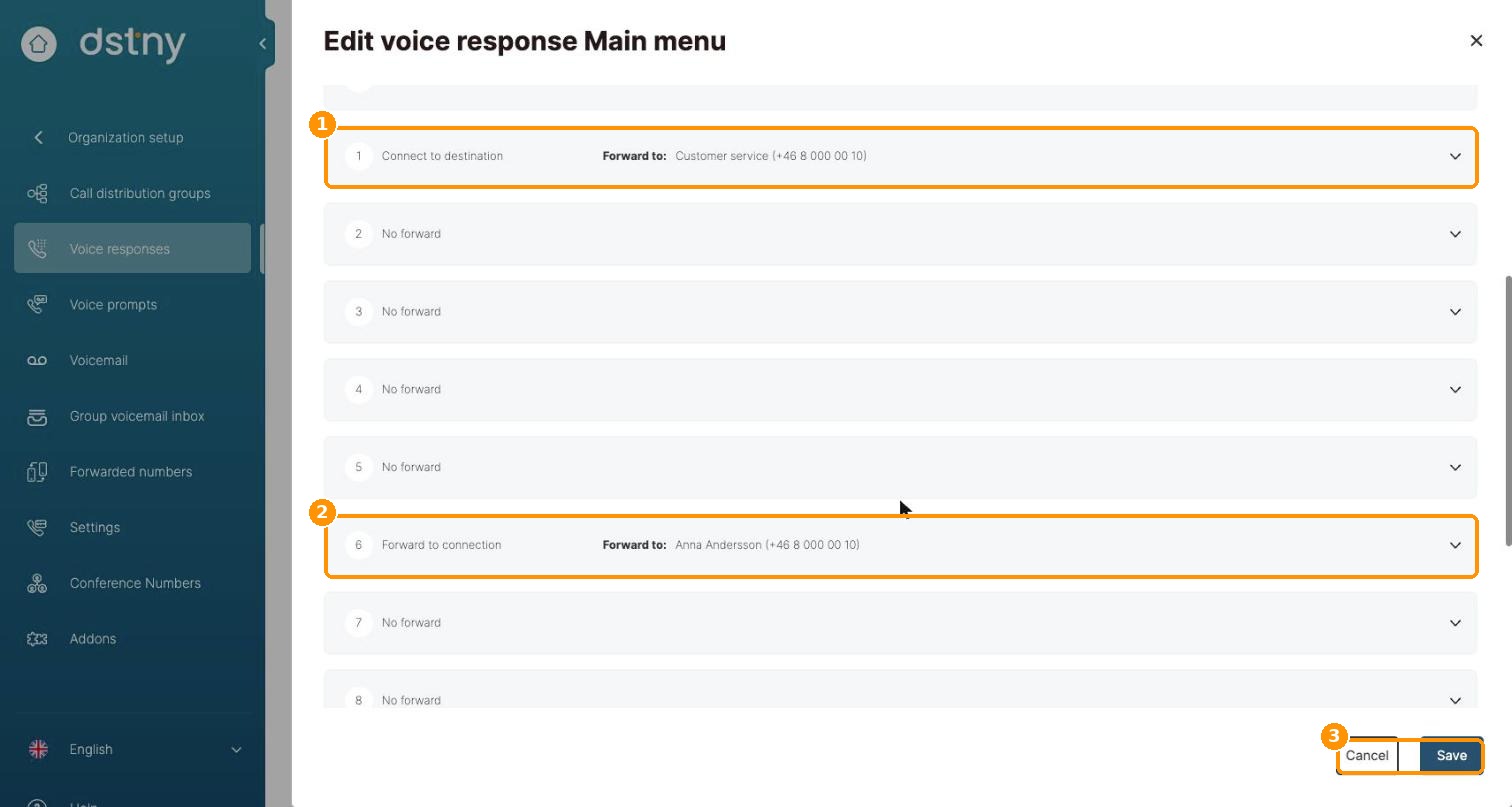
The Menu options tab lists the keys. Select a key to expand it and set where it goes.
Build a multilevel menu
-
Fill in the required fields in Add voice response.
-
Select the floppy disk icon in the upper right corner to open the Play prompt card. It has a General tab and a Schedule tab.
-
Select the pen icon to edit the card.
-
Expand Route to destination and choose an option, then choose a destination.
-
Select the floppy disk icon. The new child card now appears under the parent card.
-
Add more child cards as needed, then select Save. The hierarchy view updates by itself.
-
Review and edit the cards with the pen icon. Start with the parent card and then go through the child cards.
With the Collect digits card type, select the parent card to see all details at the top level. A child card only shows its own details.
The portal changes some card types for you. If a Forward to external card uses the same number as its parent card, it becomes a Repeat menu card. If the number is the same as an existing answer group, it becomes Connect to destination. If it is the same as an existing voice response, it becomes Forward to voice response.
Find your way in a large menu
You can search by name, number, prompt and more to see which cards contain them. The Home button shows the breadcrumbs for each card. The navigation buttons are Fit, Collapse all, Expand all, Full screen, Zoom in and Zoom out. You can switch between a vertical and a horizontal view, and export the hierarchy as a PNG or SVG image.