

A voice response (IVR, interactive voice response) answers calls with a recorded menu. Callers use the keypad to reach the right destination or get information without speaking to a person.
If Honor Core Licenses is turned on for your organisation, some features are unavailable depending on your licences and quotas.
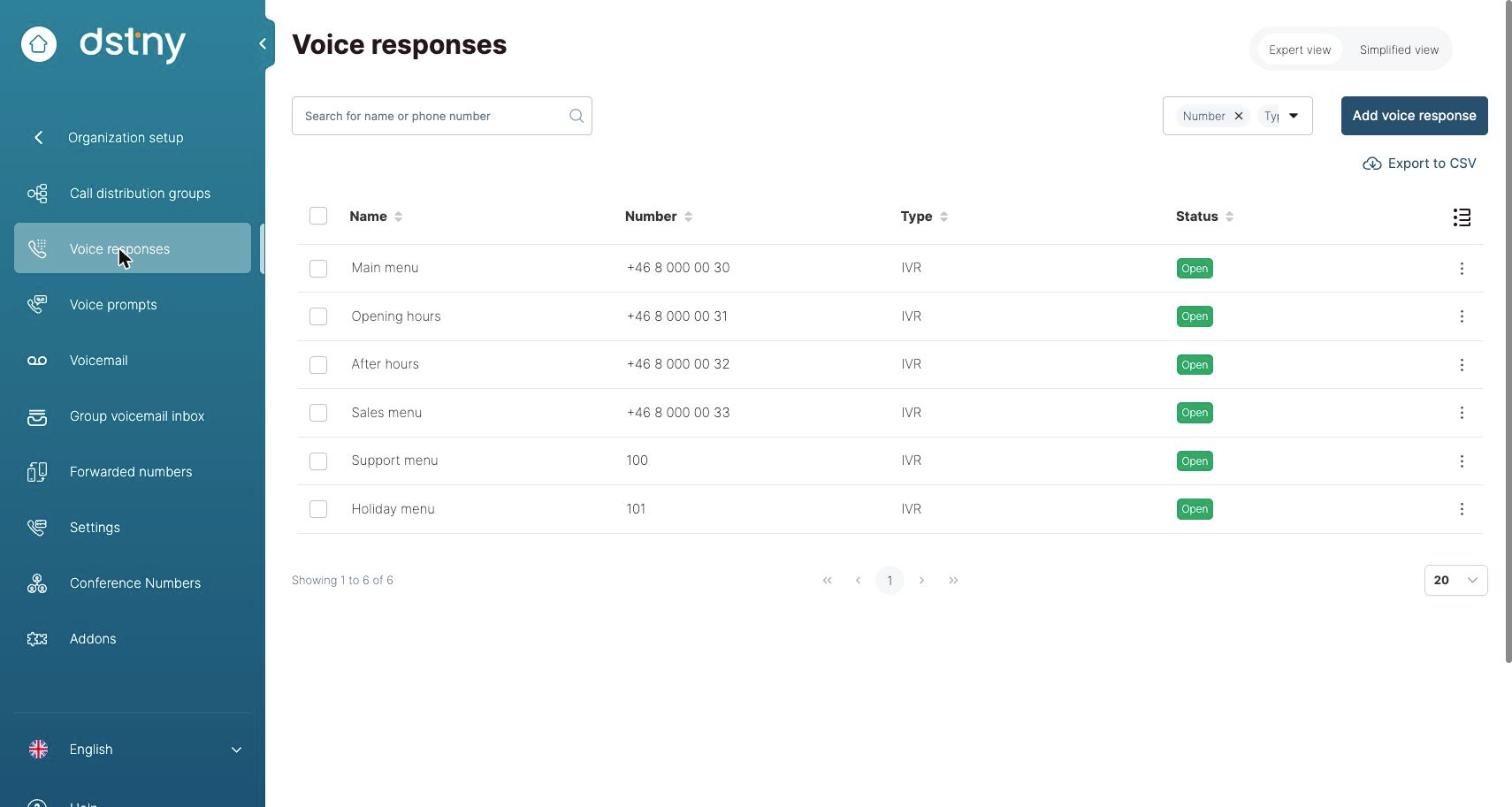
Add a voice response
-
Open Organization setup > Voice responses.
-
Select Add voice response.
-
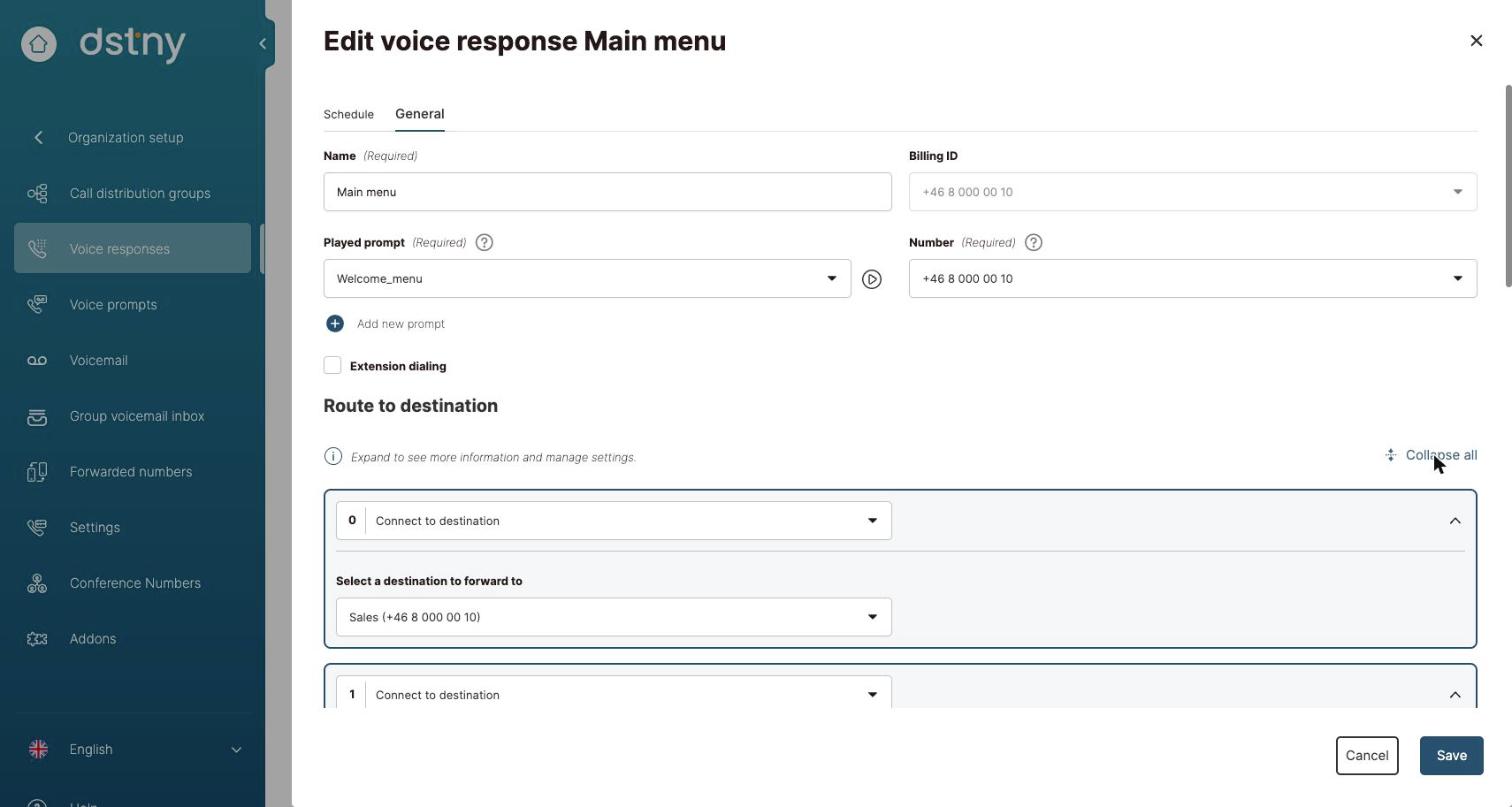
Fill in the fields:
-
Name of the voice response.
-
Billing ID, which is the number billed when a call is transferred externally.
-
Played prompt, which is played before the options.
-
Number of the voice response.
-
Extension dialling. When ticked, callers can only dial an extension, and a field appears for the prompt to play when an extension is entered incorrectly.
-
Route to destination. Expand it to manage where calls go.
-
-
Select Save.
Next, set what each key does (Setting menu options and child menus). Prompts are covered in Managing voice prompts. Opening hours work as described in Setting opening hours and holidays.