

To send alarms to Teams, you need a webhook address from a Teams channel or chat. You create it once, then paste it into the alarm in Supervisor Pro.
Microsoft has retired the old Incoming Webhook connector. New webhooks are made with the Workflows app in Teams.
Create the webhook in Teams
-
Open Teams and go to the channel that should get the alarms.
-
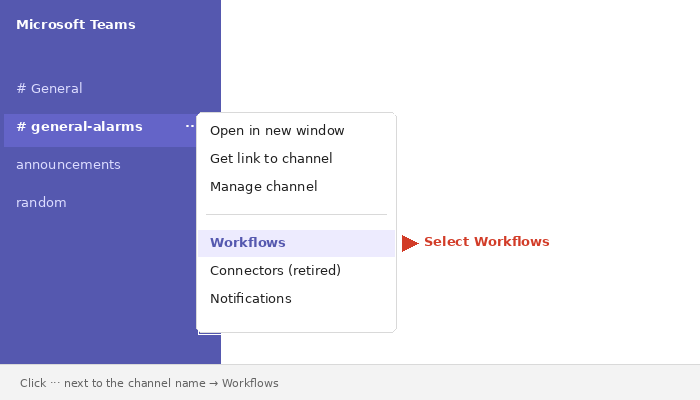
Select the three dots next to the channel name and choose Workflows.
-
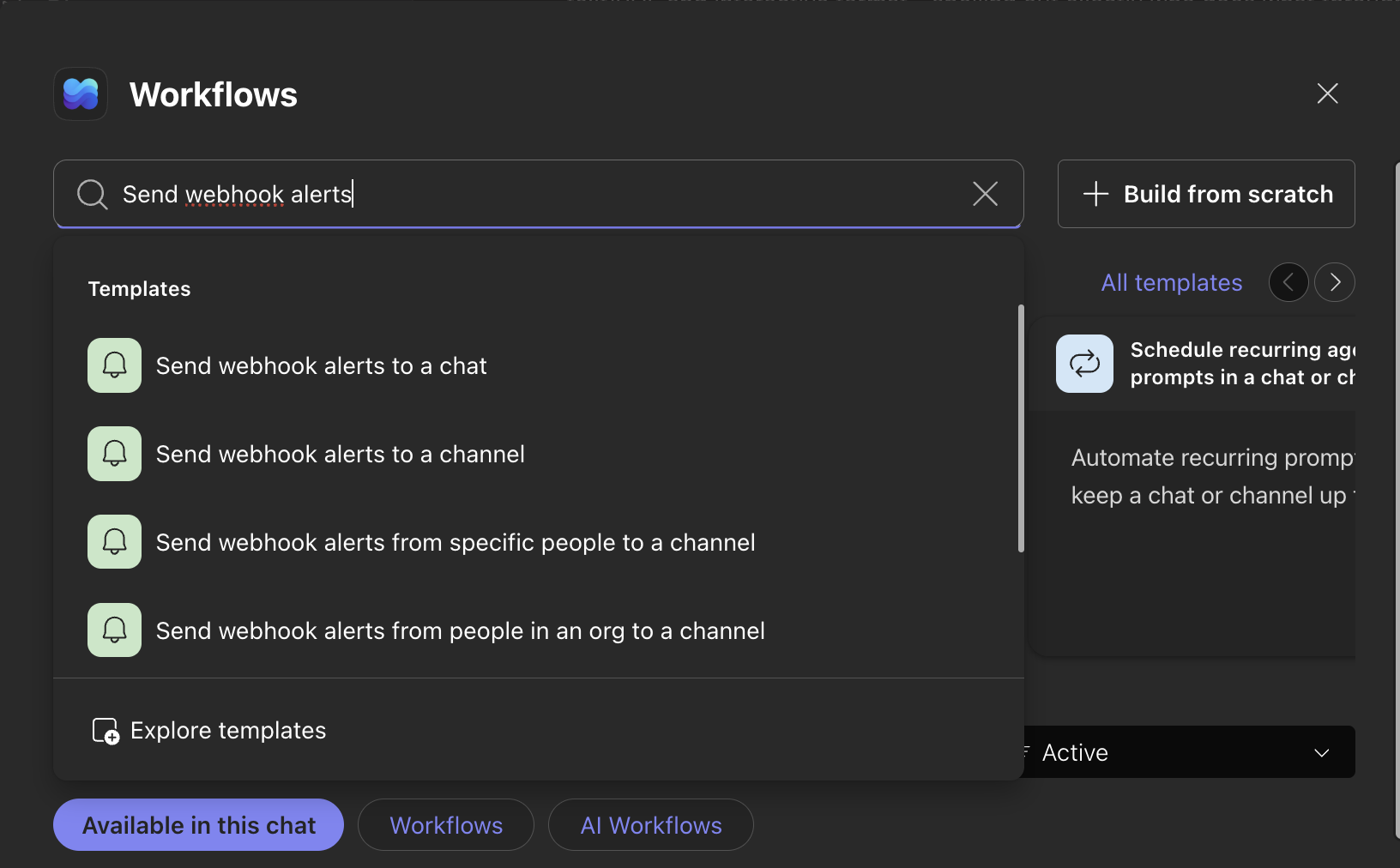
Search for the template Send webhook alerts and choose it. Pick if it should post to a chat or a channel.
-
Sign in if Teams asks you to.
-
Confirm the team and channel, or the chat, and select Add workflow.
-
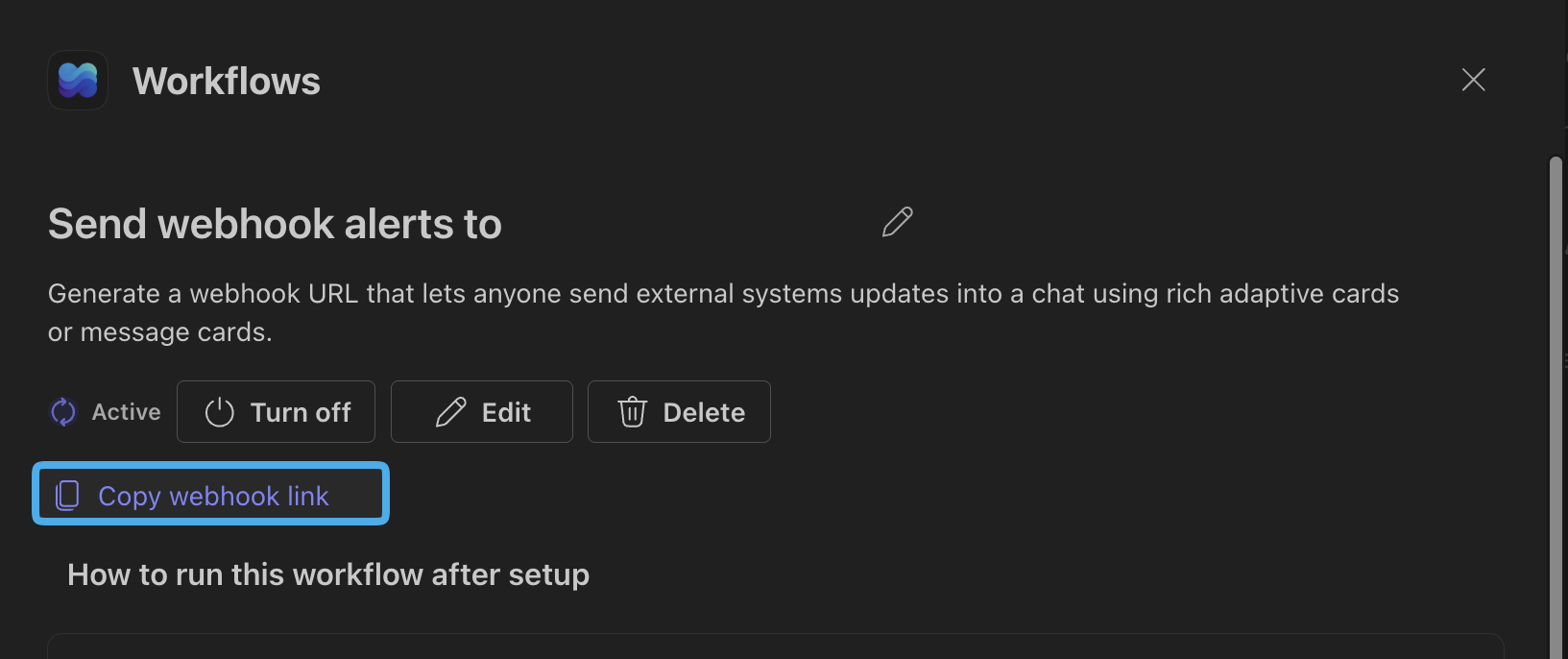
Teams shows the webhook address. Copy it. It starts with
https://prod-and ends withlogic.azure.comin the middle.
-
Select Done.
Add it to the alarm
-
In Supervisor Pro, open the alarm and add a Teams channel.
-
Paste the address and give it a label.
-
Select Send test. A test card should show in the Teams channel.
Keep the webhook address secret. Anyone who has it can post to your channel.
If you do not see Workflows
Your Microsoft administrator has turned it off. Ask your IT team to turn on the Workflows app, or to allow the template. Microsoft explains the steps in Send messages in Teams using incoming webhooks.
Good to know
-
One webhook address is for one channel. Create a new one for each channel.
-
If the test card does not arrive, check that you pasted the whole address without spaces, and that the alarm is active.
-
To remove a webhook, delete the workflow in Teams. The address stops working at once.