

An alarm watches one or more queues. When a queue crosses the limit you set, Supervisor Pro tells the people you choose.
Create an alarm
-
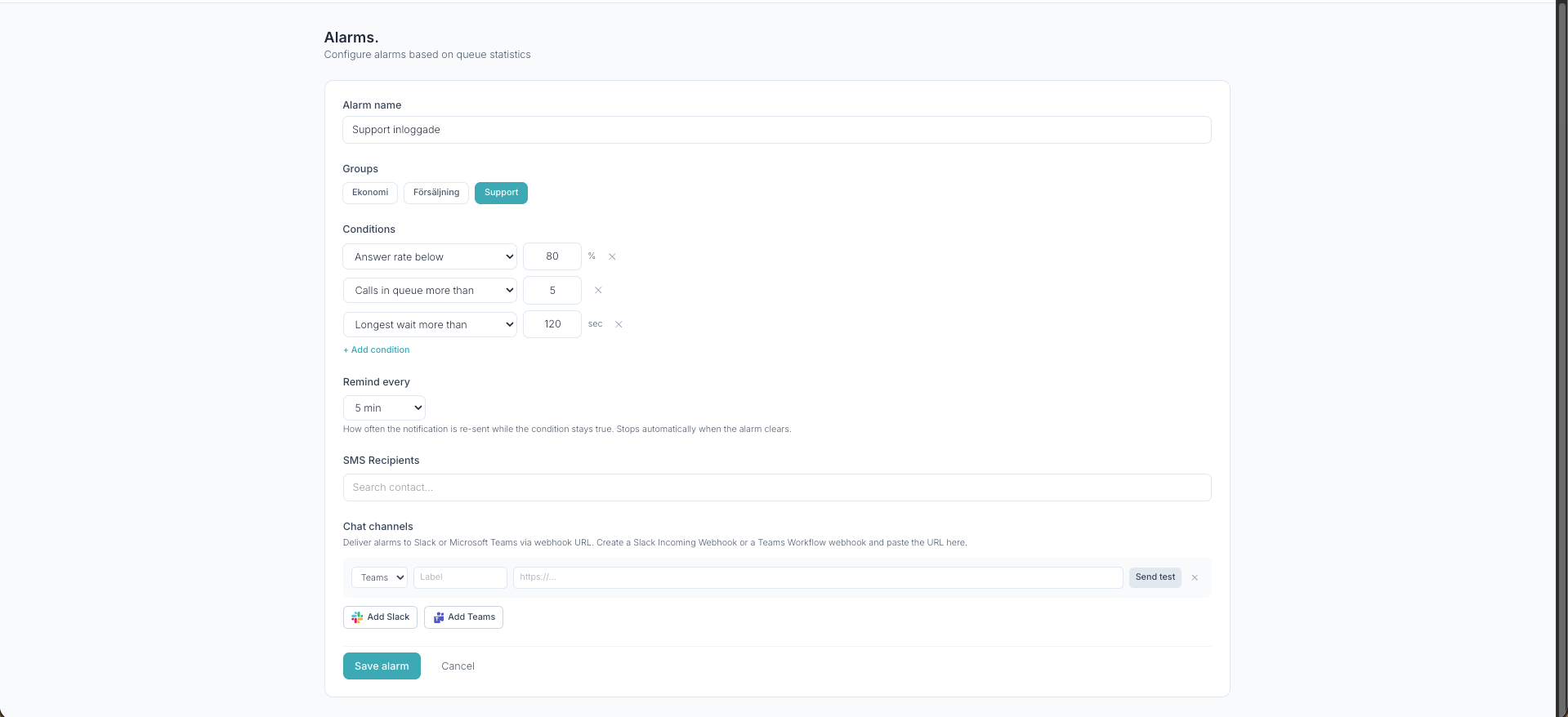
Open the alarms section and select to create a new alarm.
-
Name: give the alarm a clear name, for example "Support understaffed". This is optional but helps.
-
Groups: select one or more queues to watch. The list comes from your Dstny account.
-
Conditions: choose when the alarm should trigger. See the table below.
-
Remind every: choose how often the alarm may repeat while it is still active. Choose once only, or every 5, 15, 30 or 60 minutes.
-
Recipients: start typing a name to search your Dstny contacts and pick the person. Add as many as you like. They get an SMS.
-
Channels: add a Slack or Teams channel, give it a label and paste in the webhook address. Use Send test to check it.
-
Save the alarm.
Conditions you can use
|
Condition |
Triggers when |
|---|---|
|
Logged in agents less than |
Fewer than the set number of agents are logged in. |
|
Available agents less than |
Fewer than the set number of agents are available. |
|
Calls in queue more than |
More than the set number of calls are waiting. |
|
Longest wait more than |
A caller has waited longer than the set number of seconds. |
|
Answer rate below |
The share of answered calls is below the set percentage. |
You can add more than one condition. The alarm then triggers only when all of them are true at the same time.
Send alarms to a channel
Pause, edit or delete an alarm
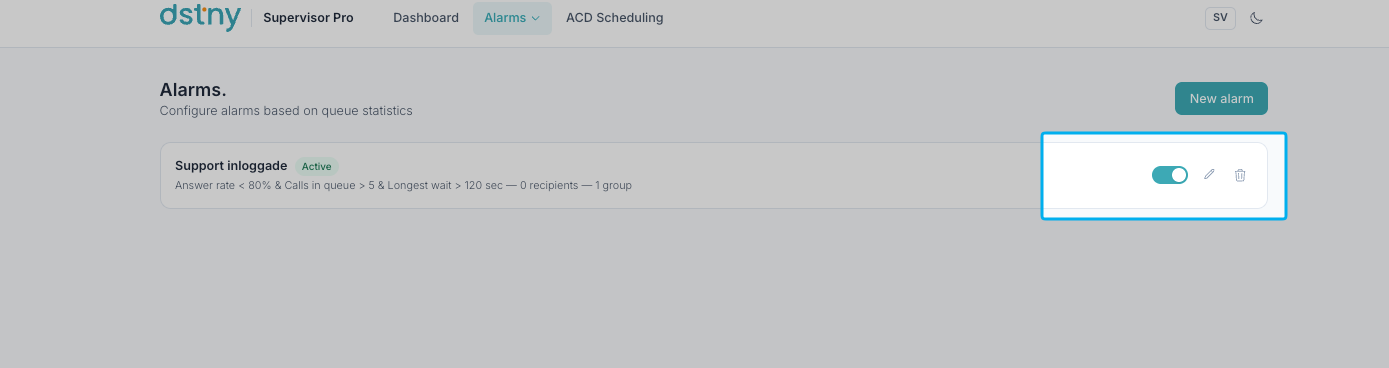
In the alarm list you can switch an alarm on or off, edit it or delete it. Switching it off pauses the alarm without losing it.
What happens when an alarm triggers
-
The dashboard card for that queue turns red.
-
Every recipient gets an SMS.
-
Every Slack and Teams channel on the alarm gets a message.
-
The trigger is written to the activity log.
The alarm does not send another message until the repeat time has passed, or until it clears and triggers again.