

Open the edit view to change a user's details, numbers, groups, devices and services. Some fields are only visible if you have the matching permission.
Open the edit view
-
Open Users in the left menu.
-
Select the user, then select the three dots menu (1). The menu opens (2).
-
Select Edit user (3).
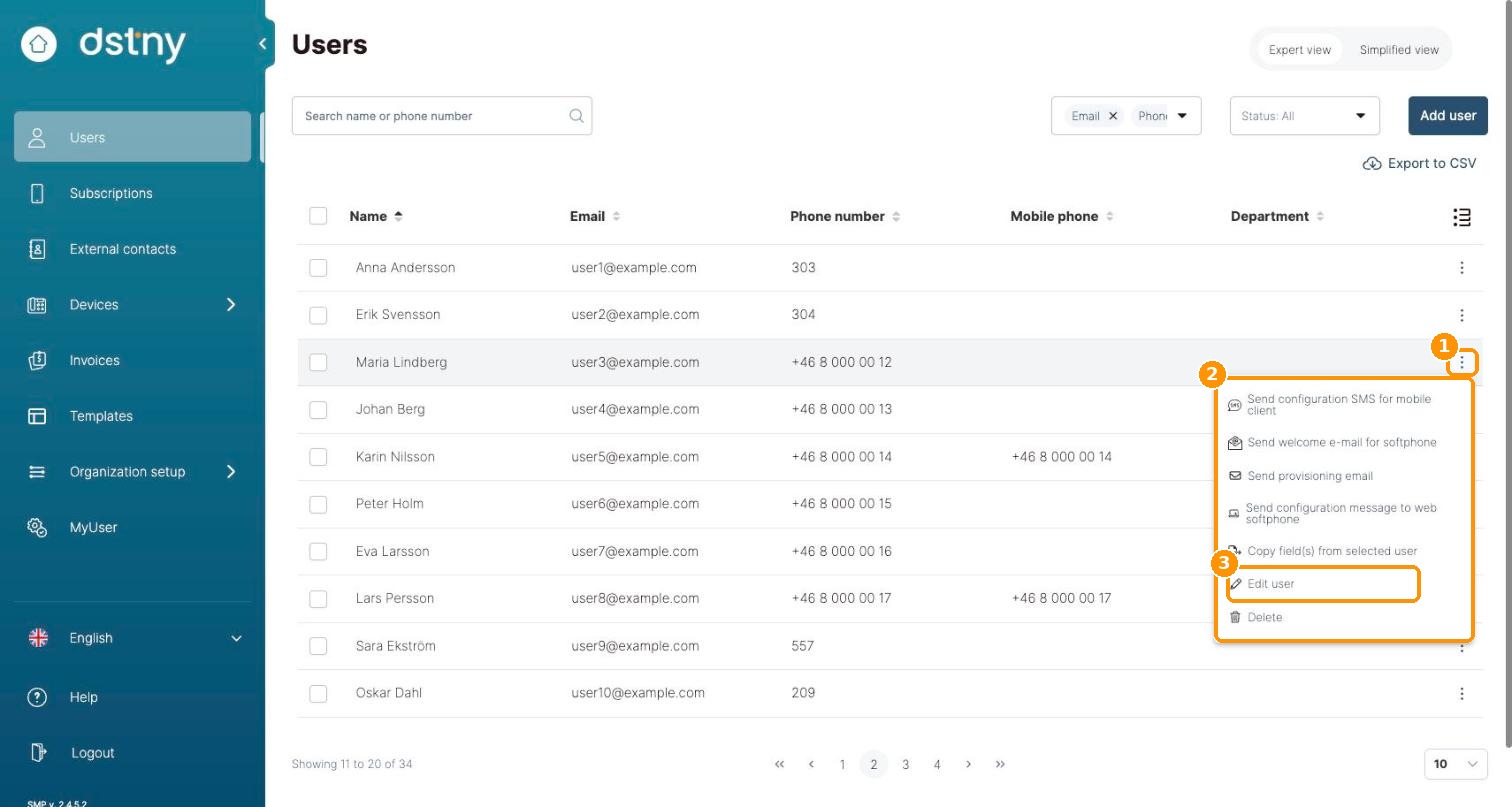
The edit view has a simplified view with the most common settings and an expert view with more.
Common tasks
Change name, email, language or department: use the User tab. The password follows your service provider's password policy, if one is set.
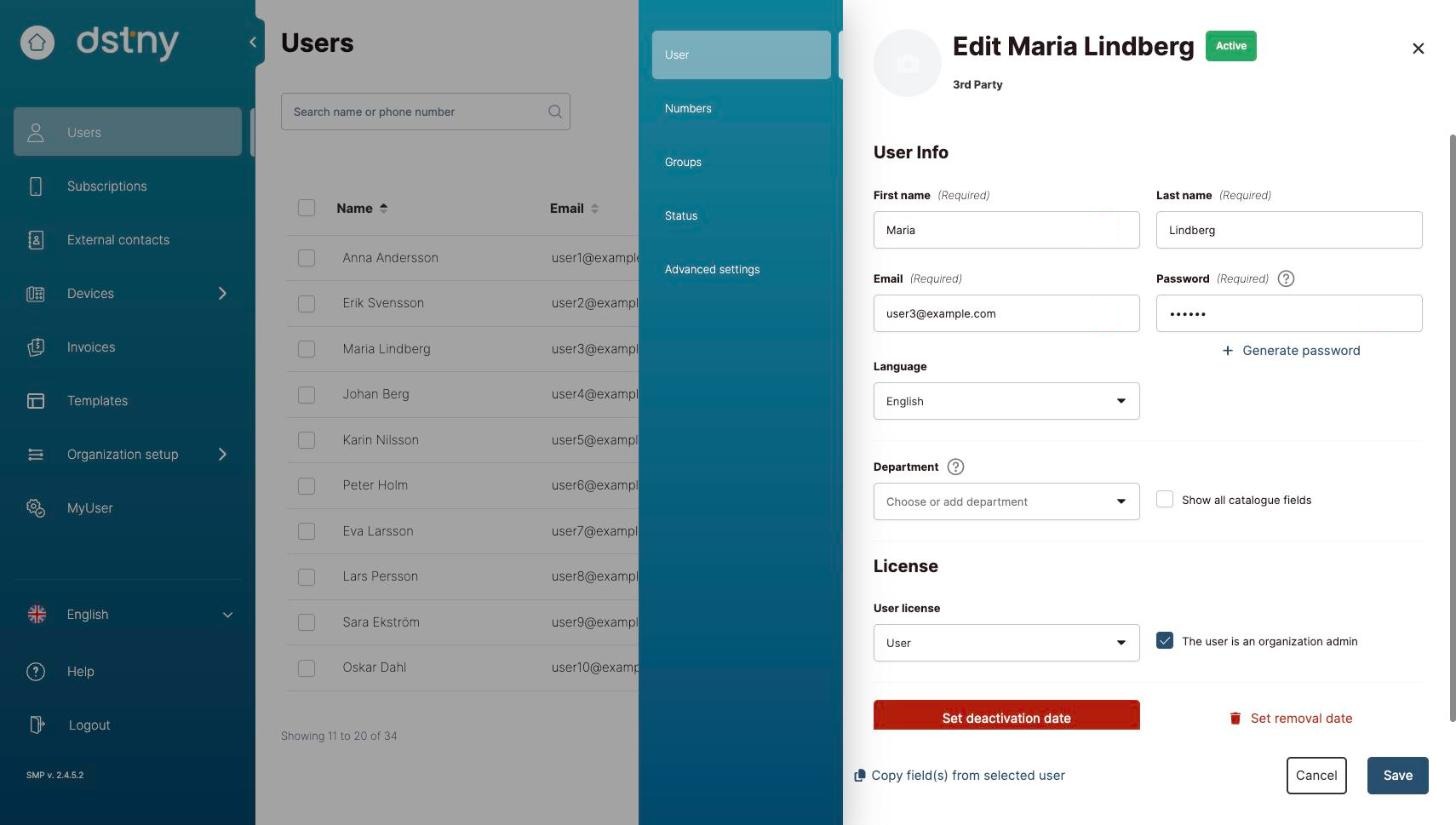
Make someone an administrator: tick This user is an organisation admin. The user then gets access to MyAdmin.
Deactivate a user later: select Set deactivation date. Deactivating disables the user but does not delete them. The user is still billed and cannot use any connected features or devices. You can activate the user again with Set activation date.
Remove a user on a set date: select Set removal date. The user is deleted permanently on that date and billing for the licence stops.
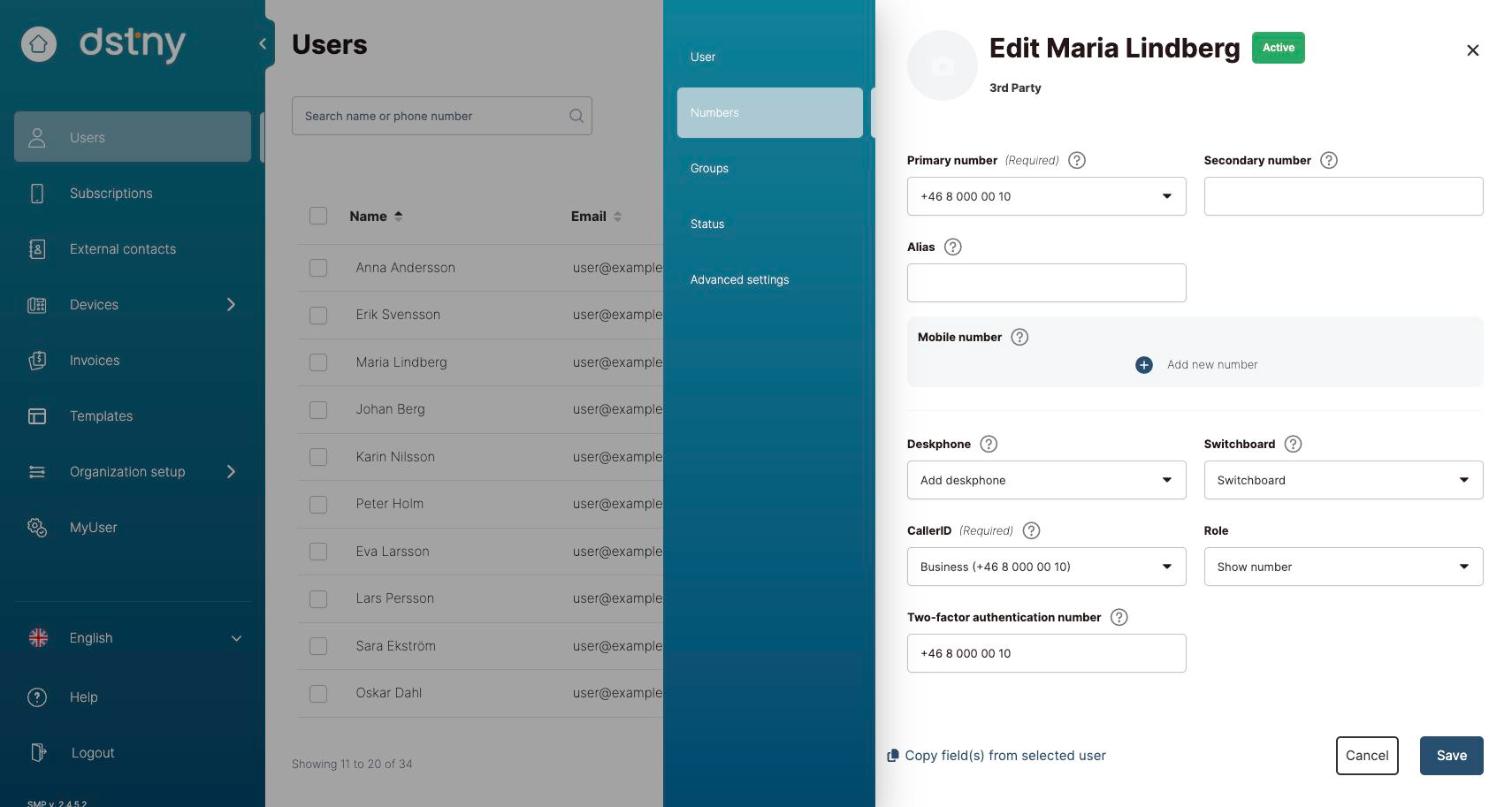
Change numbers: use the Numbers section. The primary number is the fixed line number. The secondary number and mobile profile are shown depending on your settings. The switchboard number must be a PSTN number, not a short number. Caller ID sets the outbound identity.
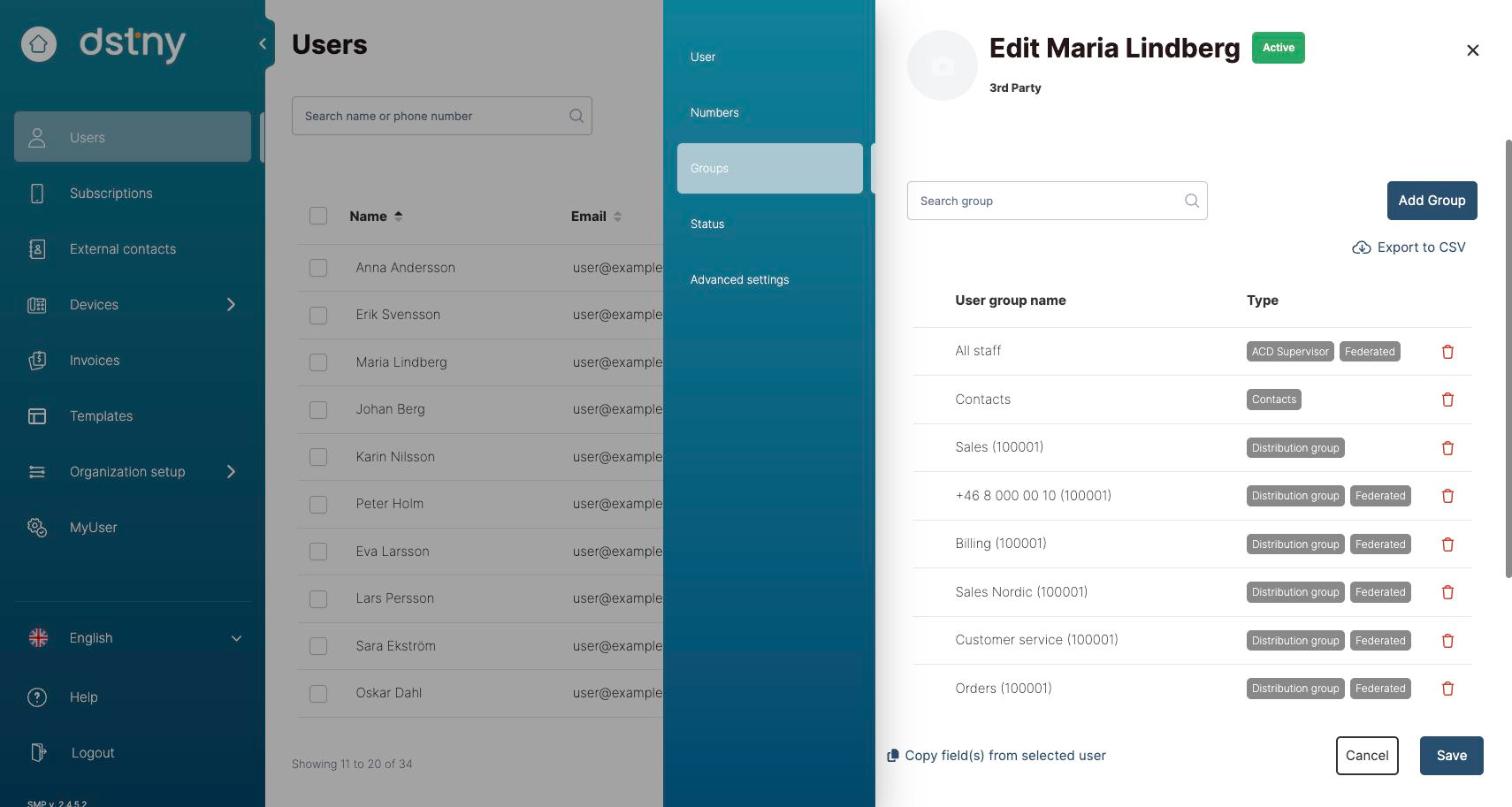
Join or leave groups: use the Groups tab and select Add group. Here you can also see the user's answer groups, their role (member or supervisor) and log them in or out.
Set availability: the Activity status tab sets the activity type (Available or Unavailable) and when it expires. When it expires, the user goes back to Available. You can also add future activity in a calendar or list view. Activity type changes how calls are handled in answer groups, direct numbers and mobile extensions, depending on the rules.
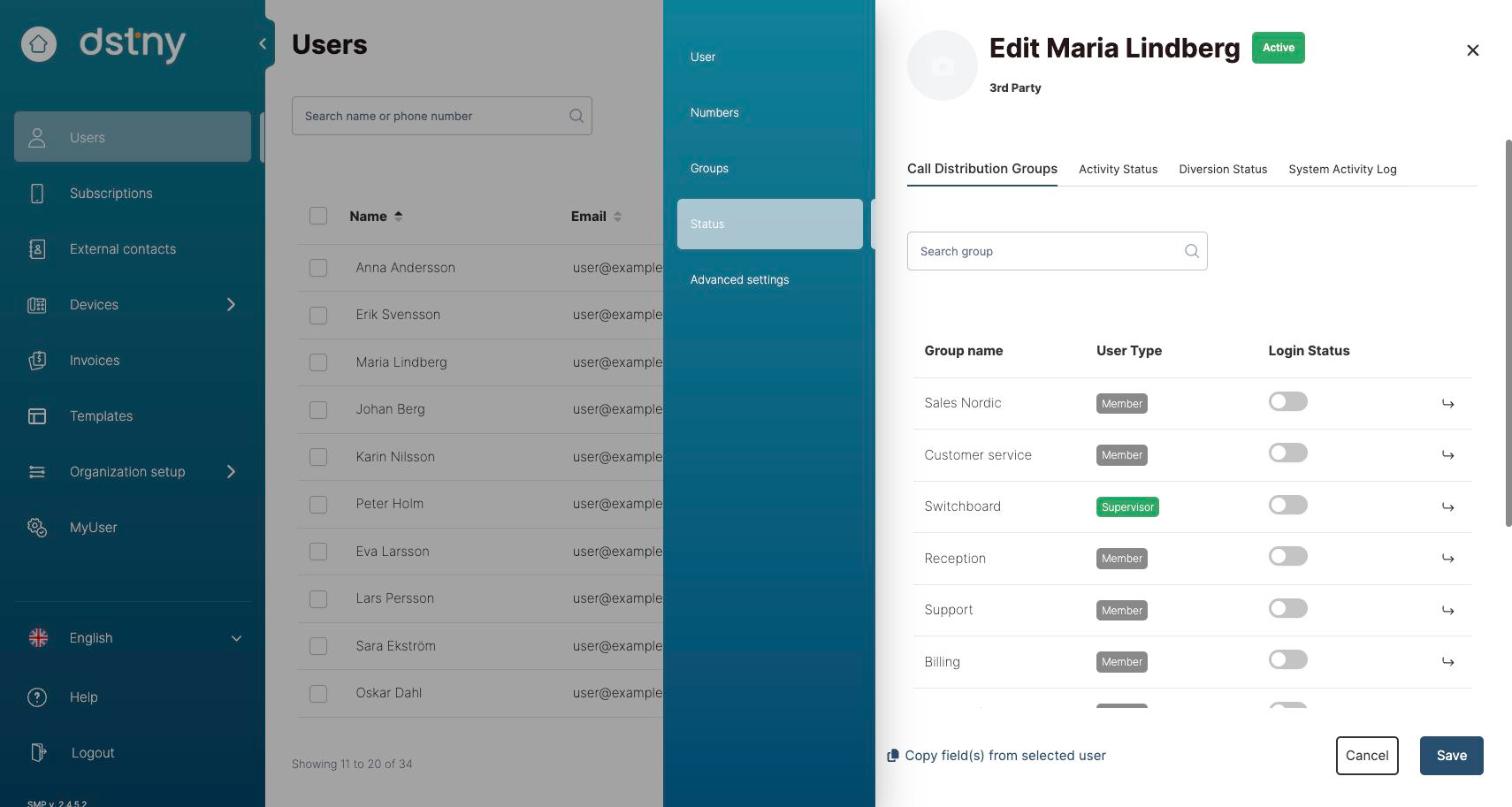
Apply rules and schedules: use the Activity rules, Inbound rules, Outbound rules and Week schedule tabs to apply a template or set rules for this user. The Diversion status tab controls where calls go for a chosen presence, for the primary and secondary numbers.
Set up call pickup: use the Call pickup groups tab. Tick Allow advanced call pickup to let the user pick up calls for members of related groups.
Devices
The Devices tab lists the user's devices with the status Active, Inactive or Unknown. Device types include mobile app, tablet, softphone, desk phone, DECT, web softphone and Teams.
To register a third party SIP device:
-
Go to Users, open the user and select Devices.
-
Expand the 3rd party section and tick Enable 3rd party SIP devices.
-
Select Generate and copy the password to register the device with.
Advanced settings
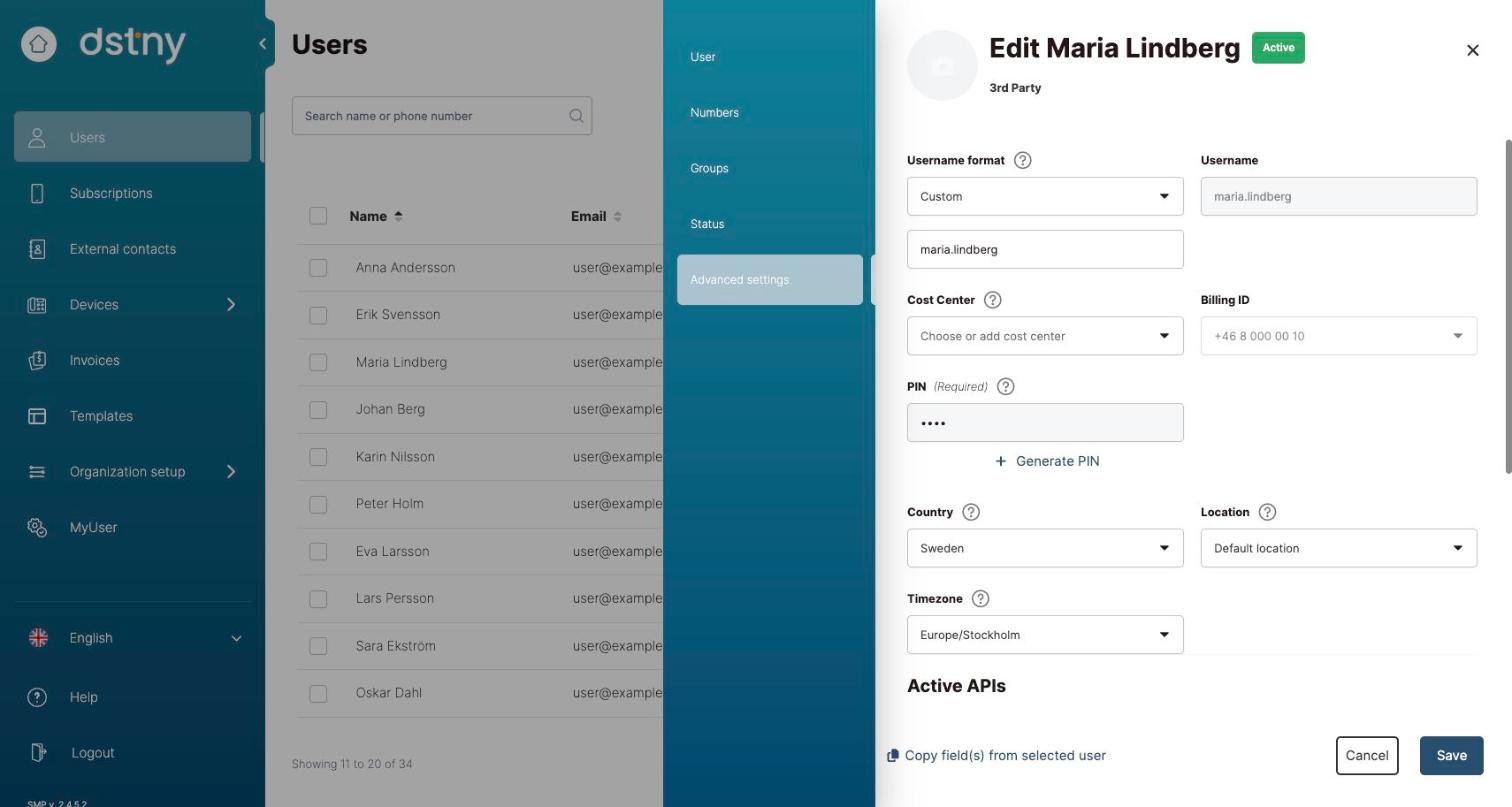
Under Advanced settings you can change the username format (email or phone number) and username, cost centre and billing ID. You can set a new PIN for personal voicemail (4 to 6 digits, following the tenant setting). The current PIN cannot be shown. Country sets the ringtone on desk phones. Location sets the language of voice prompts such as voicemail prompts. You can also set the time zone, turn on APIs and endpoints, and turn services on or off, such as chat, call recording, premium intrusion and Exchange calendar synchronisation. A service that is not editable follows the user's licence bundle.
Other actions in the user list
From the three dots menu you can also send a configuration SMS for the mobile app, send a welcome email for the softphone, send a provisioning email, send a configuration message to the web softphone, apply an activity rules template or a week schedule template, or delete the user.