I denna artikel
- Install the Mobile App
- Forward Calls in the Mobile App
- Future Call Forwards
- Sync App Contacts
- Chat in the Mobile App
- Learn the App Visually
- Quick Guide – Call Back
- Activate Call Back
-
Install the Mobile App
To get started, you need an invitation SMS.
Your switchboard administrator will send an SMS to you via MyAdmin:
- Log in to MyAdmin
- Tap the Users tab
- Find the user and tap the three dots on the right
- Select Send Mobile App Configuration SMS
Once you have received the SMS:
- Click the link in the message
- Tap Download
- Download the app via the App Store or Google Play
- Return to the webpage or click the link again
- Tap Configure
Forward Calls in the Mobile App
You need to have an active call. Calls can only be forwarded via Dstny SE App.
Forward to a Contact
Note! Users with a non-MEX profile must have internet calling enabled.
During the call:
- Open the app and go to Contacts
- Tap the contact you want to forward to
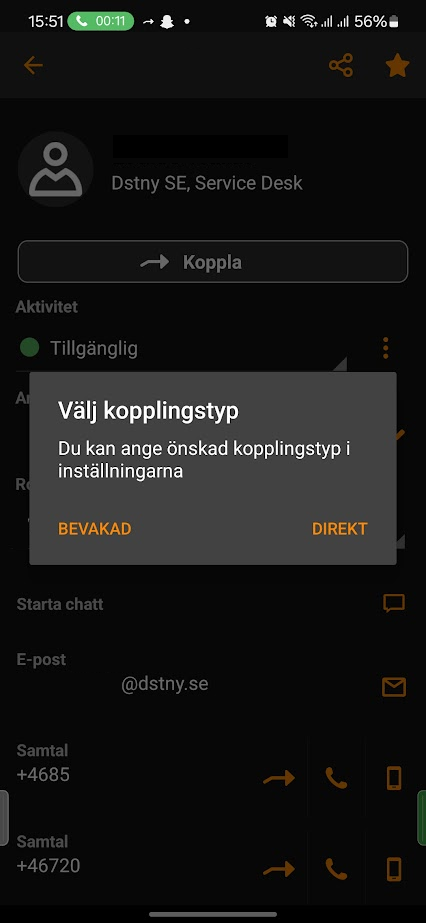
- Tap Forward or hold for the shortcut menu
Forward to a Group
Search for the group in Contacts and tap Forward.
If the group does not appear, make sure the checkbox in the answer group is checked.
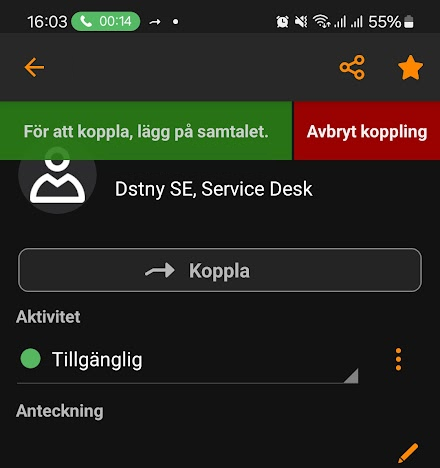
Monitored or Direct Forwarding
If internet calling is enabled, you can only do direct forwarding.
Choosing Monitored allows you to speak with the recipient first. When you hang up, the call will be forwarded.
Future Call Forwards
With Future Call Forward in the app, you can set up forwards in advance. These can also repeat daily, weekly, monthly, or yearly.
Tip: To forward calls during a forward, go to Menu → Call Forwarding → Plus Sign. Select activity and contact/number to forward to.
00:0002:12
Sync App Contacts
- Open the Dstny App
- Go to Settings
- Select Contacts – Sync
- Choose All Contacts or Favorites Only
If you have an iPhone, you need to install a profile. If you already have a profile allowing the app to sync your contacts, just tap All Contacts. Then you are done.
If you do not have a profile allowing sync, you must install it. Tap "Show How" to get a guide directly on your phone or "Install Profile" to skip and install immediately.
You will reach a download page for the configuration profile. Tap Download. Then Allow. Then Close.
Open your phone's Settings, go to More on your iPhone (if you have an iPhone).
Tap Show Profile.
Tap Install in the top right corner. Select Install.
Open the Dstny App again and check All Contacts.
Troubleshooting if it doesn't work:
- Android: Clear the app cache via your phone settings
- iPhone: Delete and reinstall the app
Chat in the Mobile App
In the app, you can chat with colleagues using MyDstny or the app.
Go to the left menu and tap Chat.
Edit Group Chat
Tap the i icon in the group chat:
- Change name
- Change picture
- Add or remove members
- Leave group
Learn the App Visually
Below is a video about the mobile app showing all features visually – perfect if you want a step-by-step overview:
Quick Guide – Call Back
For users who do not have the same operator as their colleagues or who have private mobile subscriptions, the Call Back feature is available. It allows you to display the company's group number or landline number externally from a mobile phone.
Activate Call Back
- Open the app and swipe right to open the main menu.
- Tap Settings.
- Select Calling.
- Change Calling from Direct to Call Back.
Make a Call with Call Back
- Go back to the main menu and open Keypad.
- Dial the number you want to call.
- The switchboard will call your mobile – answer the call.
- Once answered, the system will automatically call the recipient.
The recipient will see the number you chose to display externally, e.g., the company's group number or landline.
Tip: This feature is especially useful when calling from an external mobile while wanting the call to appear as coming from the company's switchboard.
Relaterad till
Uppdaterad